

Executive Overview
In the modern digital workspace, the physical and virtual real estate available to a professional dictates efficiency, cognitive load, and overall job satisfaction. For decades, the standard office setup consisted of a single desktop monitor or a laptop screen. While adequate for linear, singular tasks—such as typing a document or reading a single email—the modern knowledge worker rarely operates in such a siloed environment. Today’s workflows demand continuous context-switching: referencing data sheets while writing reports, attending video conferences while reviewing shared code, or monitoring live metrics while communicating with a team via chat clients.
Upgrading to a dual-monitor configuration has rapidly evolved from a luxury reserved for stock traders, software engineers, and video editors into the single most effective workflow enhancement for everyday productivity. Studies across ergonomic and occupational psychology consistently indicate that adding a second display can boost task execution speed, reduce user frustration, and significantly lower the cognitive fatigue associated with constant window management.
This deep-dive analysis explores the quantifiable benefits of multi-monitor workstations, examines their usability advantages across diverse industries, outlines ergonomic best practices for hardware integration, and assesses how dual screens alter the modern digital landscape.
Detailed Chronology: The Evolution of Desktop Screen Real Estate
To understand the profound impact of the dual-monitor workstation, it is helpful to trace how desktop computing environments have evolved from constrained single-window systems to expansive, multi-display command centers.
The Single-Window Era (1980s – 1990s)
During the early days of personal computing, operating systems were largely designed around single-task paradigms or rudimentary window management. Graphical User Interfaces (GUIs) popularized by early Macintosh and Windows systems introduced the concept of overlapping windows. However, hardware limitations—specifically low screen resolutions (such as VGA’s 640×480 or SVGA’s 800×600 pixels) and expensive cathode-ray tube (CRT) monitors—meant that physical desk space and video card capabilities restricted most users to one display. Multitasking required stacking windows on top of one another, forcing users to constantly minimize, maximize, and alt-tab between applications.
The Rise of the Graphical Multitasking Workspace (Late 1990s – 2000s)
As flat-panel LCD technology matured and graphics processing units (GPUs) dropped in price, desktop operating systems evolved to support native multi-monitor configurations without requiring specialized, high-end hardware. During this era, power users, finance professionals, and creative artists began adopting dual-monitor setups. Operating systems introduced robust window-snapping and extended desktop features, allowing the cursor to glide seamlessly from one physical screen to another. Yet, for the average office worker, a second monitor remained an optional upgrade, often viewed as an extravagance rather than a necessity.
The Remote Work Revolution and the Hybrid Era (2020 – Present)
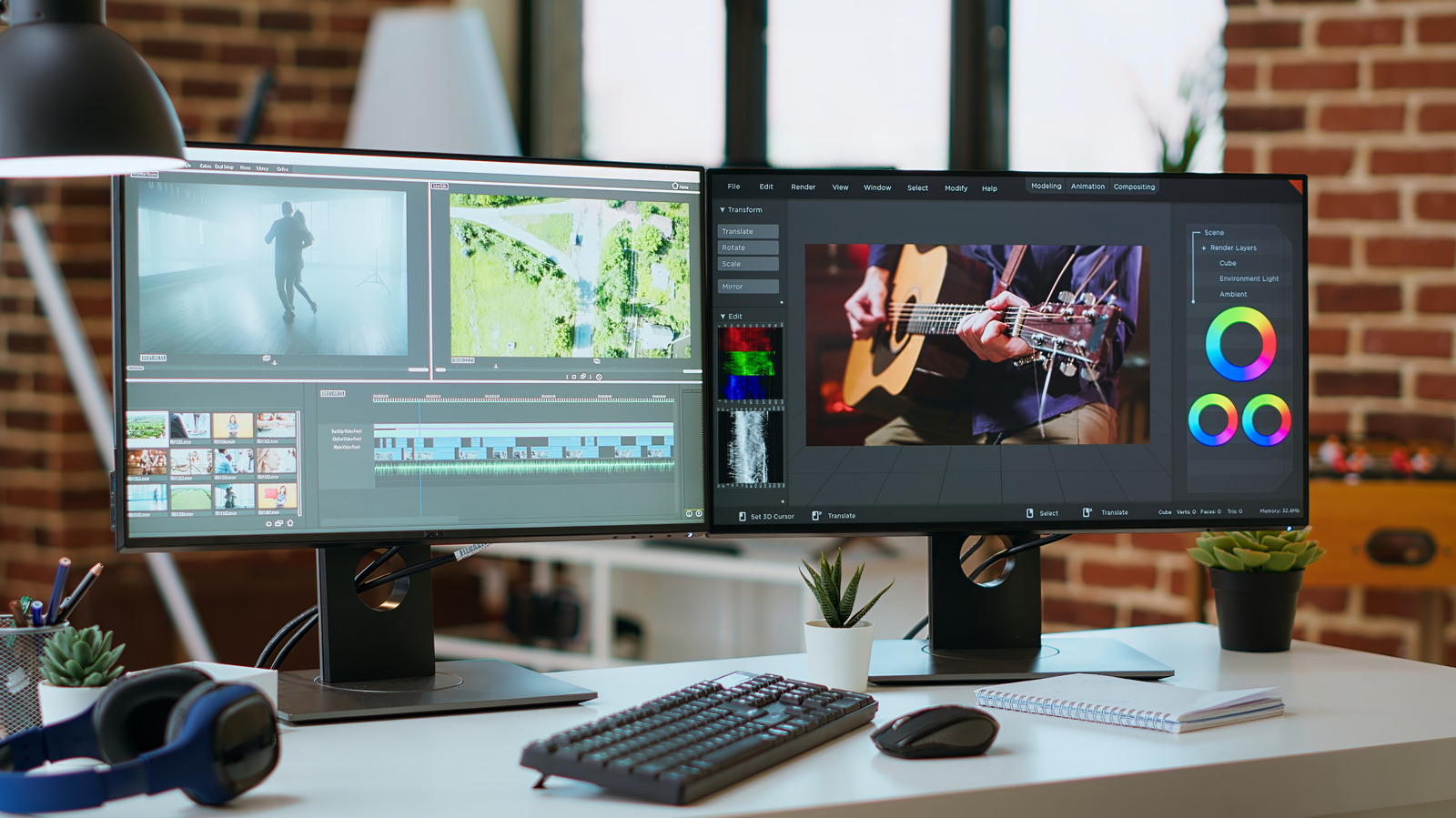
The global shift toward remote and hybrid work models fundamentally transformed home offices. As millions of professionals transitioned from corporate boardrooms to kitchen tables, the limitations of working off a single 13-inch or 15-inch laptop screen became glaringly apparent. Ergonomic complaints, eye strain, and reported drops in daily efficiency prompted an unprecedented surge in peripheral hardware sales. Docking stations, external mechanical keyboards, and, most importantly, second monitors became standard-issue home office equipment. Today, the dual-monitor setup is recognized not merely as a tech-enthusiast aesthetic, but as an essential ergonomic and operational tool for modern knowledge work.
Supporting Context & Metrics: The Ergonomic and Productivity Impact
Why do two screens consistently outperform a single, ultra-wide display or a split-screen laptop window? The answer lies in how the human brain processes visual information, manages working memory, and handles spatial organization.
Cognitive Load and Context Switching
Every time a user minimizes an application or presses Alt+Tab to check an incoming message, the human brain undergoes a micro-disruption known as a "context switch." Research in cognitive psychology indicates that it can take upwards of 15 to 25 minutes to fully regain deep focus after a significant distraction. While switching browser tabs or pulling up a hidden window may seem instantaneous, the cumulative mental friction degrades attention spans throughout the workday.
A dual-monitor setup minimizes this friction by allowing persistent visibility. Primary applications—such as a word processor, integrated development environment (IDE), or video editing timeline—occupy the main display, while secondary, static, or reference applications—such as email inboxes, messaging clients (Slack, Microsoft Teams), project management dashboards, or source PDFs—remain anchored on the second screen.
Empirical Data on Productivity Gains
Numerous workplace efficiency studies have evaluated the productivity impact of multi-display environments:
- The University of Utah / NEC Study: Research commissioned to evaluate office productivity found that users equipped with dual monitors completed standard document-creation and data-transcription tasks roughly 29% faster than those restricted to a single monitor.
- Error Reduction: Participants using multi-monitor setups demonstrated a lower error rate when transferring data between spreadsheets and text documents, largely because they could view both source and destination windows simultaneously without obstructing their field of view.
- Subjective Satisfaction: Over 90% of study participants reported higher comfort levels, less physical neck strain from awkward hunching, and a greater overall sense of ease when managing multiple information streams.
Usability Advantages Across Diverse Professions
While multi-monitor workstations were once the exclusive domain of graphic designers and financial analysts, their utility spans nearly every white-collar and creative industry.
Administrative and Insurance Operations
Consider the daily routine of an insurance claims processor or administrative assistant. The work heavily involves data verification, pulling client records from legacy databases, cross-referencing policy numbers, and drafting formal correspondence.
- Without a second screen: The worker must constantly toggle between a CRM browser tab and a Word document, occasionally resizing windows to fit side-by-side on a cramped laptop display, which shrinks fonts to near-illegible sizes.
- With a second screen: Client data remains permanently visible on the left monitor, while the form submission or email draft occupies the right. Drag-and-drop operations, copy-pasting text, and visual verification occur instantaneously.
Software Development and IT
Programmers rely on vast amounts of documentation, terminal windows, code editors, and staging environments.
- A developer can write code in an IDE on the primary monitor while running real-time compilation logs, API documentation, or a local debugging server on the secondary screen.
- Many advanced developers even utilize three or four monitors (or vertical portrait-oriented displays) to scan thousands of lines of code without excessive vertical scrolling.
Content Creation and Digital Media
Video editors, audio engineers, and graphic designers operate in highly visual workflows.
- Video editing suites (such as Adobe Premiere Pro or DaVinci Resolve) naturally split their interfaces across multiple panels: timeline, source monitor, program monitor, and audio mixing racks.
- Spreading these panels across two physical monitors allows editors to view full-screen video previews on one screen while fine-tuning intricate keyframes and audio waveforms on the other.
Remote Collaboration and Live Streaming
In the era of ubiquitous video conferencing (Zoom, Microsoft Teams, Google Meet), dual monitors solve a classic multitasking dilemma.
- Users can maintain a gallery view of meeting participants on one screen to monitor non-verbal cues and facial expressions, while simultaneously taking meeting notes or reviewing presentation decks on the second screen.
- For live streamers and content creators, one monitor runs the active game or application, while the second manages streaming software (OBS Studio), chat moderation (Twitch/YouTube), and community engagement tools (Discord).
Organization, Hardware Selection, and Ergonomic Best Practices
Implementing a dual-monitor workstation requires more than simply plugging in a second display. Proper hardware selection, physical organization, and ergonomic alignment are essential to prevent physical discomfort and maximize efficiency.
Selecting the Right Hardware
- Size and Resolution Matching: For an optimal visual experience, your secondary monitor should ideally match the physical size and pixel density (PPI) of your primary display. Mismatched resolutions can cause mouse cursors to "catch" unnaturally at screen boundaries and result in jarring text-scaling inconsistencies as you drag windows across the desktop.
- Refresh Rates: High refresh rates (120Hz, 144Hz, or higher) are critical for your primary display—especially if you engage in fast-paced gaming or professional video editing. However, your secondary monitor, which primarily hosts static reference materials, email, or chat windows, functions perfectly fine at a standard 60Hz, allowing you to save money on secondary hardware.
- Connectivity and Docking: Ensure your computer (whether a desktop PC or a modern MacBook) possesses the necessary video outputs (HDMI, DisplayPort, or USB-C/Thunderbolt) and sufficient GPU bandwidth to drive multiple external displays without performance degradation.
Ergonomic Alignment and Positioning
Poorly positioned monitors can lead to chronic neck strain, shoulder tension, and computer vision syndrome. To maintain optimal ergonomics:

- Viewing Distance: Both monitors should be placed approximately an arm’s length away (20 to 28 inches) from your eyes.
- Eye Level: The top of the viewable screen area should be at or slightly below eye level, ensuring your gaze is directed slightly downward.
- Symmetry vs. Primary/Secondary Layout: If you spend 90% of your time looking at one specific application, position that monitor directly in front of you as your primary display, with the second monitor angled slightly to the side. If workloads are split evenly, a centered dual-arm mount with a slight inward curve offers balanced viewing angles.
Eliminating Clutter and Digital Distractions
A major physical advantage of a dedicated second monitor is the elimination of paper clutter. Professionals who once printed out reference briefs, invoices, or research papers can now view them digitally side-by-side, conserving paper and keeping desk surfaces clear.
Furthermore, integrating a dedicated desktop monitor prevents the common pitfall of relying on smartphones or tablet devices as makeshift second screens. Mobile devices introduce constant notification interruptions, social media temptations, and battery management overhead. A hardwired secondary desktop monitor keeps the user immersed entirely within the productive computing environment.
Future Outlook
As personal computing continues to evolve, the physical display landscape is undergoing fascinating transformations. The proliferation of ultra-wide curved monitors, foldable OLED laptop displays, and augmented reality (AR) spatial computing environments hints at a future where physical monitor boundaries may eventually dissolve entirely.
Yet, despite these emerging technologies, the classic dual-monitor configuration remains the undisputed gold standard for office and home productivity. Its unbeatable combination of cost-effectiveness, hardware reliability, intuitive operating system support, and ergonomic flexibility ensures its place at the center of professional workspaces for years to come.
For any knowledge worker, writer, coder, or creative professional looking to unlock a tangible boost in daily efficiency, transitioning from a single-screen setup to a dual-monitor workstation is not merely an upgrade—it is a fundamental transformation of how digital work gets done.