
Executive Overview
In the modern digital landscape, high-speed internet access has transitioned from a luxury to a fundamental utility. For millions of subscribers living in remote, rural, or underserved locations, SpaceX’s Starlink satellite internet constellation serves as a critical technological lifeline, bridging connectivity gaps where traditional fiber-optic cables and cellular infrastructure cannot reach. However, even as consumers grapple with complex geopolitical controversies—ranging from bandwidth prioritization disputes in conflict zones to the polarizing public persona of CEO Elon Musk—the everyday utility of the dish hardware relies heavily on internal local network performance.
While much public attention is directed toward physical dish placement, clear sky visibility, and obstruction mapping, a hidden bottleneck often resides much closer to home: your local wireless router settings. By default, most modern routers, including the hardware bundled with Starlink, utilize a "unified" or band-steered Wi-Fi configuration. This setup merges the 2.4 GHz and 5 GHz frequency bands under a single network name (SSID), automatically deciding which frequency a device should use.
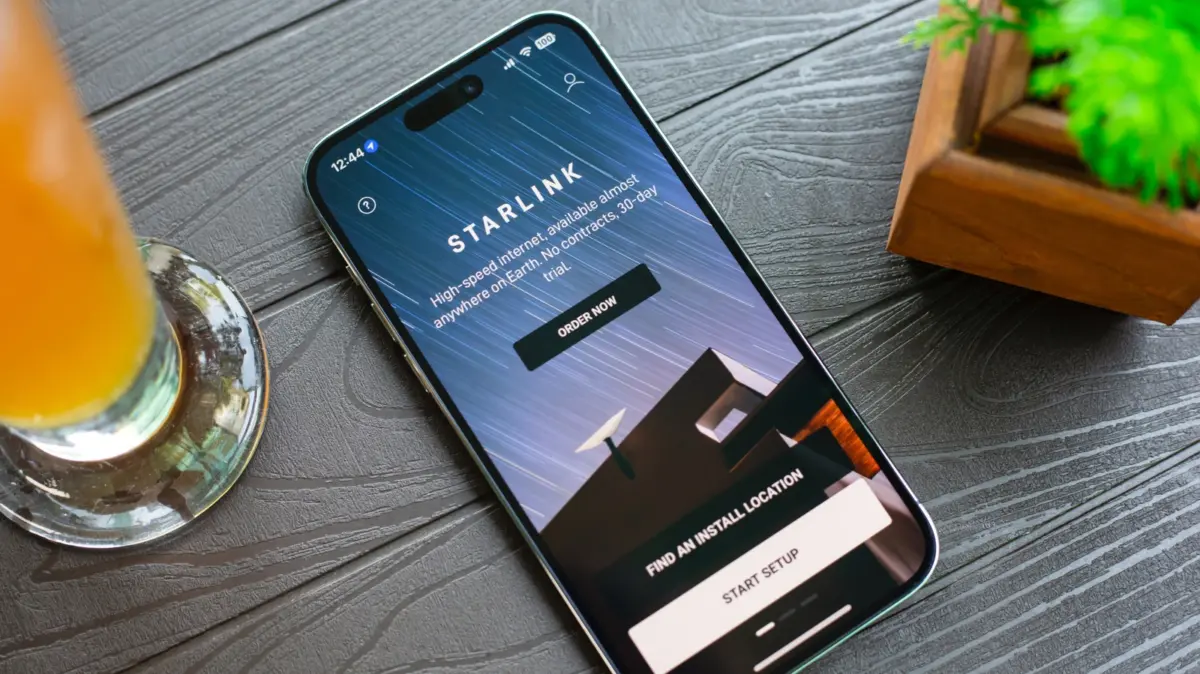
While convenient, this automated band steering is far from foolproof. Devices frequently cling to congested or slower bands, bottlenecking your internet speeds even when a high-performance satellite connection is streaming data straight to your home. Fortunately, a simple toggle hidden within the Starlink mobile application—known as splitting your Wi-Fi network—allows users to manually separate these frequency bands.
This comprehensive guide explores the mechanics of network splitting, analyzing the dual-band architecture of Starlink routers, the engineering rationale behind why separating 2.4 GHz and 5 GHz channels can unlock hidden throughput, and the practical trade-offs regarding range, device compatibility, and local network communication that every subscriber must weigh before adjusting their settings.
Detailed Chronology: The Evolution of Starlink’s Local Networking Hardware
To understand why network optimization has become a prominent topic for Starlink users, it is necessary to examine how SpaceX’s consumer hardware has evolved since the initial public beta launches.
Phase 1: The Round Dish and Basic Wi-Fi 5 Routers (2020–2021)
During the early rollout phases, Starlink shipped systems equipped with a circular phased-array antenna and a proprietary Wi-Fi 5 router. This initial hardware package was designed with simplicity as the core philosophy. The system lacked advanced configuration options within the mobile app, intentionally shielding non-technical users from complex networking terminology. Band steering was mandatory, and advanced local networking controls—such as bridging mode or custom routing rules—were entirely absent, prompting many power users to bypass the stock router entirely using Ethernet adapters.
Phase 2: The Rectangular Standard Actuated Kit and Wi-Fi 6 Integration (2021–2023)
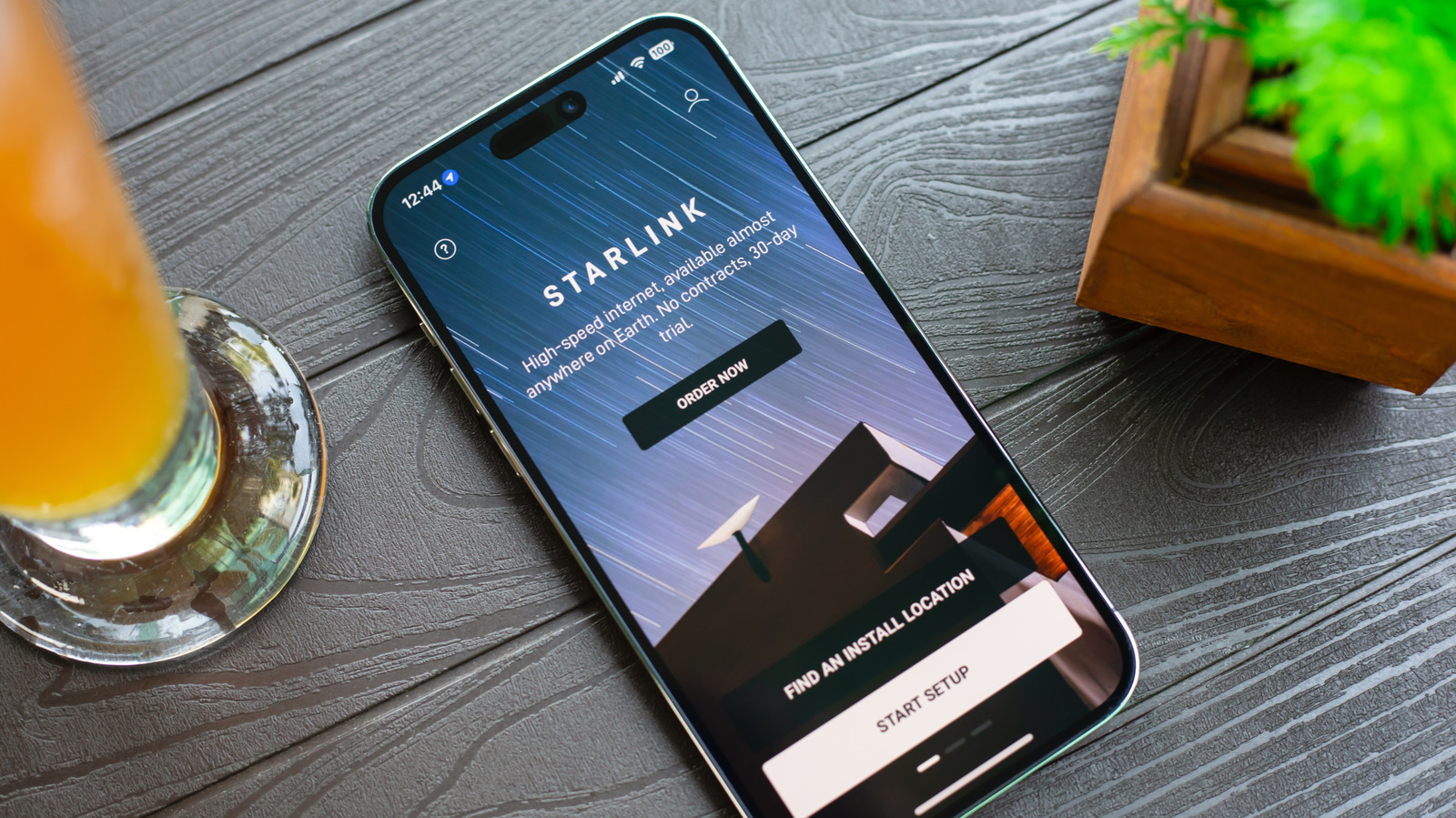
With the introduction of the rectangular Gen 2 Starlink terminal, SpaceX updated its companion router hardware to support Wi-Fi 6 (802.11ax) standards. This upgrade brought improved multi-device handling, higher throughput capabilities, and better power efficiency. Alongside this hardware revision, the Starlink mobile application underwent significant functional expansions. SpaceX engineers introduced advanced features, including obstruction visualization tools, remote management dashboards, and granular network customization settings—most notably, the ability to split networks.
Phase 3: The Current Landscape and Wi-Fi 7 Horizons (2024–Present)
As subscriber numbers scaled globally into the millions, network congestion evolved from an edge-case problem to a widespread daily friction point. Modern deployments, including high-performance hardware and Gen 3 routers, continue to refine throughput. Interestingly, despite supporting cutting-edge wireless protocols, Starlink’s bundled hardware does not currently broadcast over the newer 6 GHz band (Wi-Fi 6E/7), keeping reliance firmly anchored on the classic dual-band framework of 2.4 GHz and 5 GHz. Consequently, the user-controlled toggle to split these two bands has transformed from an obscure technical workaround into one of the most effective optimization steps available inside the Starlink app ecosystem.
Supporting Context & Metrics: The Physics of 2.4 GHz vs. 5 GHz
To grasp why separating your Wi-Fi networks yields performance improvements, one must look at the underlying physics governing wireless radio frequencies (RF).
The Dual-Band Breakdown
Modern dual-band routers broadcast wireless signals across two distinct frequency spectra:
- The 2.4 GHz Band: Operating on lower frequencies with longer wavelengths, the 2.4 GHz band excels at physical propagation. Its longer waves bend easily around obstacles and pass efficiently through dense building materials, such as concrete walls, brick, and heavy timber. However, its primary drawback is limited channel availability. The 2.4 GHz spectrum provides only three non-overlapping channels (1, 6, and 11), creating severe congestion in densely populated areas or homes packed with smart-home gadgets.
- The 5 GHz Band: Operating on higher frequencies with much shorter wavelengths, the 5 GHz band delivers vastly superior data transmission speeds. Shorter wavelengths allow for significantly higher theoretical throughput rates and support a much larger pool of non-overlapping channels (up to 23 or more, depending on regional regulatory domains). This lack of channel overlap drastically minimizes signal interference and network congestion. The trade-off, however, is attenuation: 5 GHz signals degrade rapidly over distance and struggle to penetrate solid barriers, limiting their effective indoor range.
The Problem with Automated Band Steering
Under a unified network name, the Starlink router attempts to balance traffic by dynamically pushing or pulling connected devices between the 2.4 GHz and 5 GHz bands. While this algorithm works efficiently in corporate enterprise environments equipped with high-end wireless access points, consumer-grade routers often struggle with "sticky client" phenomena.
A sticky client occurs when a device—such as a smartphone, laptop, or streaming stick—refuses to drop a 2.4 GHz connection even when a robust 5 GHz signal is available nearby, or vice-versa. Because the router relies on default thresholds to make switching decisions, devices often idle on suboptimal bands.
When you manually split your Starlink Wi-Fi network, you strip away the router’s guesswork. You create two independent Wi-Fi networks (for example, Starlink-Home-2.4 and Starlink-Home-5), granting you explicit, deterministic control over precisely which frequency band your hardware communicates through.
Official Guidelines: How to Split Your Starlink Network via the App
For subscribers experiencing sluggish local speeds despite receiving robust downstream metrics from orbiting satellite constellations, adjusting the network settings requires navigating the official Starlink mobile application.
Step-by-Step Implementation Guide
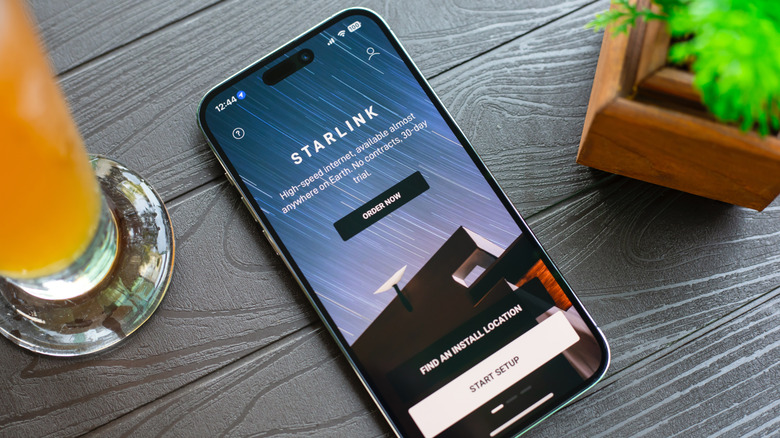
- Launch the App: Open the Starlink application on your iOS or Android device while connected to your home network.
- Navigate to Settings: Tap on the Settings menu icon on the main dashboard, then select Wi-Fi or Network.
- Locate Network Configuration: Look for the configuration options governing your local SSID broadcast parameters.
- Select "Add Network": Choose the option to add or configure a secondary broadcast profile.
- Toggle "Split Network": Flip the switch labeled Split Network.
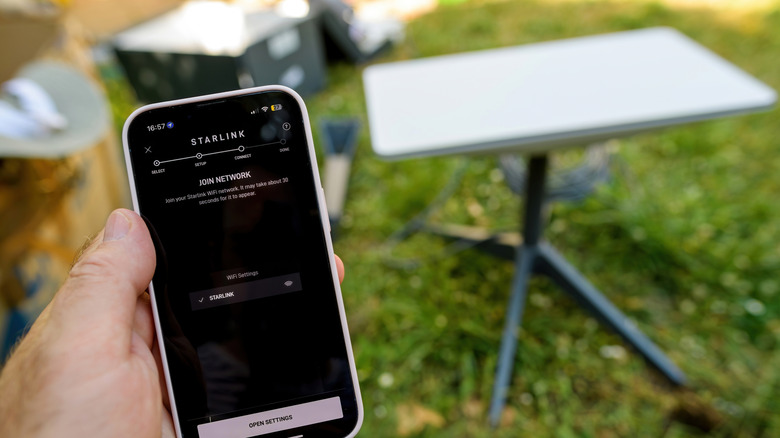
- Rename Your SSIDs: The application will prompt you to create distinct names and passwords for your two new bands. Best practices suggest appending identifying suffixes—such as appending _2.4G and _5G to your primary network name—so you can easily distinguish between them when connecting new devices.
- Save and Reconnect: Confirm your changes. The router will restart its broadcast cycles, forcing you to manually re-authenticate your household devices onto their respective frequency bands.
When Splitting Your Network Causes Problems: The Hidden Trade-Offs
While the performance advantages of forcing high-bandwidth devices onto the 5 GHz band are undeniable, network splitting is not a universal panacea. Several distinct engineering challenges and practical frustrations can arise if the split is executed without careful planning.
1. Range Degradation and Obstruction Vulnerability
As established by wave physics, the 5 GHz spectrum exhibits severe signal attenuation over distance. While a 2.4 GHz signal can easily maintain a stable connection up to 150 feet (45 meters) indoors and punch through multiple interior walls, a 5 GHz signal typically degrades significantly beyond 50 to 75 feet (15 to 25 meters).
If you lock a mobile device—such as a smartphone or tablet—exclusively to your new 5 GHz network, you may find that moving into a distant bedroom, basement, or backyard patio instantly results in a dropped connection or debilitating packet loss. Under a unified, unsplit network, the router would have seamlessly transitioned that mobile device down to the 2.4 GHz band to maintain basic connectivity. With a split network, manual intervention or proximity management becomes a daily necessity.
2. Smart Home and IoT Device Compatibility Issues
Modern smart-home ecosystems—including automated light bulbs, smart plugs, robotic vacuums, security cameras, and wireless thermostats—are overwhelmingly engineered with cost and power efficiency in mind. Consequently, the vast majority of Internet of Things (IoT) devices feature 2.4 GHz-only Wi-Fi radios. They lack the hardware required to decode or transmit across 5 GHz frequencies.
If you split your network and inadvertently obscure the 2.4 GHz SSID, or if you struggle to route configuration packets from a 5 GHz-connected smartphone to a 2.4 GHz smart bulb during setup, your smart home automation routines can break entirely. Many smart devices require the configuring smartphone to be on the exact same frequency band and subnet during initial pairing; splitting the network introduces hurdles that frequently confuse non-technical users.
3. Local Network Discovery and Cross-Band Communication Pitfalls
In an ideal networking environment, devices operating on different frequency bands broadcasted by the same router should seamlessly communicate with one another over the local local area network (LAN). However, aggressive client isolation settings, firewall rules, or firmware bugs on consumer routers can occasionally segregate devices assigned to separate SSIDs.
If your desktop computer is bound to the 5 GHz network and your wireless printer is restricted to the 2.4 GHz band, network isolation glitches can prevent print jobs from executing, block casting protocols (like AirPlay or Chromecast) from locating televisions, and disrupt local file-sharing servers.
4. Administrative Overhead and Convenience Fatigue
Finally, there is the undeniable friction of user experience. Splitting your network means every single wireless device in your household—laptops, gaming consoles, smart TVs, tablets, and phones—must be manually unpaired from the old unified SSID and re-paired to the correct split frequency. For households managing dozens of connected screens and sensors, this administrative chore requires patience. If your existing setup operates without noticeable bottlenecks, the marginal performance gains of network splitting may not justify the setup hassle.
Future Outlook: What Next-Gen Connectivity Holds for Starlink Users
As low-Earth orbit (LEO) satellite technology matures, the infrastructure governing local distribution is bound to advance in tandem. SpaceX continues to iterate rapidly on its user terminal designs, pushing hardware capabilities closer to parity with terrestrial fiber-optic gateways.
Looking toward the horizon, future iterations of Starlink routing hardware are expected to adopt broader wireless standards, potentially integrating Wi-Fi 7 capabilities and expanding into wider frequency channels. However, until tri-band routing architecture (incorporating dedicated 6 GHz channels) becomes standard issue in bundled satellite kits, manual optimization remains an essential tool for discerning power users.
Summary Recommendations
- Split your Starlink network if: You live in a compact space, experience high local interference, and rely on heavy data consumers (such as gaming PCs, 4K streaming boxes, and work laptops) that suffer from sluggish throughput on congested channels.
- Keep your network unified if: Your home sprawls across a large square footage where 2.4 GHz range is mandatory, you manage a complex web of smart home IoT devices, or you prefer a zero-maintenance "set-and-forget" consumer experience.
By understanding the delicate balance between range, speed, and device compatibility, Starlink subscribers can take direct control of their local wireless environments, ensuring that lightning-fast data streaming down from the stars isn’t wasted inside their living rooms.