

Executive Overview
In the modern digital workspace, storage capacity is a precious commodity. Despite the widespread availability of multi-terabyte solid-state drives (SSDs), Windows users routinely find themselves staring down a red, warning-laden capacity bar on their primary drives. Between sprawling game installations, high-resolution media libraries, system caches, persistent temporary files, and hidden application data, hard drives quietly fill to maximum capacity over time.
When a PC begins to run out of storage, system performance often degrades. Windows relies on free disk space to serve as virtual memory (pagefiles), manage system restores, and perform routine defragmentation or garbage collection. Without adequate breathing room, a computer can slow to a crawl, throw unexpected error codes, and reject routine operating system updates.
Unfortunately, standard reactive troubleshooting—such as randomly deleting files from the desktop or arbitrarily uninstalling programs—rarely solves the root cause of the problem. What is required is a methodical, investigative approach to storage management. By leveraging native Windows diagnostics, advanced directory analyzers, and automated maintenance tools, users can methodically audit their file systems, purge digital clutter, and reclaim gigabytes—if not terabytes—of lost storage space with minimal effort.
Detailed Chronology of a Filling Hard Drive: How Storage Disappears
To understand how a pristine, factory-fresh Windows installation eventually grinds under the weight of digital debris, it helps to trace the lifecycle of a typical PC storage drive.
Phase 1: The Honeymoon Period
Upon unboxing a new computer, the primary C: drive appears vast and unyielding. With hundreds of gigabytes available, users install productivity suites, favorite web browsers, and media software without a second thought. Operating system updates are small and infrequent, and the system operates at peak velocity.
Phase 2: The Accumulation Curve
As months pass, hidden background processes begin to alter the storage landscape. Every time a web page loads, images, scripts, and cached data flood into temporary directories (AppData). Application installers leave behind redundant setup files, and Windows Update downloads massive cumulative packages while retaining backup copies of previous system states to ensure rollback capabilities. Users download PDFs, installation packages, and media files directly into the default "Downloads" folder, rarely returning to clean them up.
Phase 3: The Critical Threshold
Eventually, the drive hits an invisible tipping point—typically when less than 10 to 15 percent of total capacity remains. At this stage, Windows struggles to allocate contiguous blocks of data for writing new files, resulting in severe fragmentation on mechanical drives or accelerated wear and tear on SSD write cycles. Performance stutters, application crashes multiply, and the operating system finally issues explicit warnings that urgent action is required.
Step-by-Step Methodology: Auditing and Reclaiming Your Windows Storage
Rectifying storage bloat requires a structured, top-down strategy. Instead of guessing where space has vanished, users should proceed through a series of diagnostic and remediation tiers.
Step 1: Navigating Native Windows Storage Settings
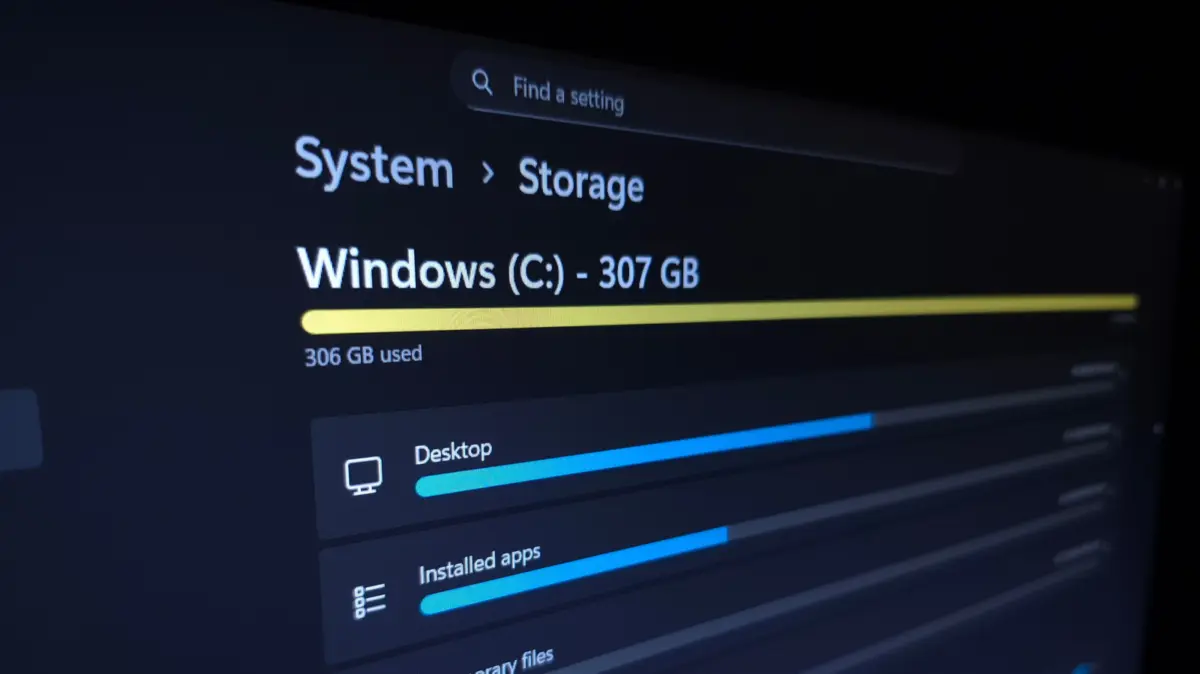
The journey begins within the operating system itself. Windows features a robust, built-in storage management hub designed to give users a macro-level overview of disk utilization.
- Accessing the Panel: Press the Win + I key combination to launch the Settings application, then navigate to System > Storage.
- Interpreting the Breakdown: The primary interface displays the total capacity and current free space of your primary disk, categorized into segments such as Installed apps, Temporary files, Documents, and System & reserved.
- Targeting Installed Apps: Clicking on Installed apps redirects you to the application management suite. By changing the sort order dropdown from alphabetical to Size (Large to Small), users can instantly identify massive triple-A games, video editing suites, or forgotten desktop applications that are monopolizing resources. Utilizing the three-dot menu allows for immediate uninstallation, while secondary drives can sometimes host relocated Microsoft Store packages via the Move function.
Step 2: Excavating Temporary Files and System Clutter
The Temporary files menu is a goldmine for quick storage recovery. Windows aggregates various caches, error reports, and upgrade logs here.
- Executing Safe Cleanups: Checkboxes allow users to safely eliminate items like DirectX shader caches and thumbnail databases. Clicking Cleanup System Files unlocks even deeper layers of digital debris, such as remnants of previous Windows feature updates (Windows.old folders).
- Exercising Caution with Downloads and the Recycle Bin: While the Downloads folder and Recycle Bin frequently house dozens of gigabytes of discarded files, automated clearance can lead to accidental data loss. Users should manually review the contents of the Recycle Bin via the desktop shortcut before purging it permanently, and carefully sift through the Downloads folder to archive or delete lingering executables and archives.
Step 3: Trimming System-Level Storage Features
For users facing severe space constraints, examining core operating system features can yield significant space, though these actions require a higher degree of technical caution.
- Disabling Hibernation: The hibernation feature saves an exact snapshot of your RAM to the hard drive (
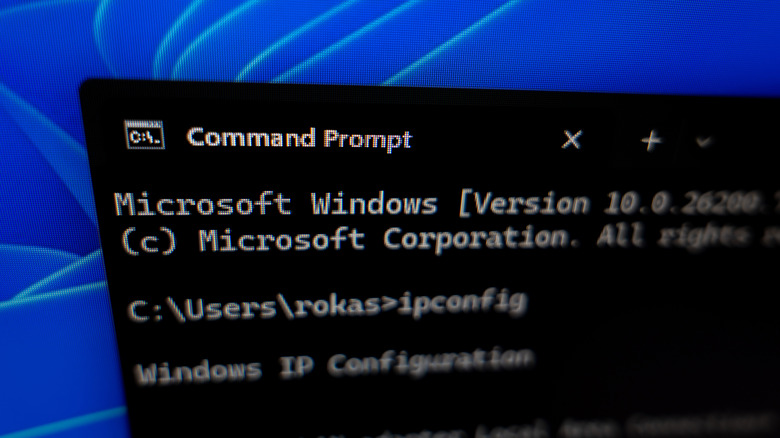
hiberfil.sys) every time the PC shuts down, consuming space roughly equivalent to your total RAM capacity. If you exclusively use Sleep mode, you can disable hibernation entirely. Open the Start menu, typecmd, right-click Command Prompt, and select Run as administrator. Execute the following command:powercfg /hibernate offThis instantly deletes the hiberfil.sys file, returning massive amounts of space to your drive. (To reverse this later, simply run
powercfg /hibernate on). - Managing System Restore: System Restore points protect your PC from bad driver updates or catastrophic software installations, but they eat up disk space rapidly. Navigate to Control Panel > System > System Protection, select your system drive, and click Configure. By adjusting the Max Usage slider downward, or clicking Delete to wipe all existing restore points, users can free up substantial capacity—though at the cost of historical recovery options.
Step 4: Deep-Dive Analysis with Third-Party Tools
While the native Windows storage menu provides a helpful overview, it falls short when attempting to visualize individual file hierarchies and deeply nested folders. For absolute clarity, third-party utility software is indispensable.
- Deploying TreeSize Free: Applications like JAM Software’s TreeSize Free offer a graphical tree-map representation of your hard drive. By running the program as an administrator and pointing it toward the C: drive, users are presented with a directory tree sorted automatically by size.
- Interpreting the Results:
- Program Files & Program Files (x86): These directories house installed software. They should not be edited manually; instead, use the uninstallation protocols outlined earlier.
- Users Folder: Navigating to your specific user profile reveals space consumption within documents, pictures, and desktop folders.
- AppData: Often a massive repository of hidden bloat. Subfolders like
LocalandRoamingstore caches for web browsers, Discord, Spotify, and email clients. Clearing these app caches can recover gigabytes of dead weight.
- Hunting Duplicates with dupeGuru: Beyond standard file sizing, duplicate files represent a silent tax on storage drives. Tools like dupeGuru scan directories for identical media, documents, and archives possessing different file names, allowing users to safely eliminate redundant copies.
Supporting Context, Metrics, and Long-Term Strategies
To maintain a healthy storage environment over the long term, reactive cleaning must be paired with proactive architectural changes.
Strategic Offloading and Cloud Integration
When local storage hits its ceiling, modern cloud and hardware ecosystems offer scalable alternatives:
- Cloud Archiving: Uploading long-form video projects to platforms like YouTube (even as unlisted videos) or syncing photo libraries to dedicated cloud storage providers permits the secure deletion of heavy local raw files.
- OneDrive Files On-Demand: For Windows users integrated with Microsoft OneDrive, enabling "Files on-demand" ensures that files reside in the cloud rather than locally, downloading to the device only when actively opened.
Hardware Expansion: The Cost-Benefit Equation
If routine maintenance fails to keep pace with your digital lifestyle, hardware upgrades remain the ultimate solution.
- External and Internal SSDs: Modern NVMe and portable solid-state drives have dropped significantly in price per gigabyte. Adding a secondary 1TB or 2TB SSD isolates your operating system from heavy media and game libraries, dramatically reducing wear on the primary drive.
- Mechanical Hard Drives (HDDs): For archival storage—such as old backups, family photo archives, and cold data—high-capacity external HDDs offer a cost-effective alternative to high-speed SSDs.
Automation via Storage Sense
Rather than manually auditing your PC every few months, Windows provides an automated janitorial service known as Storage Sense.
- Configuration: Navigate to Settings > System > Storage > Storage Sense.
- Rules and Triggers: Enable automatic temporary file cleanup, configure how frequently the system purges the Recycle Bin and Downloads folder, and set Storage Sense to run automatically when free disk space runs critically low.
Future Outlook: The Evolution of PC Storage Management
As computing moves deeper into the era of artificial intelligence and cloud-native operating systems, the philosophy of local storage management is undergoing a fundamental transformation.
Operating systems of the near future will likely rely less on manual user intervention and more on predictive, AI-driven caching systems. These systems will autonomously determine which files, models, and application assets are required for daily workflows and dynamically flush redundant data to the cloud without user prompts.
However, until fully autonomous operating systems become the industry standard, mastering the manual and semi-automated diagnostic techniques outlined in this guide remains an essential skill for every computer user. By treating storage management as a disciplined, methodical routine rather than an emergency chore, you can ensure your Windows PC continues to operate at peak performance, free from the burden of digital clutter.