
Executive Overview
In the hyper-connected landscape of the 21st century, the modern smartphone has evolved into an indispensable tool for both professional output and personal engagement. However, this relentless connectivity carries a heavy cognitive tax. Constant notifications, persistent banner alerts, and ambient haptic feedback fragment human attention, degrading deep-work capability and fracturing our downtime. Recognizing this existential strain, Apple has spent more than a decade refining how iOS handles interruptions.
What began in the era of iOS 6 as a blunt instrument known as "Do Not Disturb" has matured into a sophisticated, multi-layered notification management ecosystem. Today, iOS provides users with a granular suite of controls that extends far beyond the classic silent switch. Between Silent Mode, traditional Do Not Disturb, customizable Focus Modes, and newly emerging artificial intelligence features, iPhone users possess unprecedented authority over their digital environments.
This comprehensive guide explores the evolution, mechanics, and practical configuration of iOS notification management. We examine the functional distinctions between Silent Mode, Do Not Disturb, and customized Focus profiles, while highlighting how advanced features—including scheduled automation and Apple Intelligence’s "Reduce Interruptions" capability—transform the iPhone from a source of distraction into an engine of intentional focus.
Detailed Chronology: The Evolution of iOS Interruption Management
To fully understand the power of modern iOS notification architecture, it is necessary to trace how Apple has iteratively reshaped mobile interruption management over the last decade and a half.
Phase 1: The Era of the Silent Switch and the Birth of Do Not Disturb (iOS 6)
In the early days of mobile computing, notification management was binary. Users could either allow their devices to ring and buzz audibly or rely on the physical physical ring/silent switch on the side of the device to mute auditory alerts. While effective for silencing a ringing phone during a meeting, this approach remained flawed: notifications still illuminated screens, vibrated in pockets, and piled up unread in notification centers.
Recognizing the need for a more comprehensive solution, Apple introduced Do Not Disturb (DND) alongside iOS 6. DND was designed to act as a digital fortress. When enabled, it silenced all incoming calls, alerts, and banners, rendering the screen dark and quiet upon notification receipt. While groundbreaking for its time, early DND iterations lacked flexibility. It was an all-or-nothing proposition: users either received every distraction or blocked everything, making it poorly suited for individuals who needed to filter out background noise while remaining reachable for critical contacts, such as aging parents or childcare providers.
Phase 2: Granular Control and Allow-Lists (iOS 7 – iOS 14)
As smartphones assumed an even more central role in daily operations, Apple began introducing incremental refinements to Do Not Disturb. iOS iterations added features such as "Allow Calls From" groups (permitting Favorites or all Contacts to break through the silence) and "Repeated Calls" logic (which allowed a second call from the same number within three minutes to bypass the block in case of an emergency).
Despite these additions, the single-profile nature of Do Not Disturb remained a bottleneck. A user who wanted strict silence during a professional meeting required the same settings as a user attempting to block social media alerts before sleep, forcing constant manual re-adjustments in the Settings application.
Phase 3: The Introduction of Focus Modes (iOS 15)
With the launch of iOS 15, Apple retired the old paradigm and introduced Focus. Representing a foundational redesign of notification filtering, Focus transformed Do Not Disturb from a singular switch into a customizable framework.
Focus modes allowed users to construct multiple, scenario-specific notification profiles—such as Work, Personal, and Sleep—each with its own distinct rules. Instead of merely blocking everything, Focus introduced dual-action filtering: users could specify exact applications permitted to send alerts and precise contacts granted access to their attention. Furthermore, iOS 15 tied these profiles to Lock Screen aesthetics, home page configurations, and automated triggers, signaling a shift toward context-aware mobile computing.
Phase 4: Contextual Automation and Machine Learning Integration (iOS 16 – Present)
In recent iterations, Apple has injected predictive intelligence into the Focus architecture. Modern iOS leverages device sensors, spatial awareness, and machine learning routines to automate interruptions. Features like Smart Activation analyze location data, app usage habits, and time stamps to turn Focus profiles on and off without human intervention.
Most recently, the integration of Apple Intelligence has birthed advanced filtering tools like the Reduce Interruptions Focus. By evaluating incoming data streams through on-device large language models, modern iPhones can dynamically assess whether a notification warrants immediate user attention, ushering in an era of truly autonomous digital mindfulness.
Technical Breakdown: Silent Mode vs. Do Not Disturb vs. Focus Modes
Navigating the modern iPhone’s notification ecosystem requires a clear understanding of the operational boundaries separating its three primary silencing mechanisms: Silent Mode, Do Not Disturb, and customized Focus Modes.
+-------------------------------------------------------------------+
|                  iOS NOTIFICATION HIERARCHY                       |
+-------------------------------------------------------------------+
| 1. SILENT MODE                                                    |
|    - Visuals: Active (Banners & Lock Screen show everything)      |
|    - Audio: Muted (No rings or alert tones; haptics may occur)    |
+-------------------------------------------------------------------+
| 2. DO NOT DISTURB (DND)                                           |
|    - Visuals: Suppressed (No banners or lock screen wake-ups)     |
|    - Audio: Muted (Unless overridden by emergency contacts)       |
+-------------------------------------------------------------------+
| 3. FOCUS MODES (Work, Personal, Sleep, Custom)                    |
|    - Visuals: Highly Curated (Specific apps/people allowed)       |
|    - Audio: Custom Rules (Dynamic filtering per context)          |
+-------------------------------------------------------------------+
1. Silent Mode: The Physical Audio Mute
- Mechanism: Triggered either via the traditional hardware ring/silent switch or the Action Button on newer iPhone Pro models.
- Behavior: Visual notifications continue to operate entirely unhindered. Banners drop down from the top of the screen, Lock Screen counts accumulate, and notifications populate the Notification Center. However, all auditory cues—ringtones, text tones, and app notification chimes—are muted, though the device may still emit physical haptic feedback depending on system settings.
- Best Use Case: Quick, temporary muting when entering a quiet physical environment (such as a movie theater or library) where visual notification checks are still acceptable.
2. Do Not Disturb: The Visual and Auditory Blackout
- Mechanism: Accessed via the Control Center or configured within settings as a foundational Focus profile.
- Behavior: When DND is active, incoming notifications are intercepted before they can wake the screen, drop banner alerts, or make noise. They quietly accumulate in the background, viewable only when the user intentionally unlocks the device and opens the Notification Center.
- Best Use Case: Deep work sessions, high-stakes meetings, or meditation periods where zero visual or auditory interruptions are tolerated.
3. Focus Modes: Contextual Customization
- Mechanism: Advanced software profiles accessible via Control Center (
Settings > Focus). - Behavior: Focus modes elevate notification filtering into a sophisticated rule engine. Every Focus mode operates independently, utilizing custom allow-lists and silence-lists for both applications and contacts. When a specific Focus is engaged, iOS actively filters out all non-compliant inputs while letting approved signals pass through. Additionally, Focus modes can alter device behavior by hiding specific home screen pages, switching Apple Watch faces, and applying Lock Screen filters.
- Best Use Case: Daily life management—automatically transitioning from a Work profile (permitting Slack and Mail) to a Personal profile (permitting family messaging apps) to a Sleep profile (blocking all non-emergency alerts entirely).
Configuration and Implementation Guide
Configuring your iPhone to manage interruptions efficiently requires navigating the Control Center and the iOS Settings application. Below is a step-by-step methodology for establishing absolute control over your digital environment.
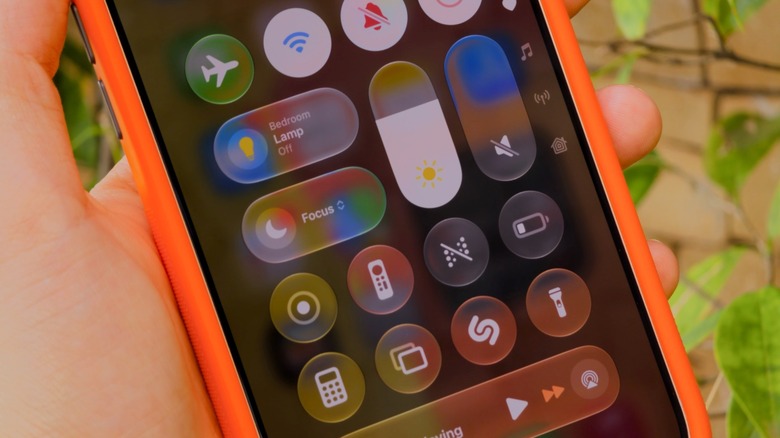
Accessing and Navigating the Control Center
To quickly toggle or inspect your active interruption profiles:
- Swipe Down from the top-right corner of your iPhone screen (on devices featuring Face ID).
- Swipe Up from the bottom edge of the screen (on legacy devices featuring a physical Home button).
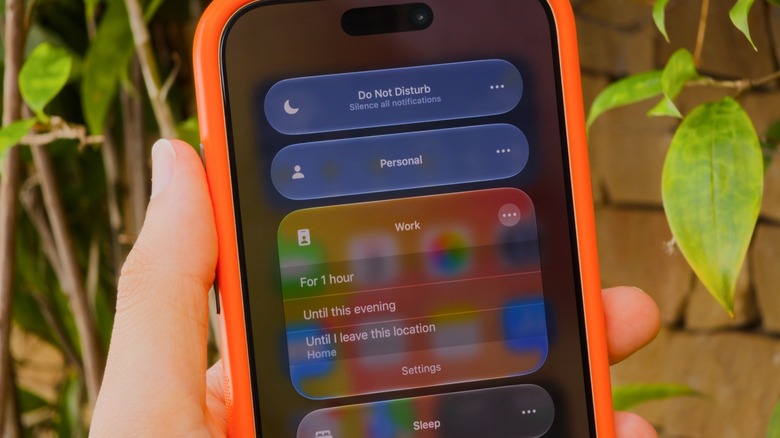
- Tap the Focus button (represented by a distinct icon cluster) to reveal available options: classic Do Not Disturb, Personal, Work, and Sleep.
- To modify any profile’s basic parameters directly, tap the corresponding option or access the configuration menu via the three-dot ellipsis where applicable.
+-------------------------------------------------------------+
|              CONTROL CENTER FOCUS MANAGEMENT                |
|                                                             |
|   [Swipe Down Top-Right] -> Tap [Focus Button]              |
|                                                             |
|   Available Options:                                        |
|   * Do Not Disturb (Total Silence)                          |
|   * Personal (Leisure & Family)                             |
|   * Work (Productivity Apps Only)                           |
|   * Sleep (Bedtime Integration)                             |
+-------------------------------------------------------------+
Building and Customizing a Focus Profile from Scratch
To create a bespoke Focus mode tailored to a specific professional or personal routine:
- Navigate to Settings > Focus.
- Tap the Plus (+) button located in the upper-right corner of the screen.
- Select Custom, assign a unique name, and choose an identifying icon and color theme.
- Define your Allowed People: Tap People, then select whether you want to Allow Notifications From or Silence Notifications From specific contacts. You can also permit calls from groups such as Favorites, All Contacts, or Nobody, and toggle "Allow Repeated Calls" to let emergency communications through.
- Define your Allowed Apps: Tap Apps, and similarly choose to allow or silence specific software.
- Crucial Setting: Ensure you enable Time Sensitive Notifications under the app configuration menu. This guarantees that critical alerts—such as delivery notices, smart home security triggers, calendar alarms, and banking alerts—will always break through your custom filter.
Applying Advanced Filters and Smart Activation
To maximize the efficacy of your custom Focus profiles:
- Focus Filters: Link specific application states to your Focus. For instance, you can configure your Work Focus to display only your work-related email inbox in the Mail app and switch your Safari browser profile to your professional tab group.
- Smart Activation: Rather than relying entirely on manual toggles, scroll down to the "Set a Schedule" section within any Focus menu. You can automate activation based on time (e.g., Monday through Friday from 9:00 AM to 5:00 PM), specific physical locations (e.g., turning on Work Focus when arriving at the office), or app usage triggers.
Smart Focus Modes: Bedtime, Driving, and AI Integration
Apple’s integration of hardware sensors and machine learning has transformed Focus modes from static user-configured profiles into dynamic, context-aware safety and wellness tools.
Sleep Focus: Automated Circadian Protection
The Sleep Focus mode is deeply integrated with the Apple Health application. By establishing a sleep schedule within Health, users eliminate the need to manually engage bedtime silencing protocols. As bedtime approaches, Sleep Focus automatically:
- Dims the iPhone Lock Screen and hides notifications to reduce late-night blue light exposure and cognitive stimulation.
- Switches the Apple Watch face to a minimalist display.
- Suppresses all non-essential alerts, ensuring that routine overnight emails or social media pings do not disrupt restorative sleep cycles.
Driving Focus: Mitigating Roadway Distractions
Safety engineers recognize mobile device notifications as a primary contributor to distracted driving. The Driving Focus mode leverages spatial awareness and Bluetooth connections to combat this hazard:
- The system automatically activates when the iPhone connects to Apple CarPlay or detects vehicular motion patterns consistent with driving.
- Incoming text messages and notifications are silently intercepted.
- For contacts attempting to reach the driver via iMessage, iOS automatically dispatches an optional auto-reply stating that the user is currently driving and will respond upon arrival.
Apple Intelligence: The "Reduce Interruptions" Breakthrough
With the advent of Apple Intelligence, iOS introduces an advanced algorithmic filter known as Reduce Interruptions.
- Unlike traditional rule-based Focus modes that rely on static allow-lists, Reduce Interruptions uses on-device artificial intelligence to analyze the semantic content of incoming notifications in real time.
- The system evaluates context—distinguishing between a genuinely urgent message from a family member regarding an emergency and a promotional alert from a retail application.
- By autonomously prioritizing what demands human attention and suppressing low-priority noise without requiring exhaustive manual configuration, Reduce Interruptions represents the future of ambient mobile computing.
Social Transparency and Etiquette
Enabling a Focus mode does more than alter your personal device experience; it communicates your digital availability to the broader ecosystem.
When you configure a Focus mode, iOS offers the option to Share Focus Status. When enabled, individuals attempting to message you via iMessage will see a subtle, unobtrusive notice at the bottom of their chat interface stating: "Name has notifications silenced."
This transparency shifts social expectations around response times, alleviating the anxiety of immediate availability. However, if an emergency arises, senders retain the ability to bypass this restriction by tapping Notify Anyway, ensuring that genuine urgency can pierce through even the most rigorous digital boundaries.
When you are ready to re-engage with the digital world, returning to a normal notification state is instantaneous. Toggling off the active Focus mode via the Control Center restores standard delivery protocols, allowing accumulated notifications to populate your screen without data loss.
Future Outlook: The Horizon of Attention Architecture
As mobile operating systems continue to evolve, the boundary between human attention and algorithmic intervention will only grow thinner. The introduction of Apple Intelligence’s predictive notification filtering points toward a paradigm where manual configuration of Focus modes may eventually be superseded by fully autonomous, context-aware AI agents.
Future iterations of iOS will likely leverage biometric feedback—such as heart rate variability, eye-tracking metrics, and cognitive load indicators—to determine not just what notifications are important, but when a human user possesses the cognitive bandwidth to process them. Until that fully autonomous future arrives, mastering the interplay between Silent Mode, Do Not Disturb, and customized Focus profiles remains the definitive methodology for reclaiming cognitive sovereignty in a distracted world.