
Executive Overview
For millions of commuters and road-trip enthusiasts, the in-car infotainment system has evolved from a simple AM/FM radio receiver into a sophisticated, highly connected media hub. Among these platforms, Android Auto has established itself as an indispensable tool, seamlessly projecting a driver’s digital ecosystem onto the vehicle’s dashboard display. However, despite the advanced hardware found in modern smartphones and premium vehicular sound systems, users frequently encounter a frustrating bottleneck: subpar audio quality.
When music sounds tinny, compressed, or dynamically flattened over Android Auto, the initial inclination for many is to blame the software, swap out hardware cables, or dive into labyrinthine developer settings in search of elusive high-definition Bluetooth codecs. Yet, as troubleshooting reveals, the root causes of poor in-car audio are rarely tied to data bandwidth limitations. Instead, audio degradation is typically the result of compounding variables—ranging from fluctuating cellular network conditions and aggressive streaming app compression algorithms to conflicting equalization (EQ) profiles and poor car audio calibration.
This deep-dive investigation explores the anatomy of Android Auto audio streams, debunks pervasive myths regarding cable bandwidth and Bluetooth codecs, and provides an authoritative, step-by-step roadmap to achieving pristine, high-fidelity sound in your vehicle.
Detailed Chronology & Troubleshooting Methodology
To systematically improve your in-car listening experience, a methodical, step-by-step troubleshooting protocol must be adopted. Rather than making blind adjustments across multiple menus—a practice that often exacerbates the issue—drivers should isolate potential points of failure chronologically.
Step 1: Bypassing the Cable Myth
A common misconception in the automotive tech community is that audio fidelity can be instantly upgraded by purchasing an expensive, high-speed data cable. Retailers frequently market USB cables boasting transfer speeds of 5Gbps or higher, implying that higher throughput equates to richer sound.
In reality, digital audio streams—even uncompressed lossless formats—require only a fraction of this bandwidth. If you are already using a functional, stable cable that successfully transmits data to establish an Android Auto session, upgrading to a premium 5Gbps cord will not make a compressed Spotify stream sound like a studio master recording. While Google rightfully recommends utilizing a high-quality replacement cable when experiencing severe connection drops, intermittent stuttering, or complete disconnections, this is a basic hardware troubleshooting step for data transmission stability, not a secret hi-fi audio upgrade.
Step 2: Evaluating and Optimizing the Music Streaming App
Once physical connection stability is verified, the investigation must shift to the software layer: the music streaming application itself.
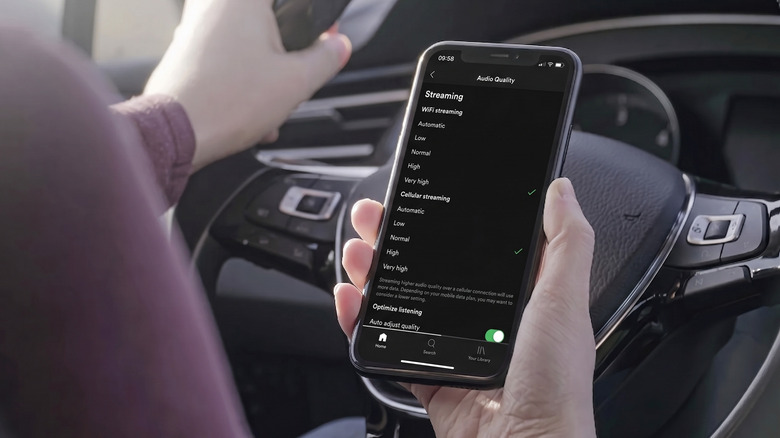
- Cellular Network Fluctuations: Many streaming services default to "Automatic" quality settings, which dynamically scale audio bitrates downward when cellular signal strength drops. Transitioning from an urban 5G coverage zone to a rural one-bar LTE area can instantly degrade your listening experience.
- The Power of Pre-Downloading: The single most effective countermeasure to network-induced audio degradation is pre-downloading favorite playlists, albums, and podcasts. Services like Spotify and YouTube Music allow users to set explicit, high-quality download parameters. YouTube Music, for instance, provides Premium subscribers with the granular ability to assign a distinct, high-resolution audio quality tier specifically for offline content, completely insulating the playback stream from cellular instability.
- Navigating the Sample Rate Trap: A frequent pitfall for tech-savvy users is maxing out playback sample rate sliders within app settings. While modern Android architecture natively supports playback sample rates up to an impressive 192kHz, Google does not enforce a universal, standardized output sample rate across all Android Auto implementations. Forcing maximum sample rates within an app does not guarantee that your vehicle’s digital-to-analog converter (DAC) or head unit is processing a 192kHz stream; in many cases, it simply introduces unnecessary resampling overhead and processing latency.
Supporting Context & Metrics: EQ Conflicts and Normalization
Audio engineers spend countless hours mastering tracks for a flat, neutral frequency response. However, modern consumer listening habits—heavily influenced by the design limitations of cheap Bluetooth earbuds—rely heavily on artificial frequency manipulation. This creates distinct challenges when transitioning from personal listening devices to a vehicular acoustic environment.
The Dangers of Over-Processed Equalization
Earbud-oriented EQ profiles, particularly those featuring aggressive "bass boost" presets, often sound distorted, muddy, or unnatural when reproduced through a car’s multi-speaker configuration. This issue is compounded when the vehicle’s own factory or aftermarket head unit applies its own proprietary bass enhancements, spatial surround processing, or preset EQ curves.
Furthermore, certain platforms—such as Spotify running on Android operating systems with system-level audio enhancements—exhibit cross-app audio interference. Adjustments made within one app’s internal equalizer can inadvertently alter the acoustic signature of entirely separate audio streams on the device.
Demystifying Volume Normalization
Loudness normalization is another critical factor influencing dynamic range. Features like Spotify’s "Loud" normalization setting apply an aggressive dynamic range compressor and limiter to prevent sudden volume spikes between different tracks. While this ensures a uniform listening volume, it compresses the audio signal’s dynamic peaks, robbing music of its natural punch, transparency, and spatial depth.
Recommended Troubleshooting Sequence:
- Temporarily flatten all custom EQ curves within your music streaming application.
- Set volume normalization to "Normal" or disable the feature entirely.
- Play a familiar, downloaded reference track with known mastering quality.
- Reintroduce your preferred EQ adjustments one at a time, assessing the acoustic impact of each individual change against the vehicle’s factory speakers.
Technical Architecture: Wired vs. Wireless Connections
Understanding how your phone communicates with your vehicle’s infotainment system is vital to diagnosing intermittent audio artifacts.
The Dual-Protocol Nature of Wireless Android Auto
Unlike standard Bluetooth streaming—which relies solely on short-range radio frequencies to transmit compressed audio codecs—Wireless Android Auto operates via a complex hybrid protocol utilizing both Bluetooth and Wi-Fi.
When establishing a wireless session, Bluetooth is utilized strictly for the initial handshake, device discovery, and pairing sequence. Once the handshake is complete, the heavy lifting of projecting the user interface, transmitting touch inputs, and streaming high-bandwidth media is immediately offloaded to a dedicated Wi-Fi direct connection (typically operating on the 5GHz frequency band).
Because of this architecture, diving into Android’s Developer Options to hunt for advanced Bluetooth codecs—such as Qualcomm’s aptX, Sony’s LDAC, or high-bitrate SBC/AAC implementations—is entirely counterproductive for wireless Android Auto. These codecs dictate standard Bluetooth audio profiles and play little to no role in the Wi-Fi-driven data stream powering wireless Android Auto projection.
Isolating Connection-Induced Artifacts
If audio playback exhibits choppiness, stuttering, or complete dropouts, administrators and users can isolate the root cause through a simple comparative test:
- The Wired Benchmark: Connect the smartphone to the vehicle using a verified, high-grade USB data cable (omitting any unpowered USB hubs, extension cords, or cheap charging-only cables). Play the same downloaded reference track.
- Analyzing the Results: If the audio streams smoothly and retains high fidelity via the wired connection, you have successfully isolated the issue to wireless interference, local Wi-Fi congestion, or an inadequate phone hardware limitation (such as a lack of robust 5GHz Wi-Fi support). If the playback failures persist even during a wired connection, the physical cable finally becomes a legitimate suspect requiring replacement.
Official Industry Insights and Future Outlook
Automotive technology analysts and infotainment interface developers note that the fragmentation of car audio hardware remains the single greatest hurdle to achieving uniform software performance. Because every automotive manufacturer—from budget economy brands to ultra-luxury marques—utilizes vastly different digital-to-analog converters, amplifier topologies, and proprietary digital signal processing (DSP) software, Google cannot enforce a universal audio calibration standard within Android Auto.
The Vehicle Head Unit as the Final Frontier
After optimizing your streaming app settings and verifying your connection medium, the final frontier for audio enhancement lies within the vehicle’s native infotainment menu.
- Disabling Factory Processing: Users should navigate their car’s native audio settings and disable aggressive "3D Surround," "Virtual Concert Hall," or factory "Bass Boost" modes. Flattening the vehicle’s internal EQ provides a neutral baseline, preventing digital clipping and phase cancellation caused by overlapping software EQs (phone-side vs. car-side).
- Firmware Upgrades: For owners of aftermarket head units (such as units from Pioneer, Kenwood, Alpine, or Sony), checking for official manufacturer firmware updates is essential. Software patches frequently resolve Bluetooth/Wi-Fi handshake bugs, audio latency issues, and digital audio decoding errors.
The Road Ahead
As the automotive industry pivots toward deeply integrated software-defined vehicles (SDVs) and native Android Automotive OS (AAOS) deployments—where the operating system runs directly on the car’s hardware rather than mirroring a smartphone—the reliance on wireless projection protocols will gradually evolve.
However, for the hundreds of millions of vehicles currently relying on smartphone projection, mastering the interplay between app-level compression, equalizer calibration, and hybrid Wi-Fi/Bluetooth connections remains the definitive key to unlocking true high-fidelity sound on the open road.