
Executive Overview
In the modern hyper-connected household, a robust internet connection is no longer a luxury—it is an essential utility. Yet, despite the proliferation of high-speed fiber-optic lines and cutting-edge Wi-Fi 6 and Wi-Fi 7 routers, almost every homeowner is familiar with the frustration of the dreaded "dead zone." These are the spatial anomalies in our living spaces—a remote bedroom corner, a basement home office, or a backyard patio—where Wi-Fi signals wither and die.
Traditionally, rectifying these dead zones required opening your wallet. Consumers are frequently funneled into purchasing expensive aftermarket hardware: standalone Wi-Fi extenders priced anywhere from $40 to $100, complex mesh network nodes running into the hundreds of dollars, or high-end routers equipped with multi-directional high-gain antennas.
However, hidden inside desk drawers, storage bins, and bedside tables across the globe lies an overlooked, highly capable networking tool: the old Android smartphone. Most households harbor at least one or two legacy Android devices. Too technologically outdated to serve as a daily driver, yet structurally intact and functionally sound, these retired phones represent a massive pool of dormant computational power.
Instead of dropping these devices off at an electronics recycling center or leaving them to gather dust, users can leverage their built-in hardware and native Android operating system features. By configuring the device correctly, an old Android phone can pull double duty as a rudimentary Wi-Fi repeater or hotspot. This zero-cost alternative extends coverage into patchy areas using only a power outlet, a Wi-Fi connection, and a few minutes of setup. While it is not a permanent cure-all for enterprise-grade networking woes, it offers an ingenious, practical workaround for consumers looking to optimize their home network without spending a dime.
Detailed Chronology: The Evolution of Mobile Hotspots and Network Sharing
To understand how a smartphone can function as a Wi-Fi extender today, it is instructive to look at how mobile networking technology has evolved over the past decade and a half.
Phase One: The Rise of Cellular Tethering (2010–2014)
In the early days of smartphones running Android (such as Froyo 2.2 and Gingerbread 2.3), the concept of "tethering" was primarily tied to cellular data networks. Mobile carriers guarded their data caps fiercely, and turning a phone into a portable hotspot meant sharing a 3G or 4G cellular connection with laptops or tablets via USB cables or rudimentary Wi-Fi ad-hoc connections. At this stage, smartphones were strictly data consumers that occasionally acted as cellular-to-Wi-Fi bridges. They were not yet sophisticated enough to bridge an existing Wi-Fi network to secondary devices simultaneously.
Phase Two: Hardware Maturation and Simultaneous Wi-Fi (2015–2019)
As smartphone internal architecture advanced, manufacturers began outfitting mobile devices with increasingly powerful dual-band Wi-Fi chips (supporting both 2.4GHz and 5GHz frequencies). By the time Android versions like Marshmallow and Pie rolled out, the underlying Linux kernel architecture and wireless driver capabilities had matured significantly.
Crucially, modern mobile chipsets (from Qualcomm Snapdragon, MediaTek, and Samsung Exynos) gained the ability to maintain a connection to an incoming Wi-Fi access point while simultaneously broadcasting an independent Wi-Fi access point (SoftAP). While mobile operating systems historically prioritized cellular data when enabling hotspots, developers and power users quickly realized that Android could seamlessly pass through an incoming Wi-Fi signal, effectively creating a wireless relay station.
Phase Three: The Modern Upcycling Movement (2020–Present)
In the post-pandemic era, with the surge of remote work, remote learning, and smart-home automation, household bandwidth demands skyrocketed. At the same time, environmental and economic pressures highlighted the absurdity of rapid consumer electronics turnover. Industry analysts and tech DIYers began championing the "right to repair" and device upcycling.
Transforming old Android phones into dedicated security cameras (via apps like Alfred), digital photo frames, and—most recently—emergency Wi-Fi extenders transitioned from niche hacker forums into mainstream tech journalism. Today, with billions of active Android devices historically shipped, repurposing hardware has become a cornerstone of sustainable consumer technology management.
Supporting Context & Metrics: Analyzing the DIY Approach vs. Commercial Hardware
Before committing to transforming an old Android phone into a network extender, consumers must understand how this makeshift solution stacks up against commercial networking gear in terms of performance, cost, and reliability.
Financial Cost Analysis
- Commercial Wi-Fi Extender: $30 – $80
- Whole-Home Mesh System (2-3 Nodes): $150 – $400+
- Upcycled Android Phone: $0 (Assuming ownership of an existing legacy device)
Performance Metrics Comparison
| Feature | Upcycled Android Phone | Dedicated Wi-Fi Extender | Mesh Wi-Fi System |
|---|---|---|---|
| Initial Cost | Free ($0) | Moderate ($30–$80) | High ($150+) |
| Throughput / Speed | Reduced (often cuts bandwidth in half) | Moderate | High (Maintains speeds via dedicated backhaul) |
| Setup Complexity | Low (Native settings, ~5 mins) | Low to Moderate (App-driven setup) | Moderate (Requires primary router integration) |
| Smart Home Compatibility | Poor (Creates an isolated subnet/SSID) | Moderate | Excellent (Seamless roaming, unified SSID) |
| Hardware Longevity | Low (Lithium-ion battery degradation risk) | High (Designed for 24/7 continuous uptime) | High (Designed for 24/7 continuous uptime) |
Understanding the Bandwidth Bottleneck
The primary trade-off of using an Android phone as a Wi-Fi extender lies in how wireless signals are processed. Unlike tri-band mesh systems that utilize a dedicated "backhaul" radio frequency to communicate between nodes without sacrificing client speed, a standard smartphone shares its single Wi-Fi radio interface.
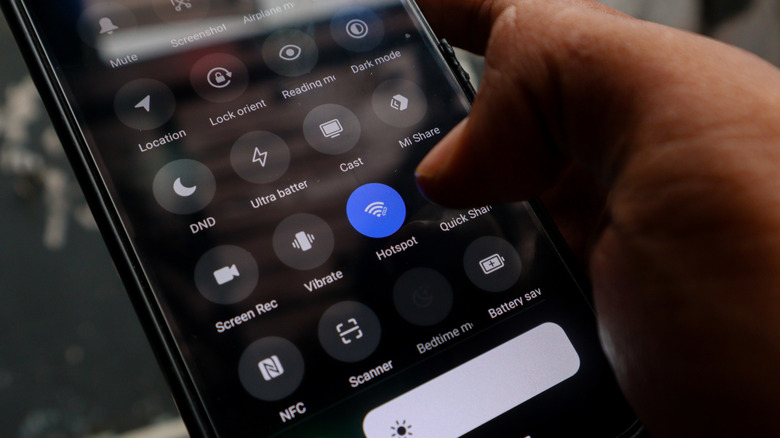
When the phone connects to your main router and simultaneously broadcasts a hotspot, it must time-share its antenna between receiving data from the router and transmitting data to your client device (laptop, tablet, or smart TV). Consequently, network throughput is typically halved. If your main router delivers 100 Mbps to the location of the Android phone, the devices connected to the Android hotspot will realistically experience speeds closer to 35 to 50 Mbps.
While this bandwidth is more than sufficient for casual web browsing, checking emails, and streaming 1080p video, it may struggle under heavy demands like competitive online gaming or 4K video streaming.
Step-by-Step Guide: Setting Up Your Android Wi-Fi Extender
If you have weighed the pros and cons and decided to proceed, the setup process is remarkably straightforward. Follow these instructions to transform your legacy device into a functional network relay.
Step 1: Hardware Preparation and Updates
- Locate and Charge: Retrieve your old Android phone from storage. Connect it to a reliable wall charger using a compatible USB cable. Because this device will need to remain plugged in 24/7 to function as an extender, ensure the battery and charging port are in healthy condition.
- Factory Reset (Recommended): If the phone contains old user data, bloatware, or background applications that consume RAM and processing power, perform a complete factory reset. This ensures maximum system stability.
- Software Updates: Connect the device to your primary home Wi-Fi network temporarily and check for any final system updates or security patches available via Settings > System > System Update.
Step 2: Configuring the Mobile Hotspot
- Navigate to Settings on your Android device.
- Tap on Network & Internet (or Connections, depending on your device’s manufacturer user interface, such as Samsung One UI or Google Pixel UI).
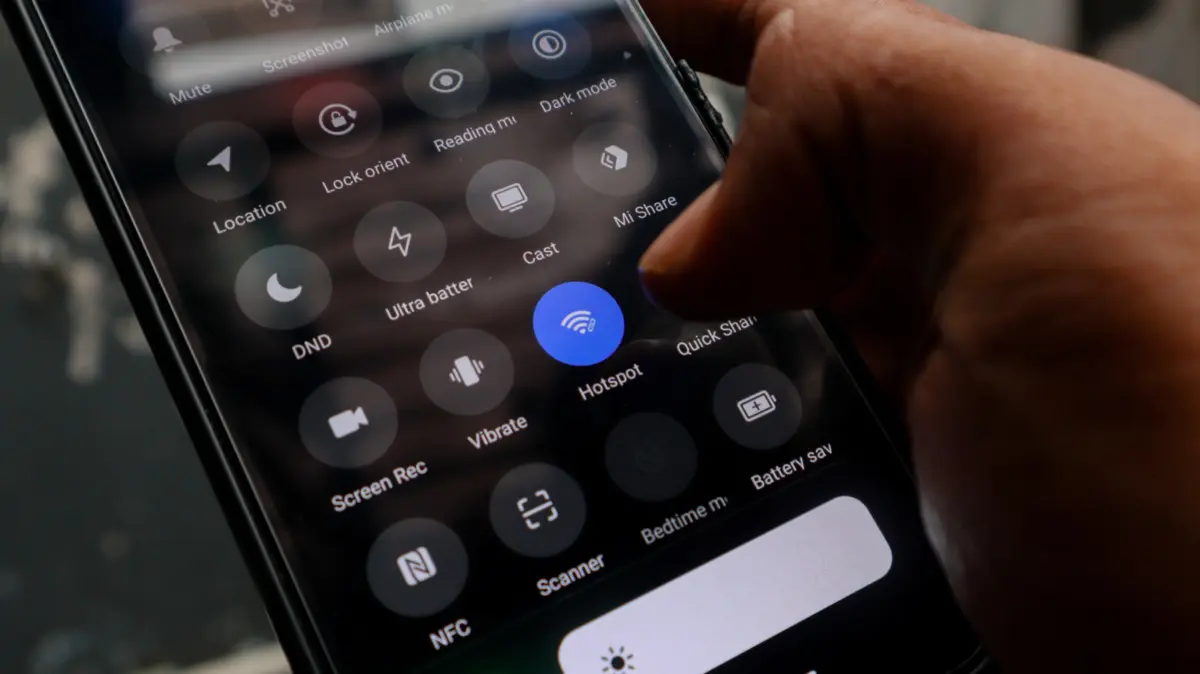
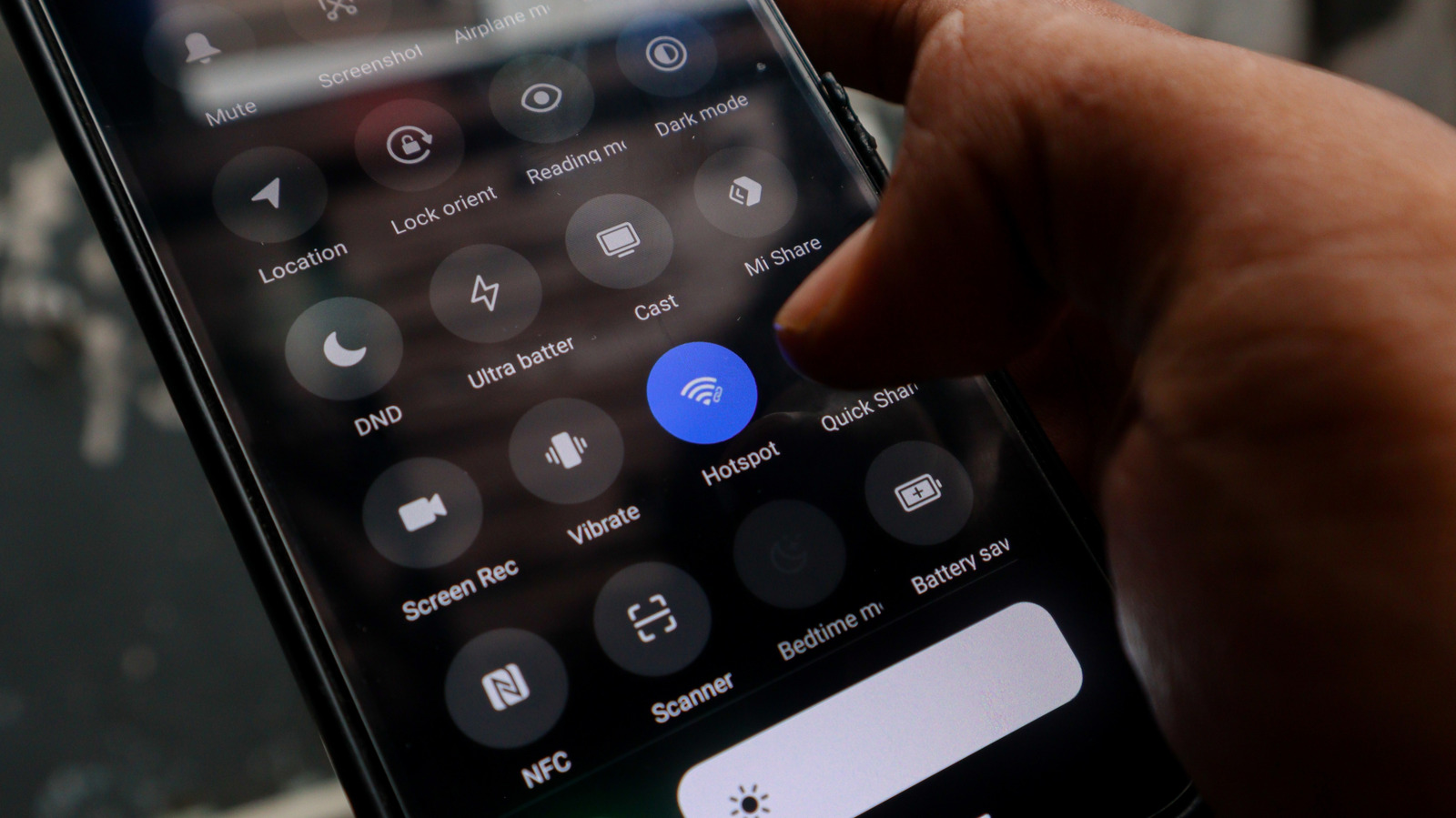
- Select Hotspot & Tethering (or Mobile Hotspot).
- Tap on Wi-Fi Hotspot to configure its parameters:
- Network Name (SSID): Give the hotspot a distinct name so you can easily identify it (e.g.,
LivingRoom_Extender). Note: Do not use the exact same name as your primary router, as this can cause client devices to become confused between the two signals. - Password: Create a secure, robust WPA2 or WPA3 password.
- AP Band: If your phone supports dual-band operations, select 2.4 GHz if the dead zone is far away (as 2.4 GHz penetrates walls better than 5 GHz), or 5 GHz if you require higher speeds and the phone is positioned relatively close to the client device.
- Network Name (SSID): Give the hotspot a distinct name so you can easily identify it (e.g.,
Step 3: Enabling Wi-Fi Sharing (The Crucial Step)
Depending on your specific version of Android and the device manufacturer, the toggle to share an incoming Wi-Fi connection via hotspot may be labeled differently.
- On many modern versions of Android, simply ensuring your Wi-Fi is connected before turning on the Mobile Hotspot allows the device to bridge the connection automatically.
- On other devices, look for a specific toggle within the Hotspot settings menu that reads "Extend Wi-Fi range" or "Share Wi-Fi connection."
- Turn the Mobile Hotspot switch to the ON position.
Step 4: Optimizing Placement and Connection
- Unplug the phone from its initial charging spot and walk it to the boundary area where your primary Wi-Fi signal begins to degrade significantly. Crucial Rule: The phone must be placed in a spot where it still receives a stable, moderate Wi-Fi signal from your main router. If you place it too far into the dead zone, the phone itself will lose connection, rendering the extender useless.
- Plug the phone into a permanent wall outlet using a long charging cable or a secure wall mount.
- Take your target device (laptop, tablet, or streaming stick), open its Wi-Fi settings, locate your newly created Android hotspot SSID, and enter the password.
Alternative Method: USB Tethering for Enhanced Stability
If you find that the wireless Wi-Fi repeating method suffers from packet loss or high latency, you can utilize a USB tethering workaround if you have a secondary mini-router or travel router lying around. By connecting the Android phone to a travel router via a USB cable and enabling USB tethering in the phone’s settings, the phone passes its internet connection directly via hardware wire into the router, which then broadcasts a much more powerful and stable Wi-Fi network across the dead zone.
Official Statements & Industry Perspectives
While technology giants and networking hardware manufacturers naturally advocate for the purchase of standardized mesh systems and certified Wi-Fi extenders, consumer advocacy and tech engineering communities view upcycling initiatives through a pragmatic lens.
"Repurposing legacy consumer electronics is one of the most effective ways individual consumers can combat the staggering tide of e-waste," notes Dr. Elena Vance, a senior researcher in sustainable computing at the MIT Computer Science and Artificial Intelligence Laboratory. "While a smartphone acting as an access point point-source has inherent physical limitations regarding antenna gain and thermal management, utilizing hardware that would otherwise leach heavy metals into landfills is an environmental win that delivers functional utility."
Networking engineers emphasize that while software-level workarounds are clever, they do not replace dedicated hardware architecture.
"A smartphone is engineered to be a pocket-sized mobile computer, optimized for battery conservation and cellular communication," explains Marcus Thorne, a certified Cisco network architect. "Its internal Wi-Fi antennas are omnidirectional and compact, designed for personal proximity rather than whole-home signal distribution. Using it as an extender is a brilliant emergency measure or temporary fix for a dorm room or apartment, but homeowners with sprawling square footage will eventually hit the performance ceiling of mobile silicon."
Future Outlook: The Intersection of E-Waste Reduction and Smart Networking
As we look toward the future of home networking—driven by the rollout of Wi-Fi 7, ultra-wideband (UWB) technologies, and AI-managed mesh topologies—the lifecycle of consumer electronics is undergoing a profound philosophical shift.
The European Union and various global regulatory bodies are increasingly enacting stricter "Right to Repair" legislation and environmental accountability measures for tech manufacturers. In tandem, software developers are creating increasingly modular operating systems designed to let older hardware find new purposes. Projects like LineageOS and specialized lightweight Linux distributions for mobile devices are paving the way for legacy smartphones to be transformed into dedicated smart-home servers, network-attached storage (NAS) nodes, and advanced wireless repeaters.
For the average consumer, the lesson is clear: before discarding an aging piece of technology, look closer at its capabilities. That old Android phone sitting forgotten in your junk drawer may not be trash at all—it might just be the missing link that finally brings seamless, high-speed internet to the furthest, darkest dead zones of your home.