
Executive Overview
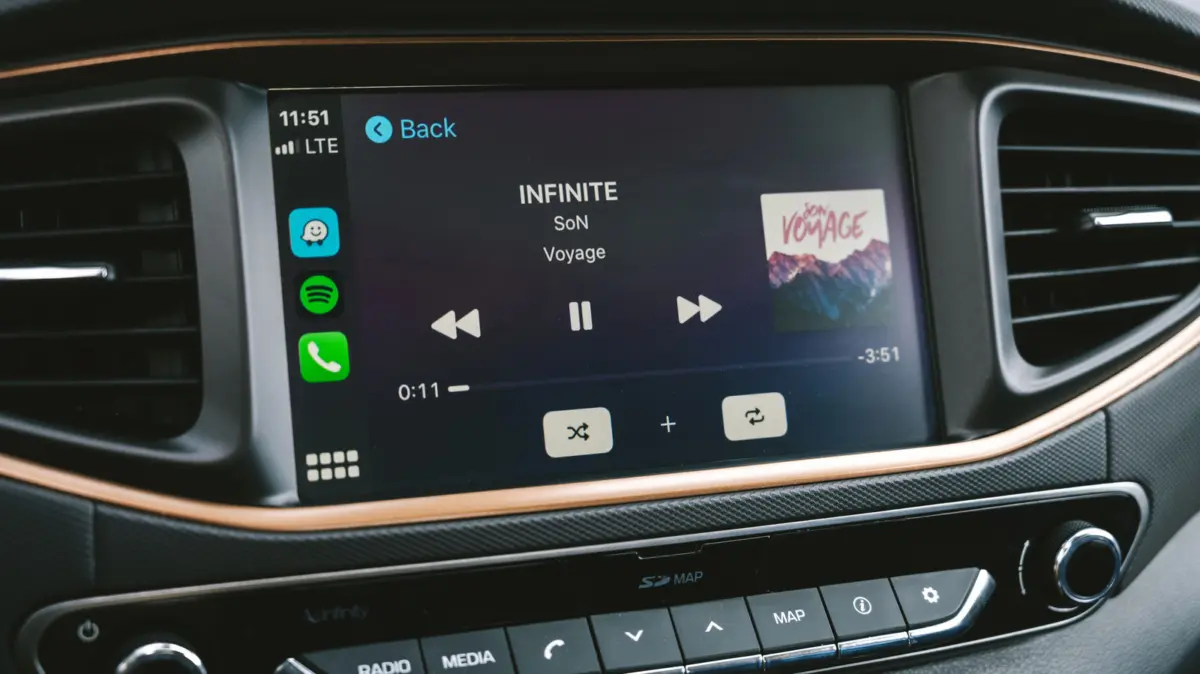
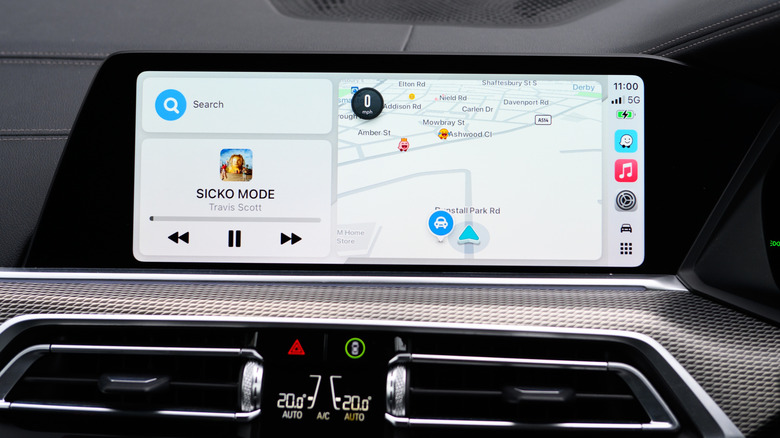
For millions of commuters and road-trip enthusiasts, Apple CarPlay has revolutionized the in-vehicle entertainment experience. By seamlessly integrating the iPhone interface with the dashboard display, drivers can access navigation, messaging, and vast libraries of on-demand audio from services like Apple Music and Spotify with minimal friction. However, despite the convenience and modern appeal of connected dashes, many motorists notice a persistent discrepancy: the music streaming through their car speakers often sounds flat, muddy, or dynamically compressed compared to listening through high-end headphones or a home audio system.
The root cause of this auditory shortfall rarely stems from a single failure point. Instead, it is the cumulative result of hardware limitations, wireless protocol compression, unstable cellular data streams, and misconfigured software settings on the iPhone. While upgrading a vehicle’s factory speakers and amplifiers remains an option, it is a costly and invasive endeavor. Fortunately, motorists can dramatically elevate their in-car acoustics without spending a dime on aftermarket hardware.
By understanding the underlying mechanics of how data travels from an iPhone to a vehicle’s head unit, drivers can implement targeted optimizations. These include transitioning from wireless convenience to wired precision, pre-downloading lossless audio files to bypass cellular fluctuations, recalibrating equalization settings, and troubleshooting common software bugs. This guide provides an authoritative, deep-dive examination of how to extract the highest possible fidelity from Apple CarPlay, ensuring your vehicle sounds as good on the road as it does in the studio.
Detailed Chronology: The Evolution of In-Car Audio and CarPlay Bottlenecks
From Analog Dashboards to Digital Integration
To understand why Apple CarPlay audio occasionally underperforms, it is necessary to examine the evolution of automotive audio delivery. For decades, factory car stereos relied on physical media—AM/FM radio, cassette tapes, and eventually compact discs (CDs). CDs offered uncompressed 16-bit/44.1kHz digital audio, providing a stable and remarkably high-fidelity benchmark for vehicular listening environments.
As digital music compressed into MP3 formats and smartphones displaced physical media, drivers turned to auxiliary (AUX) cables and Bluetooth streaming. While AUX connections preserved analog integrity depending on the source file, early Bluetooth implementations introduced severe bandwidth limitations. Standard Bluetooth protocols forced audio files to undergo heavy compression, sacrificing dynamic range and high-frequency clarity.
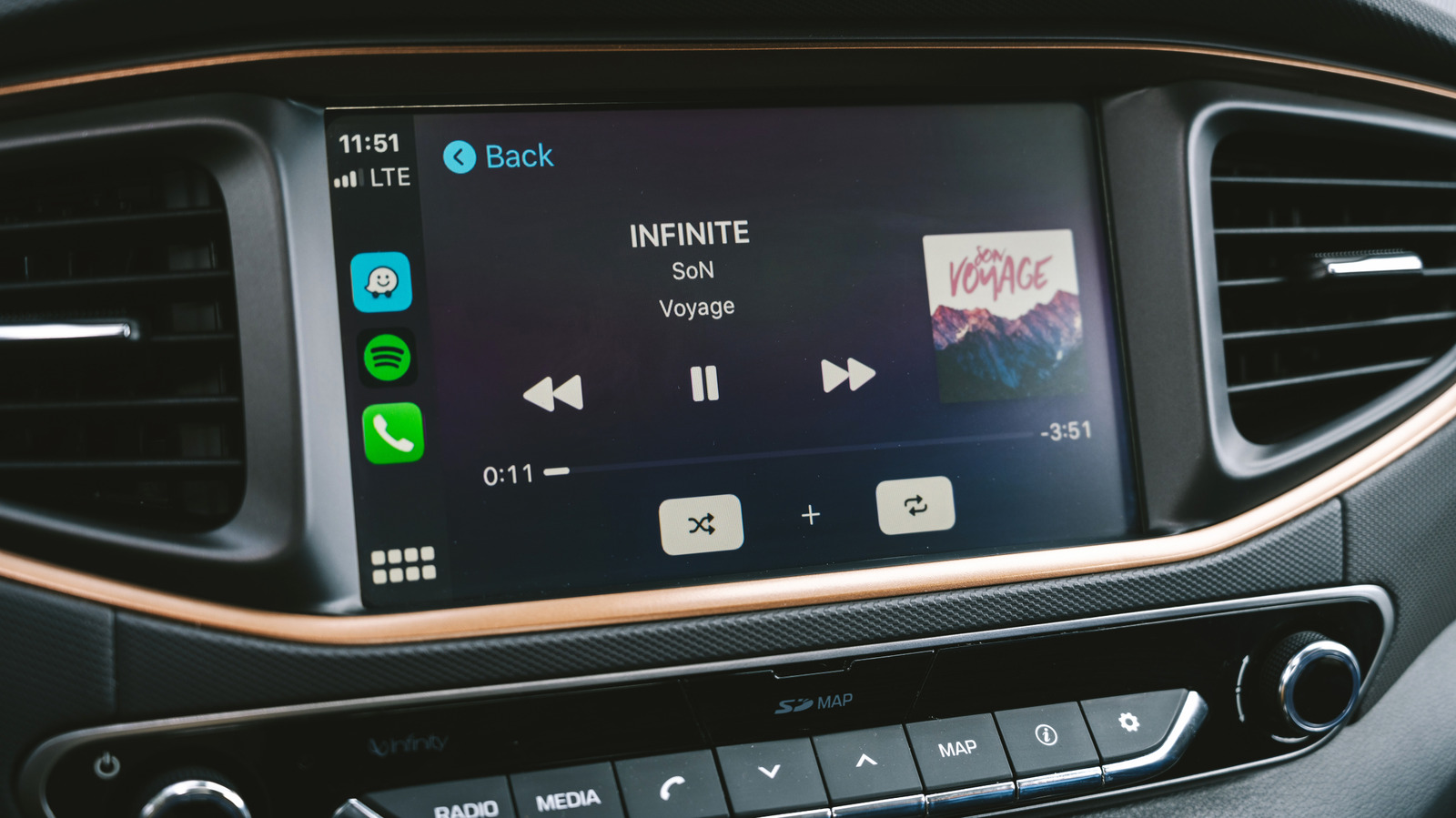
When Apple introduced CarPlay in 2014, it promised a digital bridge that bypassed the lossy digital-to-analog conversions of standard Bluetooth by routing data directly through the head unit. Yet, as wireless CarPlay variants gained prominence alongside wired USB connections, new bottlenecks emerged. Apple CarPlay had to balance real-time responsiveness, graphical rendering, and uninterrupted audio streaming across varying hardware configurations.
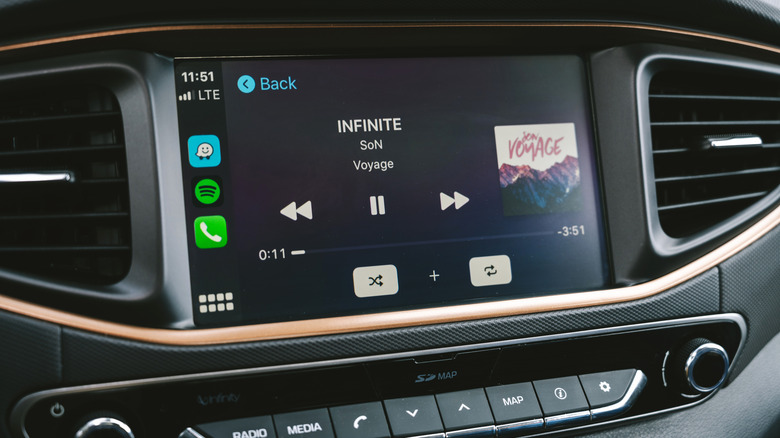
The Codec Divide: Wired Versus Wireless Architecture
The single most significant technical factor dictating CarPlay audio fidelity is the transmission method: wired versus wireless.
- Wired CarPlay (LPCM): When an iPhone is connected to a compatible head unit via a physical USB cable, Apple CarPlay utilizes Linear Pulse Code Modulation (LPCM). LPCM is an uncompressed digital audio format. This direct pipe allows high-resolution or lossless tracks—such as those encoded in Apple Lossless Audio Codec (ALAC)—to be transmitted from the iPhone to the car’s digital-to-analog converters (DACs) without dropping bits or sacrificing frequency response.
- Wireless CarPlay (AAC-LC): Wireless CarPlay relies on a combination of Wi-Fi and Bluetooth to mirror the iPhone interface to the dashboard. To maintain a real-time, low-latency connection without audio stuttering or lag during navigation prompts, wireless CarPlay must compress the audio stream using the Advanced Audio Coding-Low Complexity (AAC-LC) codec. This lossy compression algorithm trims data from the upper and lower frequencies that the encoding algorithm deems less perceptible, effectively capping the maximum possible fidelity before the audio signal even reaches the car’s amplifier.
Consequently, Apple’s official engineering guidelines explicitly state that true lossless audio playback through CarPlay is exclusively achievable via a wired USB connection. While wireless convenience reigns supreme for quick trips, audiophiles seeking uncompromised fidelity must revert to the cable.
Supporting Context & Metrics: Streaming, Storage, and Software Mechanics
The Cellular Conundrum and the Power of Pre-Downloading
Even with a wired USB connection, streaming music over cellular networks introduces structural vulnerabilities. As a vehicle travels along highways and through urban canyons, the iPhone constantly shifts between cell towers. These handoffs frequently cause fluctuations in data bandwidth and packet delivery delays.
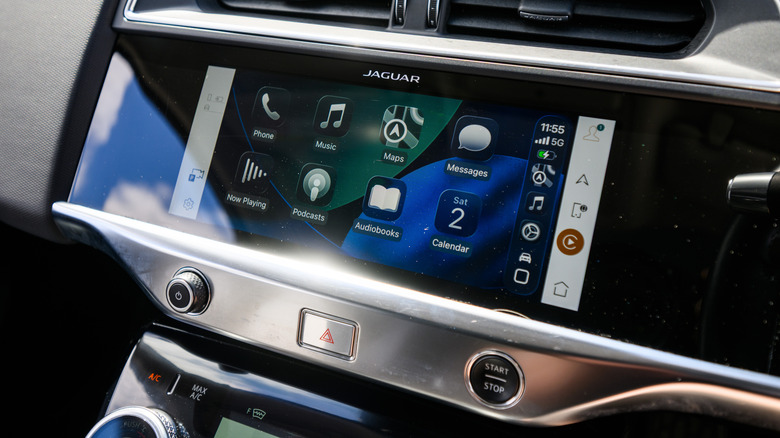
When cellular bandwidth dips, streaming applications like Apple Music and Spotify automatically downscale the audio bitrate to prevent buffering or playback interruption. CarPlay has no mechanism to override these network-induced quality drops.
Metrics to Consider:
- Standard Lossy Streams: Typically encoded at 256 kbps (AAC) or 320 kbps (Ogg Vorbis), consuming roughly 1.5MB to 2.4MB of data per minute.
- Lossless Audio Streams: Ranging from CD-quality (16-bit/44.1kHz) to Hi-Res Lossless (24-bit/192kHz), these files can demand bitrates exceeding 9,216 kbps. Streaming high-resolution lossless audio in real-time over cellular data can consume upwards of 100MB to gigabytes of data per hour, while severely straining weak mobile connections.
The Solution: Downloading playlists directly to the iPhone’s local storage prior to driving eliminates cellular variability entirely. By fetching files ahead of time at maximum fidelity (such as Apple Music’s 24-bit/48kHz setting or Spotify’s forthcoming FLAC-based lossless tier), the iPhone feeds a pristine, uncompromised bitstream directly to the car’s head unit via USB. Because lossless files are substantially larger, users must ensure adequate device storage is available.
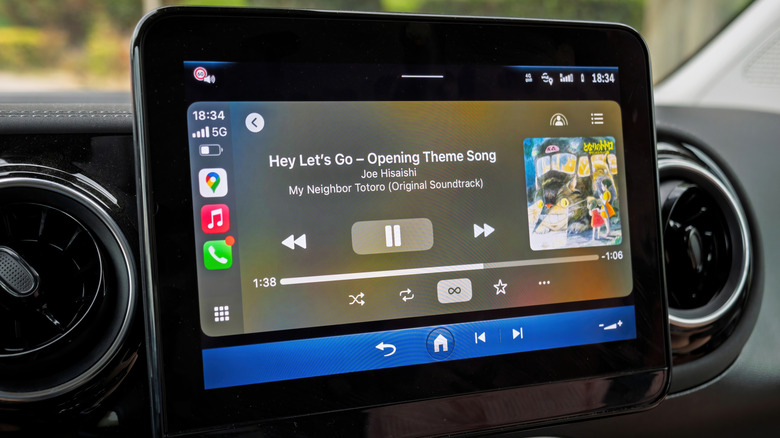
Equalization, Normalization, and Psychoacoustics
Hardware and transmission protocols represent only half of the equation; software-level sound processing on the iPhone heavily influences the final output.
- Equalizer (EQ) Mismatches: Many iPhone users enable custom EQ presets designed specifically to compensate for the sound signature of consumer earbuds or over-ear headphones. These presets—often boosting heavy bass or piercing highs—frequently clash with the built-in acoustic tuning of automotive speakers, resulting in muddy, distorted, or painfully bright sound reproduction. Disabling the EQ or flattening the curve often restores natural balance.
- Sound Check and Volume Normalization: Features like Apple Music’s "Sound Check" attempt to normalize volume levels across tracks with wildly different mastering volumes. While this prevents sudden volume spikes when transitioning between older recordings and modern, heavily compressed tracks, it can subtly compress the dynamic range of the audio. Disabling normalization can yield a more open, uninhibited listening experience, provided the user is willing to manually adjust the master volume when necessary.
Official Guidelines & Troubleshooting: Navigating Common CarPlay Anomalies
The Audio "Ducking" Bug
One of the most insidious, long-standing issues reported across forums by owners of vehicles from manufacturers such as Mazda, Porsche, Subaru, Ford, and Toyota involves a phenomenon known as audio "ducking."
CarPlay is engineered to temporarily lower ("duck") the volume of music playback whenever directional guidance instructions from Apple Maps/Google Maps are voiced or when Siri is activated. Under rare software glitches, the system fails to restore the music volume to its previous level after the prompt concludes, leaving tracks sounding muffled, distant, or stripped of bass.
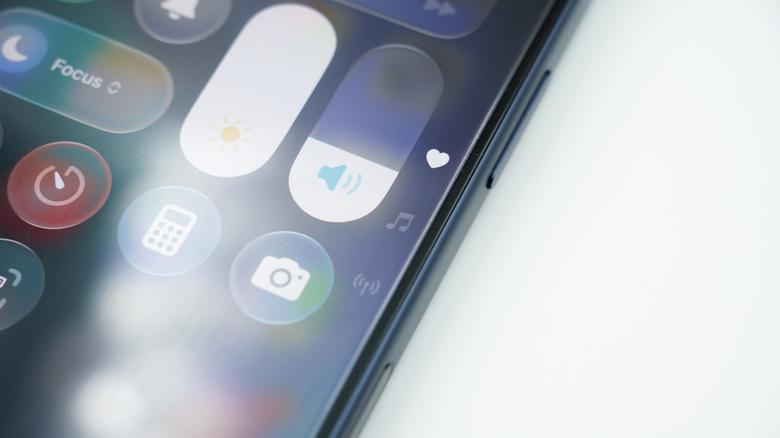
The Community-Validated Workaround:
- Do not panic or reset the entire infotainment system.
- Activate Siri using the physical steering wheel control button.
- Immediately press the button a second time to dismiss Siri.
- This rapid toggle forces the audio routing matrix to reset, instantly restoring music playback to its normal volume and clarity.
Managing Stubborn Connections
If intermittent audio degradation persists despite using a wired connection and downloading local files, a corrupted pairing profile may be to blame. To clear out conflicting system preferences:
- Navigate to Settings > General > CarPlay on the iPhone.
- Select the specific vehicle from the list.
- Tap "Forget This Car" and re-establish a fresh pairing connection from scratch.
Future Outlook
As the automotive landscape transitions toward software-defined vehicles and deeper integrations like Apple’s next-generation CarPlay, the fidelity of in-car entertainment is poised for continued refinement. Upcoming iterations of automotive operating systems promise deeper integration with vehicle acoustic hardware, potentially allowing digital signal processors (DSPs) within cars to communicate bi-directionally with mobile devices for real-time room correction.
However, the fundamental laws of physics and network data transmission remain constant. Until wireless networking protocols evolve to support uncompressed multi-channel audio without latency penalties, the timeless rule of high-fidelity audio will endure: wired is best, local storage beats streaming, and clean data produces clean sound.
By applying these deliberate adjustments—leveraging USB connections, pre-downloading high-resolution tracks, auditing equalization settings, and remaining vigilant against software bugs—drivers can unlock the true potential of their vehicle’s audio architecture and transform every daily commute into an audiophile-grade experience.