
Executive Overview
Apple’s iPhone series has long established itself as a benchmark for mobile photography and videography. Year after year, hardware iterations and software advancements continue to push the boundaries of what pocket-sized sensors can achieve, challenging the necessity of dedicated, single-purpose point-and-shoot cameras. However, this relentless march of progress comes with a trade-off: immense complexity.
Modern iPhones are practically brimming with granular customization options, photographic styles, resolution toggles, frame-rate choices, and AI-driven enhancements. While these features give enthusiasts unprecedented control over their creative output, they can easily become a double-edged sword. Over time, users often tweak configurations to suit a specific lighting condition or artistic whim, only to forget those adjustments later. Similarly, individuals who purchase secondhand devices frequently inherit a digital labyrinth of pre-muddled menus, inconsistent shooting parameters, and confusing preferences that hinder spontaneous photography.
Frustratingly, Apple does not provide a single, dedicated "Reset Camera" button within the native iOS Camera application. Consequently, returning your device to its out-of-the-box photographic state requires navigating a labyrinth of sub-menus and toggling individual switches back to their baseline configurations.
This comprehensive guide explores the rationale behind resetting your iPhone camera settings, breaks down the exact factory-default configurations across recent operating system iterations, and offers a step-by-step roadmap for executing both manual adjustments and system-wide resets. Whether you are troubleshooting persistent photographic quirks, preparing a device for resale, or simply seeking a clean slate to refine your mobile craft, mastering these settings is an essential skill for any modern iPhone user.
Detailed Chronology: The Evolution of iPhone Camera Complexity
To understand why resetting modern iPhone camera settings has become such a multi-step undertaking, it is vital to examine how the device’s photographic ecosystem has evolved over the past decade.
The Early Years: Simplicity and Fixed Parameters
In the nascent days of the iPhone, the native Camera app was remarkably bare-bones. Devices such as the iPhone 4 or iPhone 5 offered little more than a tap-to-focus interface, an HDR toggle, and an optional grid line overlay. Users had virtually no control over file compression formats, sensor resolutions, cinematic frame rates, or color profiles. Restoring a camera to "default" meant simply launching the application, as virtually no persistent settings existed outside of the flash status and front/rear camera orientation.
The Rise of Computational Photography
As processing silicon advanced—spearheaded by Apple’s custom A-series Bionic chips—the philosophy of mobile imaging shifted dramatically. Apple moved away from relying solely on raw optical physics and embraced computational photography.
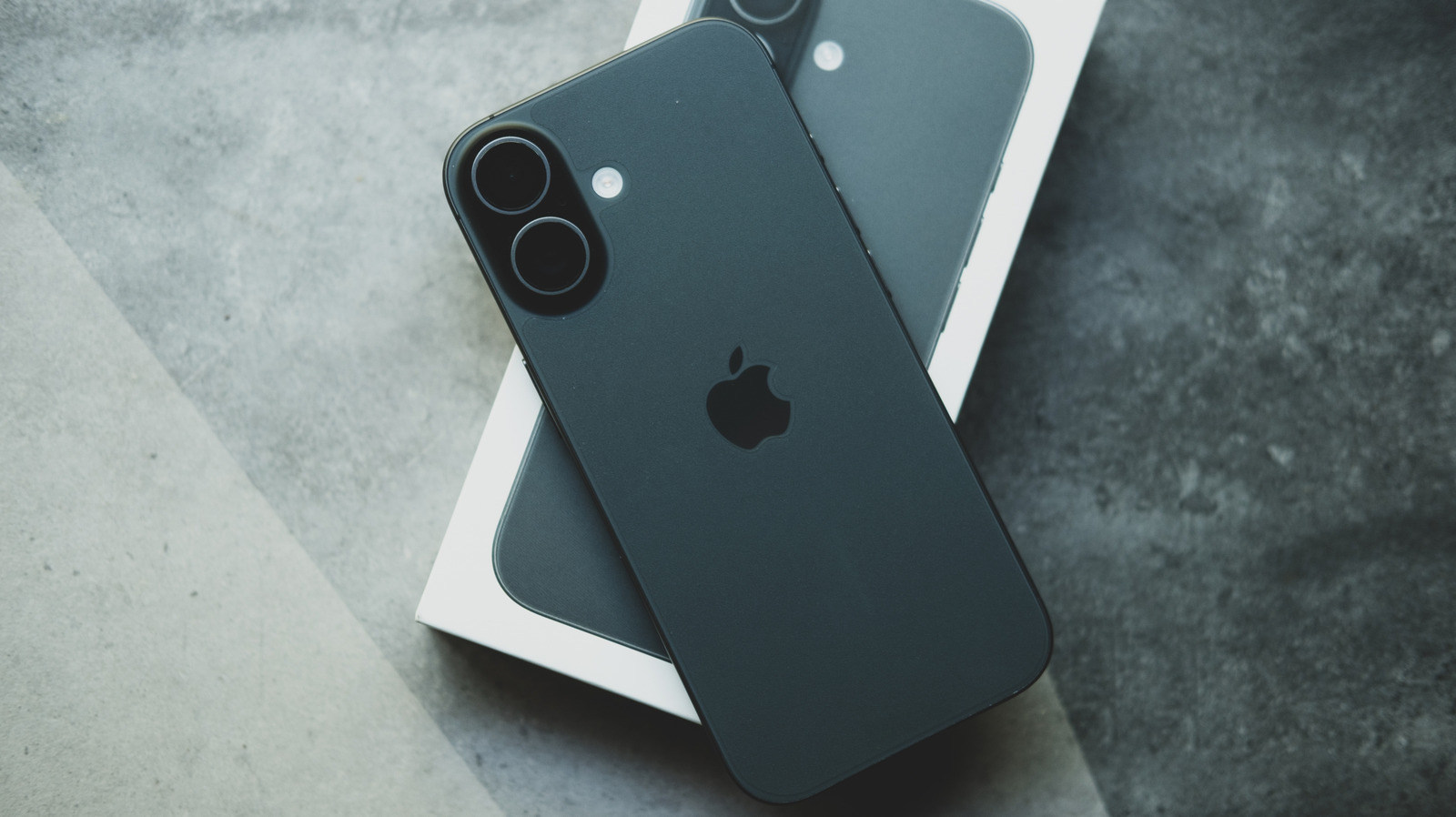
Features like Smart HDR, Deep Fusion, and Apple ProRAW transformed the iPhone from a simple image capture tool into an automated computational suite. With each new iOS iteration, Apple introduced layers of customization:
- iOS 11 and iOS 12: Brought the introduction of High Efficiency Image Format (HEIF) and HEVC video compression, forcing users to choose between maximum compatibility and storage efficiency.
- iOS 13 and iOS 14: Brought advanced Night Mode controls, QuickTake video recording, and expansive exposure compensation lock mechanisms.
- iOS 15 and iOS 16: Introduced Photographic Styles, Cinematic Mode, macro control toggles, and ProRes video encoding for professional workflows.
- iOS 17, iOS 18, and iOS 26: Expanded spatial audio recording, advanced grid leveling tools, higher default photo resolutions (shifting standard captures to 24MP), and tighter integration with machine learning scene detection.
This relentless feature expansion means that a modern iPhone running the latest operating system features upwards of thirty distinct toggles and sub-menus dedicated exclusively to the camera experience. Without a master reset switch, users must understand how these components interact to return their device to a pristine state.
Supporting Context & Metrics: Why Baseline Settings Matter
Why should users care about returning to default settings? Beyond the obvious psychological benefit of clearing out unwanted configurations, there are profound technical and practical reasons to keep your camera parameters optimized.
The Psychology of "Setting Fatigue"
Mobile photography is built on spontaneity. The best shots often occur in fractions of a second—a fleeting expression, an unexpected wildlife encounter, or a sudden dramatic shift in weather. If your camera is inadvertently locked into a specialized mode—such as manual exposure compensation, a third-party aspect ratio, or a specialized ProRAW format—you risk missing the moment entirely while scrambling to adjust your settings in real time.
Furthermore, "setting fatigue" occurs when users continuously tweak parameters to fix a localized issue (e.g., boosting exposure for a dark indoor scene) and forget to revert them, leading to consistently underexposed or overprocessed outdoor photographs later on.
Storage Optimization and File Formats
Default settings are meticulously engineered by Apple’s engineering teams to strike an optimal balance between visual fidelity and hardware resource management. For instance:
- High Efficiency (HEIF/HEVC): Compresses files significantly smaller than traditional JPEG and H.264 formats while preserving dynamic range and color depth. Leaving a device permanently locked into maximum-compatibility JPEG mode can silently drain device storage at an exponential rate.
- Resolution Defaults: Modern devices offering 24MP or 48MP capture modes produce stunning detail, but they also generate massive file sizes. Reverting to standard baseline defaults ensures your iCloud storage and local device memory do not fill up unexpectedly with casual snapshots saved at maximum fidelity.
The Default iPhone Camera Settings Breakdown
To restore your iPhone camera to its original factory state without executing a blanket system wipe, you must navigate to Settings > Camera and systematically review your configurations.
1. The "Preserve Settings" Menu
At the heart of Apple’s configuration philosophy is the Preserve Settings submenu. This section dictates whether the camera app remembers your last-used adjustments (such as camera mode, creative filters, or lighting effects) or automatically reverts to default values every time you exit and relaunch the application.
- Camera Mode: Should be toggled OFF (ensuring the app always opens to standard Photo mode rather than Video, Portrait, or Cinematic).
- Creative Settings: Should be toggled OFF (resetting filters, lighting effects, and depth adjustments).
- Exposure Adjustment: Should be toggled OFF (clearing any manual exposure bias you previously dialed in).
- Live Photos: This is the only toggle that Apple enables by default out of the box. Leaving this ON ensures Live Photos remain active upon relaunch, though users frequently toggle this off for workflow or storage reasons.
2. General Capture and Composition Settings
Moving down the main Camera settings page, adjust the following core toggles to match standard factory defaults:
- Grid: OFF (Though many photographers prefer this on for the rule of thirds, it is disabled by default).
- Level: OFF (The on-screen stabilization horizon line).
- Mirror Front Camera: OFF (For standard preview mirroring behavior).
- View Outside the Frame: OFF.
- Macro Control: ON (On supported devices, automatically manages ultra-wide lens switching for close-up shots).
3. Photographic Styles and Smart Processing
- Smart HDR: ON (Crucial for balancing extreme highlights and shadows automatically).
- Prioritize Faster Shooting: ON (Modifies image processing intelligently when rapidly pressing the shutter button).
- Lens Correction: ON (Automatically rectifies distortion on the ultra-wide front and rear cameras).
4. Video Recording Baseline Standards
Video settings harbor some of the most dramatic variations between casual and power-user configurations. To return video capture to standard factory defaults, configure your device as follows:
- Record Video: Set to 1080p HD at 30 fps (or 4K at 30 fps depending on regional carrier defaults, though 1080p/30fps remains the classic baseline for general compatibility).
- Record Slo-mo: Set to 1080p HD at 240 fps.
- Cinematic Recording: Set to 1080p at 30 fps (where supported).
- Record Stereo Sound: ON (Or Spatial Audio enabled on iPhone 16 models and newer).
- Auto FPS (Low Light): ON (Automatically drops frame rates in dim environments to gather more light).
5. Advanced iOS 26 and Modern OS Defaults
For users operating modern devices running the latest iterations of iOS, additional advanced toggles require attention:
- Formats: Set to High Efficiency.
- Photo Resolution / ProRAW: Default capture resolution should be set to its standard baseline (such as 24 MP on compatible devices), with Apple ProRAW & Resolution Control toggled OFF unless specifically required for professional post-processing workflows.
- Scene Detection: ON (Allows the system to identify objects and scenes within the frame to optimize exposure and color science dynamically).
The "Hail Mary" Approach: Resetting All Device Settings
For users managing secondhand devices with deeply corrupted configurations, or those who simply find sifting through dozens of toggles too tedious, Apple provides a global system reset option.
Important Caveats Before You Begin
It is critical to understand that Apple does not offer a standalone "Reset Camera Settings Only" button. Executing a settings reset will affect your entire device. While this process will not delete your personal media, photos, messages, or downloaded apps, it will revert all system configurations back to factory defaults. This includes:
- Wi-Fi network passwords and saved Bluetooth pairings.
- Custom wallpaper and display brightness settings.
- Apple Pay cards, transit passes, and digital keys stored in the Wallet app.
- Touch ID / Face ID security preferences (though biometric enrollment data is typically preserved, authentication flags may require re-verification).
Step-by-Step Global Settings Reset Instructions
If you have weighed the risks and decided that a complete configuration wipe is necessary, follow these exact steps:
- Unlock your iPhone and open the Settings application.
- Scroll down and tap on General.
- Scroll to the very bottom of the General menu and select Transfer or Reset iPhone.
- Tap on the Reset option at the bottom of the screen. A pop-up menu will appear with multiple granular reset categories.
- Select Reset All Settings. (Note: Avoid selecting "Erase All Content and Settings" unless you intend to completely wipe the phone for disposal or factory sale).
- Enter your device passcode to confirm your identity.
- Confirm your choice by tapping Reset All Settings on the final warning prompt.
Your iPhone will restart automatically. Once the device boots back up, every system setting—including the entire suite of camera preferences—will be successfully restored to its pristine, out-of-the-box factory default state.
Future Outlook: What to Expect in Upcoming iOS Updates
As mobile imaging continues its rapid convergence with artificial intelligence, generative processing, and advanced optical hardware, the management of camera configurations will inevitably transform.
Industry analysts and developer previews suggest that future versions of iOS may finally introduce granular, app-specific reset buttons within the camera interface itself. Rather than forcing users to dive deep into the overarching system settings menu or execute a blunt-force system-wide reset, Apple may soon implement a dedicated "Restore Default Settings" toggle directly within the in-app Camera settings overlay. Furthermore, as machine learning models take on an increasingly dominant role in image generation and real-time scene optimization, the traditional concept of a "static factory default" may evolve into a dynamic, context-aware baseline that adapts intelligently to user behavior over time.
Until such features officially debut in future software releases, mastering the manual toggle adjustments and understanding the implications of a global settings reset remain indispensable tools for maintaining optimal photographic performance on any iPhone.