
Executive Overview
Following its monumental launch on November 19, Grand Theft Auto 6 has immediately pushed the hardware limits of current-generation consoles. The sprawling streets of Leonida, dense pedestrian AI, and dynamic weather simulations demand immense computational overhead from both the PlayStation 5 and Xbox Series X/S families. While Rockstar Games locked the game at a 30 frames-per-second (fps) cap across all standard platforms to maintain visual fidelity and stability, hardware bottlenecks can occasionally pull performance even lower.
Despite inventive community workarounds—such as the Xbox Series X display-switching glitch that attempts to bypass the 30 fps cap—current-gen hardware operates near its theoretical maximums. Tinkering with software trickery yields marginal, unstable gains while introducing severe game speed anomalies and physics bugs. Instead of forcing unnatural behaviors from your hardware, players should focus on optimizing their console’s baseline environment.
To help players achieve the most stable experience possible, this report outlines five definitive diagnostic steps to ensure your hardware isn’t inadvertently choking your GTA 6 performance.
Detailed Chronology: The Launch Window and Performance Realities
The release of GTA 6 sparked an immediate wave of technical analysis and community experimentation. Understanding how the game behaves on modern hardware requires examining the sequence of events since its debut:
- November 19: Grand Theft Auto 6 officially launches globally, locking output at 30 fps across PlayStation 5, PlayStation 5 Pro, Xbox Series X, and Xbox Series S.
- November 22: Early adopters on the Xbox Series X discover a performance glitch. By cycling display output between 60Hz and 120Hz during the loading screen and utilizing the Xbox Quick Resume feature, players find they can lift the frame rate cap. Independent tech analysis from Digital Foundry reveals the uncapped game averages roughly 36 fps, accompanied by game animations running at double speed, rendering the trick largely unplayable for a standard session.
- November 23: Rockstar Games deploys its first post-launch patch, addressing critical crashing bugs, progression stoppers, broken autosaves, and missing dialogue triggers. The update makes no modifications to frame rates or graphical settings.
- November 25: Reports of error codes (such as CE-108255-1 on PlayStation) continue to circulate alongside unfounded rumors of an impending stutter-fix patch from Rockstar, which never materializes.
This chronology highlights that GTA 6 was meticulously engineered to extract every ounce of available power from current-generation silicon. Because the game leaves almost no processing headroom, hardware maintenance and system hygiene are paramount.
Supporting Context & Metrics: Expected Performance Profiles by Console
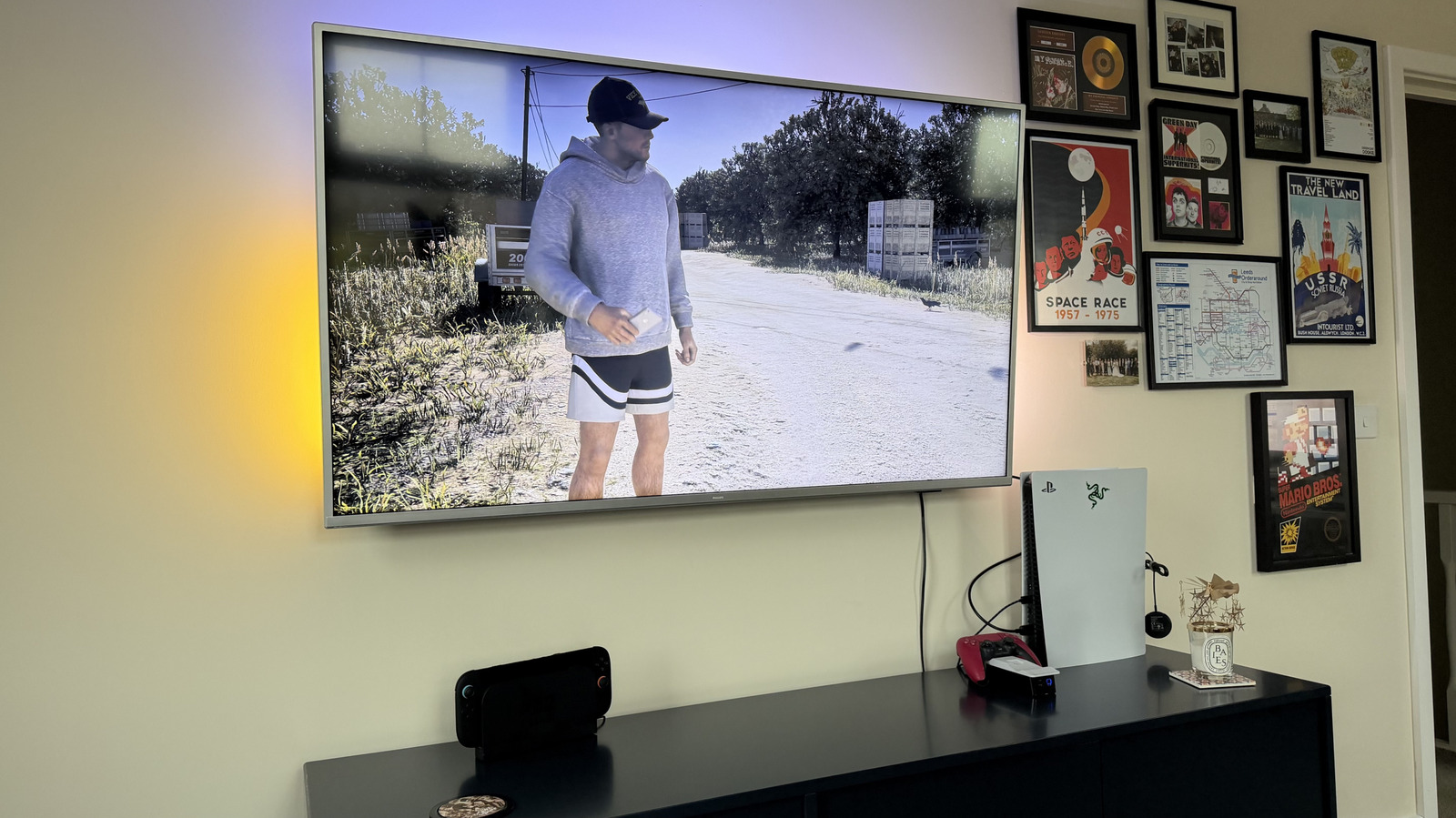
Before troubleshooting your setup, it is vital to understand the baseline performance metrics of each platform. Consoles lack native, on-screen frame rate counters, meaning players must rely on visual queues and empirical data gathered by hardware analysis firms.
1. Know What Frame Rate You Should Be Getting
Across roughly 60 hours of continuous gameplay testing on an original-model 2021 PlayStation 5, performance remains largely stable at 30 fps. Minor dips occur during high-density city navigation, while intensive stress tests—such as orchestrating multiple simultaneous explosions via a grenade launcher—can temporarily drag the frame rate down to 23 fps.
- PlayStation 5 Pro: Leveraging its upgraded GPU and PSSR (PlayStation Spectral Super Resolution) capabilities, the PS5 Pro maintains its 30 fps target with remarkable resilience. During extreme vehicular pile-ups and synchronized explosions, the Pro rarely dips below 24 fps.
- Xbox Series X: The Microsoft flagship closely mirrors the base PS5, holding a firm 30 fps baseline during standard gameplay, though it occasionally stutters during crowded urban environments and sudden particle-heavy combat scenarios.
- Xbox Series S: Operating at an internal 720p rendering resolution to accommodate its reduced memory bandwidth, the Series S bears the heaviest burden. Performance typically hovers between 25 and 30 fps, dropping to 20 fps in congested districts, with isolated stress tests tanking the metric as low as 18 or 19 fps.
Diagnostic Check: Stuttering during chaotic firefights, rapid police chases, and widespread vehicular collisions is normal for current-gen architecture. However, if your console is stuttering or dropping frames during routine walking, quiet driving, or cinematic cutscenes, your machine may be suffering from an underlying hardware or software bottleneck.
Official Statements and Technical Directives
The debate regarding why GTA 6 runs at 30 fps rather than a higher refresh rate was officially put to rest by Rockstar’s technology production director, Marc Chambers. In a post-launch technical briefing, Chambers confirmed that even the advanced processing architecture of the mid-generation PS5 Pro lacks the sustained single-core CPU throughput required to run GTA 6 at 60 fps without severely compromising the game’s dense simulation systems, physics engines, and population density.
Furthermore, Rockstar’s patch notes and Sony/Microsoft support documentation emphasize that optimal performance requires strict adherence to system maintenance guidelines. This brings us to the core action items every player should execute.
Five Ways to Ensure Your Console Isn’t Holding Back GTA 6
2. Make Sure Your Game Is Up to Date
Running an outdated version of a massive open-world game invites memory leaks, unoptimized asset streaming, and persistent crashing bugs.
- On PlayStation 5: Highlight the GTA 6 tile on your main dashboard, press the Options button on your DualSense controller, and select Check for Update.
- On Xbox Series X/S: Navigate to My games & apps, select Manage, and check the Updates queue.
A Crucial Storage Warning: GTA 6 boasts a staggering base install size of 212GB. Sony and Microsoft operating systems require substantial overhead to unpack and apply patches—often demanding double the game’s file size in free drive space to complete an installation. If your internal SSD is completely filled, your console may fail to apply critical patches or throw application error codes (such as CE-108255-1). If errors persist after updating, clearing system caches, verifying save file integrity, or performing a clean reinstall may be necessary.
3. Quit the Game Instead of Resuming It
Console convenience features like Xbox Quick Resume and PlayStation 5 Rest Mode are designed to speed up playtime, but they can degrade session performance over time.
The Xbox Quick Resume feature captures the exact system memory state of a game and restores it instantly. However, leaving GTA 6 suspended in Quick Resume for extended periods can lead to memory fragmentation and asset-streaming degradation.
- To cleanly terminate a session on Xbox: Press the Xbox button, highlight GTA 6, press the Menu button, and select Quit. (You can also toggle Quick Resume behavior for specific titles via Manage game and add-ons > Quick Resume settings).
- To cleanly terminate a session on PlayStation 5: Highlight the GTA 6 application icon on the home screen, press the Options button, and select Close Game.
Always ensure your progress is manually saved before shutting down your console completely rather than relying purely on sleep states.
4. Clean Out the Dust and Give It Breathing Room
Thermal throttling is a silent performance killer. While overheating will not automatically lower your frame rate on modern consoles (as safety protocols will crash or shut down the machine entirely before letting silicon melt), thermal stress degrades components and forces internal fans to run at maximum velocity, introducing acoustic distractions and system instability.
- Placement: Follow manufacturer guidelines. Keep your console at least four inches away from walls, out of enclosed entertainment cabinets, and off thick carpeting that blocks airflow.
- Physical Maintenance: Consoles purchased at launch in late 2020 have spent over five years accumulating particulate matter within their internal heatsinks and fan assemblies.
- For PlayStation 5 owners: Unplug the unit, wipe down the exterior, and safely remove the plastic side covers to access the built-in dust catchers. Vacuum out accumulated debris using low-suction attachments designed for electronics.
Removing heat as a variable ensures your console operates within safe thermal envelopes during long marathon sessions in Vice City.

5. Play from the Console’s Internal SSD
Because GTA 6 constantly streams massive amounts of topographical data, pedestrian AI, and vehicle models as you traverse the map, storage read/write speeds are critical.
An 825GB PlayStation 5 provides roughly 667GB of usable space. Given the game’s 212GB footprint, many players are tempted to install GTA 6 onto an external or secondary M.2 NVMe SSD. While the PS5 supports PCIe Gen4 drives with sequential read speeds exceeding 5,500 MB/s, running open-world titles off secondary expansion drives can occasionally introduce micro-stutters if the drive lacks a dedicated, high-performance heatsink or experiences thermal throttling.
- Troubleshooting Storage: If you experience inexplicable stuttering, texture pop-in, or asset loading delays while playing, try migrating the game back to the primary internal SSD. On PS5, navigate to Settings > Storage > M.2 SSD Storage > Move Games and Apps. On Xbox Series X/S, games must be run either from the internal velocity architecture drive or an approved official Storage Expansion Card.
Future Outlook
As players continue to dissect every technical aspect of Grand Theft Auto 6, Rockstar Games is expected to release further optimization patches in the coming months. While community hackers will undoubtedly continue chasing the elusive dream of un-capped frame rates via system exploits, the harsh reality of console hardware limitations means the best experience will always be found on a clean, well-ventilated, and properly updated system running off high-speed internal storage. By following these five diagnostic steps, you can ensure your hardware delivers the smoothest possible journey through Rockstar’s latest digital frontier.