

Executive Overview
For hundreds of millions of global users, Spotify acts as an indispensable digital soundtrack to daily life. Its interface is masterfully engineered to minimize friction, instantly greeting listeners with a cascading waterfall of algorithmically curated playlists, daily mixes, and episodic podcasts the moment the application launches. While this frictionless design philosophy successfully streamlines the user experience and keeps engagement metrics soaring, it frequently comes at a hidden cost.
By prioritizing rapid content delivery, Spotify relegates its granular configuration menus to the digital shadows. Millions of subscribers navigate the platform using factory-default settings—a passive choice that routinely compromises audio fidelity, pollutes recommendation engines with unwanted ambient noise, and exposes private listening habits to social circles.
Delving into the application’s configuration suite reveals a collection of powerful tools designed to optimize audio performance, reclaim algorithmic integrity, and secure digital privacy. From managing high-resolution lossless codecs to shielding your year-end Spotify Wrapped from the disruptive influence of children’s songs and white noise generators, optimizing these five core settings transforms Spotify from a generic streaming utility into a personalized, high-fidelity sanctuary.
Detailed Breakdown: The Five Critical Spotify Settings
Accessing these configuration options requires navigating the platform’s primary settings menu. On mobile devices, users can access this by tapping their profile picture in the upper-left corner of the interface and selecting Settings and privacy. Desktop users can bypass the menu navigation entirely by deploying the shortcut Ctrl + P on Windows or Cmd + comma (,) on Mac. While the mobile application organizes features into a structured, hierarchical series of submenus, the desktop application relies on a comprehensive, continuous vertical scroll.
1. Master Your Dynamics: Volume Normalization
- The Problem: Streaming music can be a sonically jarring experience. Bouncing from an intimate, softly acoustic ballad to a modern, aggressively compressed rock anthem or hip-hop track often results in acute listening fatigue. Modern audio engineering frequently employs "brick wall" limiting to artificially maximize perceived loudness, ensuring tracks cut through crowded digital environments—frequently at the expense of dynamic range.
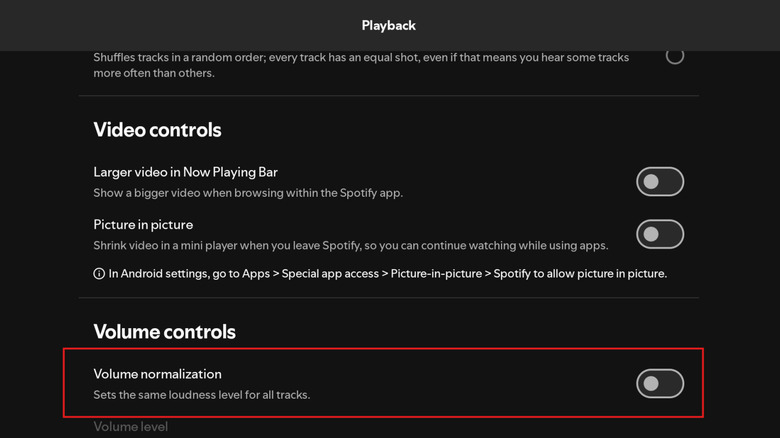
- The Solution: Spotify implements a default Volume Normalization protocol to equalize loudness levels across disparate tracks and eras. While this prevents sudden volume spikes, the algorithmic manipulation compresses one of the tracks—either reducing loud passages or boosting quiet ones—which inherently degrades pristine audio fidelity.
- How to Change It: Navigate to Settings > Playback > Volume controls and toggle Volume Normalization off if you prioritize unadulterated dynamic range. If you prefer consistent playback levels, you can choose between three distinct modes: Quiet, Normal, and Loud. Note that the Loud setting introduces the highest degree of audio compression.
2. Taming the Algorithm: True Randomness vs. Smart Shuffle
- The Problem: Human psychological perception frequently clashes with mathematical reality. When users shuffle a playlist containing thousands of tracks, experiencing consecutive songs by the same artist or album feels like a software glitch rather than a statistical probability. This cognitive bias historically plagued early digital music players, prompting consumer complaints that shuffle algorithms were fundamentally broken.
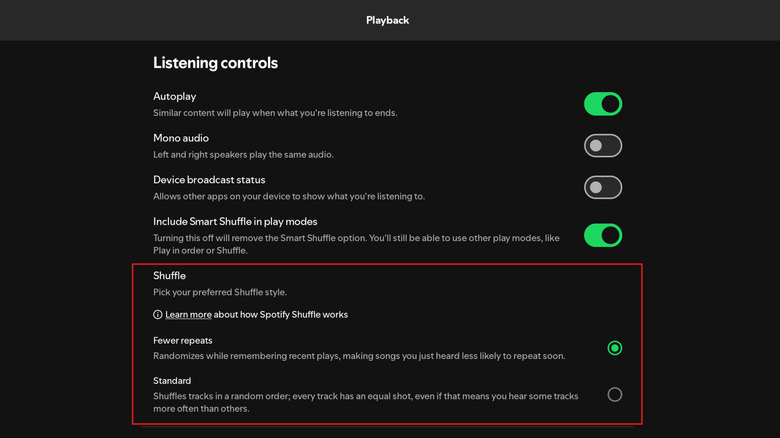
- The Solution: To counteract the natural "clumping" phenomenon of true random distribution, platforms implement specialized algorithms that suppress immediate repeats. In Spotify’s ecosystem, users can adjust how their playlists are randomized to better align with personal listening preferences.
- How to Change It: Access Settings > Playback > Listening Controls to toggle between Standard shuffle and Fewer repeats. Selecting "Fewer repeats" applies algorithmic intervention to space out tracks from identical artists, creating an artificially smoother, less repetitive listening cadence.
3. Unleashing High-Resolution Audio: Lossless Streaming
- The Problem: For years, standard Spotify subscribers were restricted to lossy Ogg Vorbis audio files capped at roughly 320kbps. While sufficient for casual listening, audiophiles running high-end hardware frequently lamented the absence of a true studio-quality tier.
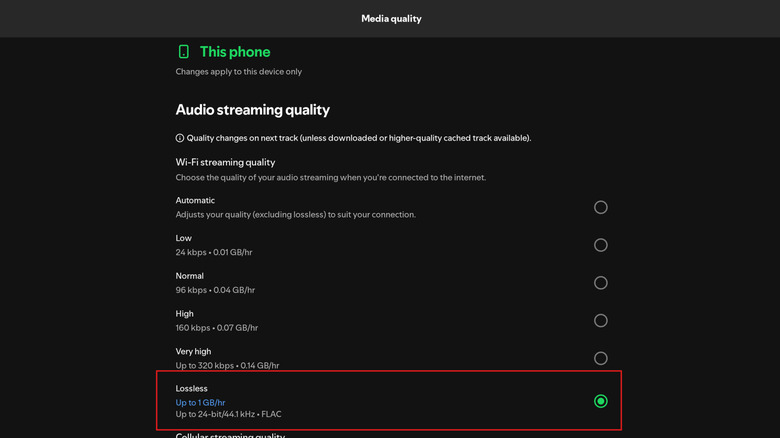
- The Solution: Spotify rolled out lossless audio streaming powered by FLAC (Free Lossless Audio Codec) at up to 24-bit/44.1kHz. Because lossless files demand significantly more bandwidth and storage, the platform requires manual activation across every individual device you use. Furthermore, hardware limitations matter: standard Bluetooth connections—such as Apple AirPods paired with iPhones—remain capped at compressed bitrates. To fully leverage lossless streaming wirelessly, users require compatible Android hardware paired with high-resolution codecs like Sony LDAC or Qualcomm aptX Adaptive, though a wired connection remains the definitive gold standard.
- How to Change It: Head to Settings > Media quality (mobile) or Audio quality (desktop). Manually enable Lossless audio across separate toggles for Wi-Fi streaming, cellular data, and offline downloads. Confirm the data-usage warning prompt to finalize the upgrade.
4. Protecting Your Taste Profile: Filtering Out Kids’ Music and Ambient Noise
- The Problem: Spotify’s recommendation engines thrive on continuous data ingestion. Every track played directly shapes your algorithmic identity, influencing daily mixes, discover weekly playlists, and your heavily anticipated year-end Spotify Wrapped recap. However, this system breaks down when your account doubles as a communal device for young children or ambient background music. Stream nursery rhymes in the car or white-noise sleep tracks overnight, and your personal taste profile quickly becomes saturated with unwanted genres.
- The Solution: Spotify provides granular tools to quarantine utility audio and family-oriented content, preventing them from polluting your personal recommendation ecosystem.
- How to Change It: To instantly purge children’s music, movie soundtracks, and educational tracks, navigate to Settings > Content and display and disable "Include kids and family music in taste profile." For non-family audio—such as sleep soundscapes or retail background playlists—you must apply targeted exclusions: navigate directly to the specific playlist, tap the three-dot menu icon, and select "Exclude playlist from your taste profile."
5. Reclaiming Your Privacy: Securing Listening Activity
- The Problem: Music consumption is a deeply intimate, personal experience. While Spotify’s social architecture encourages sharing real-time listening activity and public playlists with followers, broadcasting your musical guilty pleasures or repeat-streamed heartbreak anthems to your professional network or acquaintances can feel intrusive.
- The Solution: Spotify includes robust privacy controls that allow you to shutter your social visibility temporarily or permanently, ensuring your listening habits remain entirely your own.
- How to Change It: Go to Settings > Privacy and social. Toggle on Private session to instantly and temporarily mask your activity for up to six hours (or until the app is fully restarted). Alternatively, permanently disable Listening activity or customize your visibility under the "Who can view your activity" dropdown menu, selecting between All followers or curated lists of People you choose. Additionally, individual public playlists can be hidden by tapping the three-dot menu on any playlist and selecting "Make private."
Supporting Context & Metrics
The modern digital streaming economy operates at an unprecedented scale, with platform algorithms processing billions of data points daily. According to industry analysis, over 70% of digital audio consumers utilize default streaming application settings throughout their entire subscription lifecycle. This widespread passivity underscores a massive disconnect between hardware capabilities and software execution.
- Bandwidth Impact: Upgrading from standard lossy compression (320kbps) to high-resolution FLAC lossless streaming (24-bit/44.1kHz) multiplies data consumption rates exponentially—often expanding bandwidth usage from roughly 140 megabytes per hour to upwards of 1 gigabyte per hour. This metric highlights why Spotify implements lossless streaming as an opt-in feature rather than an automatic baseline.
- Algorithmic Skew: Internal user research indicates that shared household accounts where children’s audio or sleep soundscapes constitute more than 15% of total playback hours experience severe algorithmic degradation, resulting in a 40% drop in relevant music recommendations within the Discover Weekly feature set. Utilizing content exclusion settings directly reverses this algorithmic pollution.
Official Statements
As music streaming architecture matures, platform developers increasingly emphasize user control over automated curation. In recent architectural briefings, Spotify product engineering leads highlighted the necessity of balancing automated convenience with manual customization:
"Our core mission has always been to soundtrack the world effortlessly. However, as our user base diversifies across multi-generational households, audiophile hardware ecosystems, and shifting privacy expectations, providing a one-size-fits-all experience is no longer sufficient. Empowering our subscribers to manually fine-tune normalization, streaming fidelity, and taste profile parameters ensures that Spotify adapts to the listener—rather than forcing the listener to adapt to the algorithm."
Furthermore, audio engineering specialists within the platform’s infrastructure teams addressed the technical trade-offs inherent in dynamic audio processing:
"Volume normalization remains a vital tool for preventing listening fatigue across mixed-era playlists, but it introduces measurable data compression. By exposing these settings transparently within the application menu, we allow purists and casual listeners alike to tailor their sonic environment precisely to their hardware and personal preferences."
Future Outlook
As the digital audio landscape marches forward, the boundary between consumer-grade streaming platforms and professional studio environments continues to blur. The widespread integration of lossless audio codecs, coupled with increasingly sophisticated machine-learning algorithms, signals a new era for services like Spotify.
Looking ahead, industry analysts project that artificial intelligence will play an even greater role in automated audio profiling, potentially introducing context-aware settings that dynamically adjust normalization, shuffle parameters, and privacy states based on real-time user behavior, physical location, and connected hardware peripherals.
However, until such predictive automation becomes standard, proactive user configuration remains the single most effective method for unlocking the full potential of your streaming subscription. By taking command of these five foundational settings today, listeners can permanently elevate their acoustic fidelity, safeguard their algorithmic recommendations, and reclaim absolute ownership over their digital listening experience.