

Executive Overview
For most households and small businesses, the internet router is a silent, indispensable guardian of daily productivity, digital entertainment, and remote communication. Yet, despite its critical role in modern life, this piece of hardware remains largely misunderstood—a mysterious black or white box tucked away in a corner, flashing an enigmatic Morse code of green, amber, red, and white LED lights. Among the most popular networking hardware manufacturers, Netgear produces millions of routers and mesh systems globally. When a network connection drops or performance stutters, the user’s first instinct is typically to stare blankly at the front panel of the device, trying to decipher whether a blinking amber light signals a minor hiccup or a total network collapse.
Understanding what each indicator light signifies on a Netgear router—whether it is a traditional gaming powerhouse or a cutting-edge Orbi mesh system—is not merely an exercise in tech-savvy curiosity. It is an essential diagnostic skill for effective troubleshooting, network security, and ensuring optimal data speeds. While color codes and flashing patterns can initially seem opaque without a manual, breaking them down into primary indicators, secondary status lights, and hardware-specific behaviors demystifies the entire ecosystem. This comprehensive guide provides an authoritative breakdown of what your Netgear router’s lights are trying to tell you, which ones genuinely demand your attention, and how to translate those glowing signals into swift, effective networking solutions.
Detailed Chronology and Technical Evolution of Router Indicators
To fully appreciate the diagnostic language of modern Netgear hardware, it is helpful to understand how router interface design has evolved over the past two decades. In the early days of broadband adoption, status lights were straightforward and hyper-literal. Every single Ethernet port had its own dedicated LED, ADSL or cable line statuses were mapped to rudimentary indicators, and "Tx/Rx" (Transmit/Receive) lights flickered frantically with every packet sent. These early interfaces were designed primarily for network administrators and field technicians who required granular, port-by-port visibility into packet traffic.
As Wi-Fi became ubiquitous and consumer routers transitioned from industrial-looking utility boxes into consumer-friendly smart home appliances, industrial designers pushed for cleaner aesthetics. The blinking array of twenty-plus individual green LEDs gave way to minimalist design philosophies. Netgear, alongside competitors, began consolidating information. Instead of separate lights for every subtle network event, manufacturers introduced multi-state, multi-color LEDs. A single light could now transition from solid white (normal operation) to blinking amber (booting or syncing) and solid red (hardware or internet failure).
With the advent of high-speed Wi-Fi 6, Wi-Fi 6E, and the current rollout of Wi-Fi 7 technologies, the density of network traffic has multiplied exponentially. Consequently, modern Netgear routers and advanced mesh systems like the Orbi line have adopted an even more streamlined approach. Traditional standalone routers balance detailed troubleshooting lights on the front and back panels, while Orbi mesh satellites utilize a single, elegant 360-degree light ring or a discreet bottom-front indicator. This evolution reflects a shift in consumer needs: users no longer want to decipher complex binary packet flows; they want immediate, color-coded confirmation of whether their streaming, gaming, and remote work infrastructure is operating at peak efficiency.
Supporting Context, Metrics, and Core Indicator Breakdowns
The modern Netgear router front panel is dotted with a wide array of lights and symbols. Though universal icons like the power indicator are generally straightforward, interpreting active states—such as whether a light is blinking, pulsing, or glowing a specific shade—requires context.
The Most Important Lights on Your Netgear Router
These core indicators demand your immediate attention because they reflect macro-level system health, power delivery, and your gateway to the outside world.
1. The Power LED
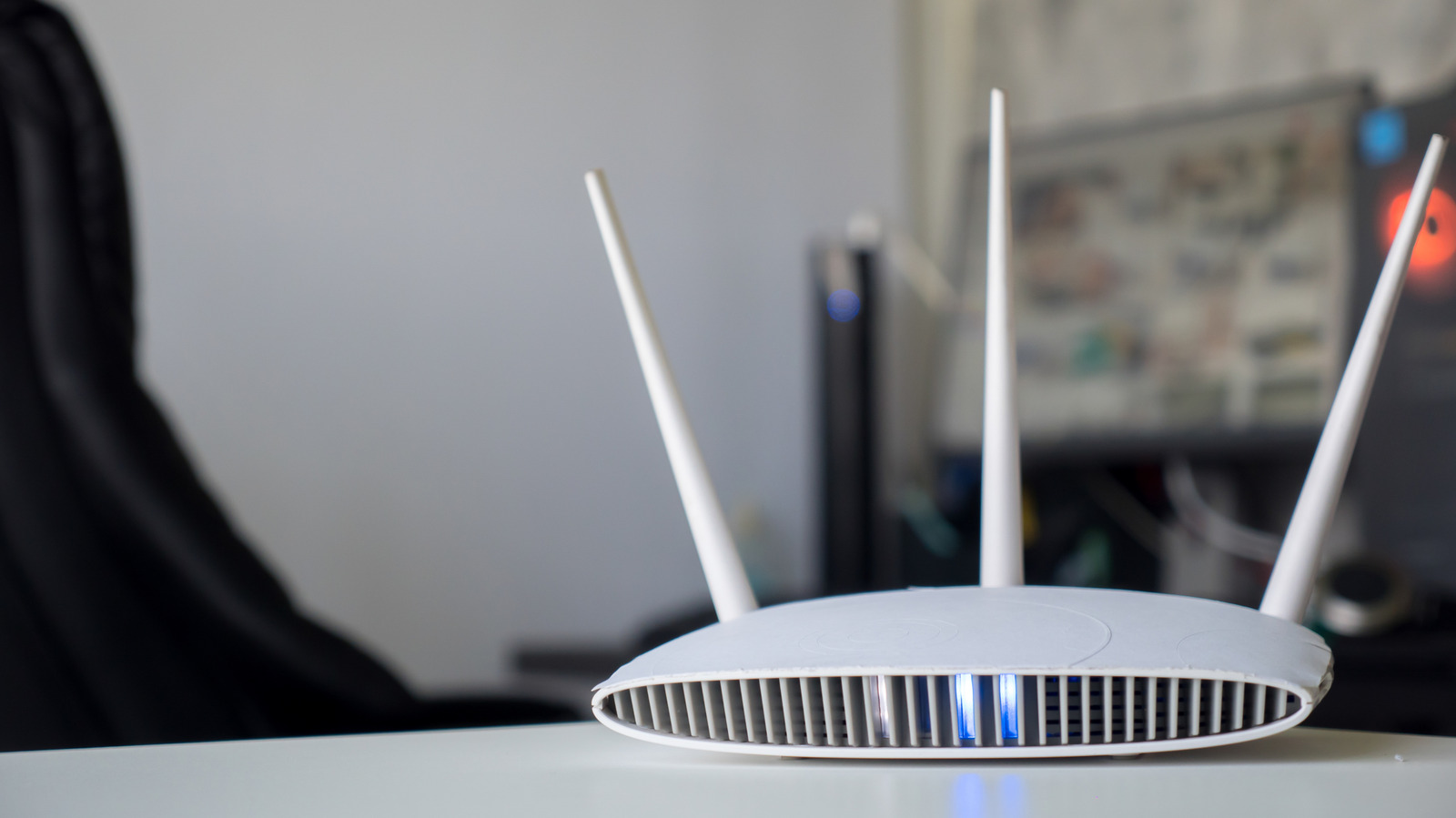
- What it represents: The power symbol LED indicates the overall power status of the device and monitors internal firmware states during boot-up or updates.
- Normal Behavior: A solid green or white light indicates the device is powered on and functioning normally.
- Troubleshooting States: If the light is completely off, the device is receiving no power or has suffered an internal hardware failure. A blinking amber or red power light often signals that the router is currently booting up, resetting, or—in worst-case scenarios—undergoing a critical firmware corruption event. If a router becomes completely unresponsive, a standard power cycle or a manual factory reset via the hardware pinhole is typically required.
2. Internet LED
- What it represents: Usually denoted by a globe icon or a small circle orbiting a larger one, this light monitors the status of your connection to the Internet Service Provider (ISP).
- Normal Behavior: A solid white or green light confirms that the router has successfully established a broadband connection and is communicating with the wider internet.
- Troubleshooting States: An amber or red Internet light indicates that while the router may have power, it cannot communicate with the modem or the ISP’s upstream infrastructure. This points toward an external outage, a loose Ethernet cable connecting the modem to the router’s WAN port, or an authentication issue with your broadband provider.
3. Wi-Fi LED
- What it represents: Represented by a dot with two radiating arcs on each side, this light tracks general wireless radio activity and broadcast status.
- Normal Behavior: A solid or pulsing white/green light indicates that the wireless radios are active and broadcasting SSIDs.
- Troubleshooting States: If this light is off while the router is powered on, the wireless broadcast may have been disabled via the physical Wi-Fi toggle button on the chassis or through the administrator dashboard.
Secondary and Specialty Indicator Lights
Beyond the core trio of power, internet, and wireless status, Netgear routers feature specialized indicators designed for peripheral device management, wired connectivity, and advanced feature sets.
1. Wi-Fi Band LEDs (2.4GHz, 5GHz, and 6GHz)
Modern multi-band routers feature discrete indicators for each frequency band in use.
- The 2.4GHz Band: Ideal for smart home devices and long-range connections.
- The 5GHz Band: Optimized for high-bandwidth activities like 4K streaming and competitive gaming at closer range.
- The 6GHz Band: Exclusive to Wi-Fi 6E and Wi-Fi 7 models, offering a wide, congestion-free superhighway for compatible modern devices.
- Meaning: A lit band LED indicates that the specific radio frequency is active and transmitting data. If a band LED is dark, that particular wireless radio may be turned off in the router settings.
2. USB LEDs
Netgear routers equipped with USB ports (labeled with the classic trident symbol or "USB 3.0") feature corresponding indicators.
- Normal Behavior: A solid light indicates that an external storage device, printer, or compatible peripheral is securely connected and recognized by the router’s firmware.
- Troubleshooting States: A blinking light indicates active data read/write processes (such as accessing files on a connected Network Attached Storage drive). If the light remains unlit when a drive is plugged in, the file system may be unsupported, or the port is failing to deliver sufficient power.
3. Ethernet Port LEDs
Numbered LEDs correspond directly to the physical LAN (Local Area Network) ports on the back of the router.
- Speed Identification: On modern gigabit routers, white or green lights typically indicate a high-speed 1 Gbps connection. Amber or yellow lights denote a slower legacy connection speed (100 Mbps or 10 Mbps), which often signals the use of an older Cat5 cable instead of a Cat5e or Cat6 cable, or a malfunctioning network card on the connected client device.
4. WPS (Wi-Fi Protected Setup) LED
Represented by an icon of a router emitting signal waves, this light tracks WPS pairing activity. While WPS allows users to connect devices to the network without entering a password, cybersecurity experts universally recommend disabling WPS in the router admin panel to prevent potential brute-force security vulnerabilities.
- Behavior: A blinking light indicates that WPS pairing mode is active, waiting for a device to handshake; a solid light or off state means pairing mode is idle.
Reading the Lights on a Netgear Orbi Mesh System
Mesh Wi-Fi systems, such as Netgear’s popular Orbi lineup, diverge from traditional router designs by opting for minimalist aesthetics. Instead of an array of blinking lights on the front, Orbi routers and satellites use a single, multi-state LED ring or indicator located on the bottom-front of the device, supplemented by a status light on the rear.
The Front LED Light (Connection Status)
The primary front indicator on an Orbi router or satellite communicates the quality of the backhaul connection (the communication link between the router and its satellites) and overall internet health:
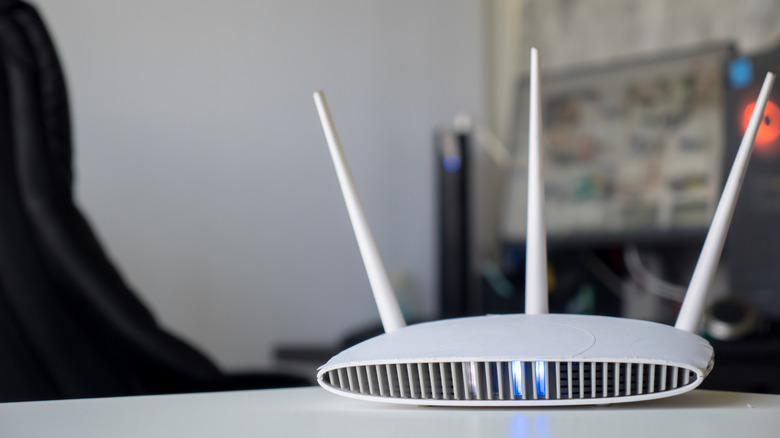
- Solid White: The system is booting up or operating normally with a strong connection.
- Solid Magenta/Red: The router cannot connect to the internet, or the satellite has lost connection to the main router.
- Pulsing Magenta: The satellite is too far from the router and cannot establish a stable backhaul sync.
- Solid Amber: The connection between the router and satellite is fair, but repositioning closer together would drastically improve performance and speed.
- Blue (briefly flashing): Indicates that the router and satellite have successfully synced and communication is optimized.
The Rear LED Light (Power and Firmware)
Located near the power input and physical ports, the rear LED handles hardware-specific diagnostics:
- Off: The device is powered off or disconnected from the electrical outlet.
- Solid Green: The device is powered on and receiving stable electrical current.
- Blinking Amber: Indicates a firmware update is actively installing or the device is executing a factory reset sequence. Crucial warning: Never unplug a Netgear router or mesh satellite while the rear light is blinking amber, as interrupting a firmware flash can "brick" the device.
Official Statements and Industry Perspective
Networking hardware manufacturers continually refine their user interfaces to balance technical accuracy with consumer accessibility. In product documentation and engineering whitepapers, Netgear emphasizes that indicator lights are designed to be the first line of defense in consumer network self-reliance.
"Our goal with multi-state indicator LEDs is to translate complex packet traffic and hardware handshakes into intuitive, actionable visual cues," notes Netgear’s hardware engineering division in configuration documentation. "When a user can instantly identify whether a fault lies with their local ISP handoff, a dropped wireless band, or a misconfigured mesh satellite, it reduces support friction and empowers users to resolve common connectivity hurdles in minutes."
Industry analysts point out that as homes become saturated with dozens of connected IoT devices—from smart thermostats to security cameras—the role of the router as the central nervous system of the smart home has never been more vital. Consequently, clear diagnostic indicators serve as an essential bridge between raw networking technology and everyday human interaction.
Future Outlook: The Next Generation of Router Diagnostics
As we look toward the future of home networking, the physical indicator light is undergoing its own digital transformation. While traditional LEDs remain cost-effective and universally understood, the next wave of high-end networking hardware is beginning to incorporate subtle design shifts.
- Ambient Light Integration: High-end routers are moving away from harsh, glaring green and amber bulbs toward soft, diffused ambient lighting that blends into modern interior design while still communicating critical status changes through subtle color shifts.
- OLED and E-Ink Displays: Premium enterprise-grade and enthusiast routers are increasingly adopting miniature OLED screens that display real-time throughput metrics, active client counts, and precise text-based error codes rather than relying purely on color-coded blinking patterns.
- App-Driven Diagnostics: Increasingly, the physical router lights are acting merely as a coarse alert system (e.g., "something is wrong"), while deep diagnostics are offloaded directly to companion smartphone applications like the Netgear Nighthawk or Orbi apps. These apps provide augmented reality (AR) placement guides, granular speed tests, and step-by-step visual troubleshooting guides that render manual code-breaking obsolete.
Until smart displays completely replace traditional hardware indicators, understanding the language of your Netgear router’s lights remains an invaluable skill. By recognizing the difference between a transient boot-up sequence and a critical WAN failure, users can maintain robust, high-performance home networks with confidence and ease.