
Executive Overview
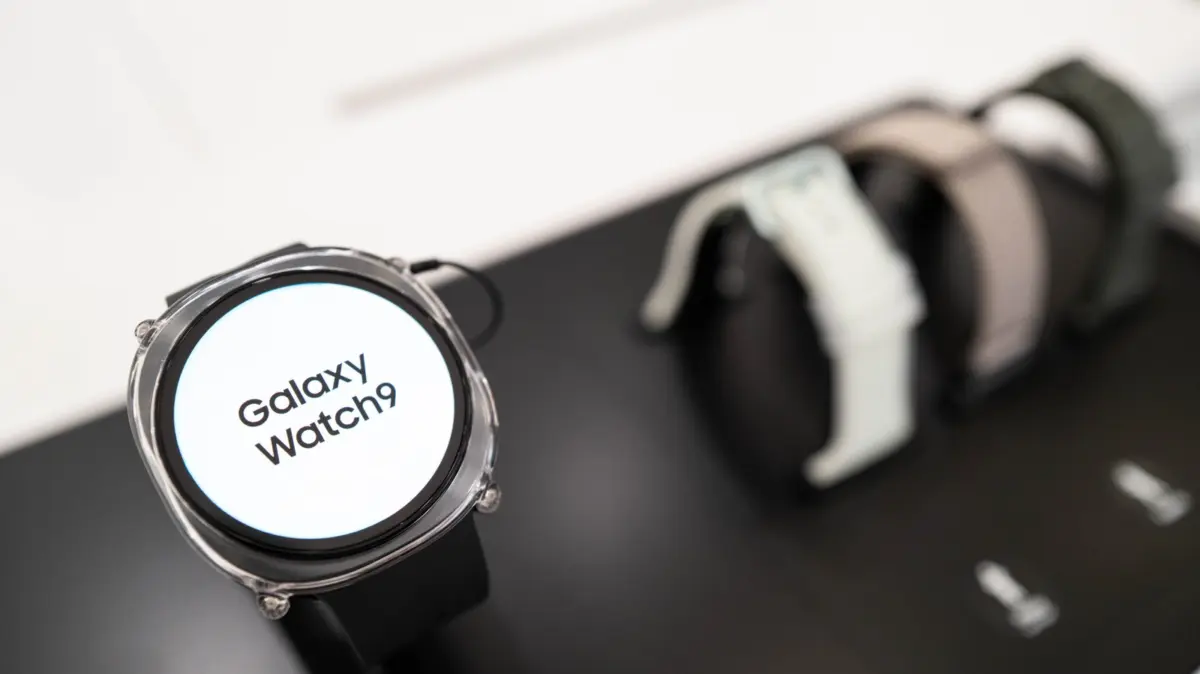
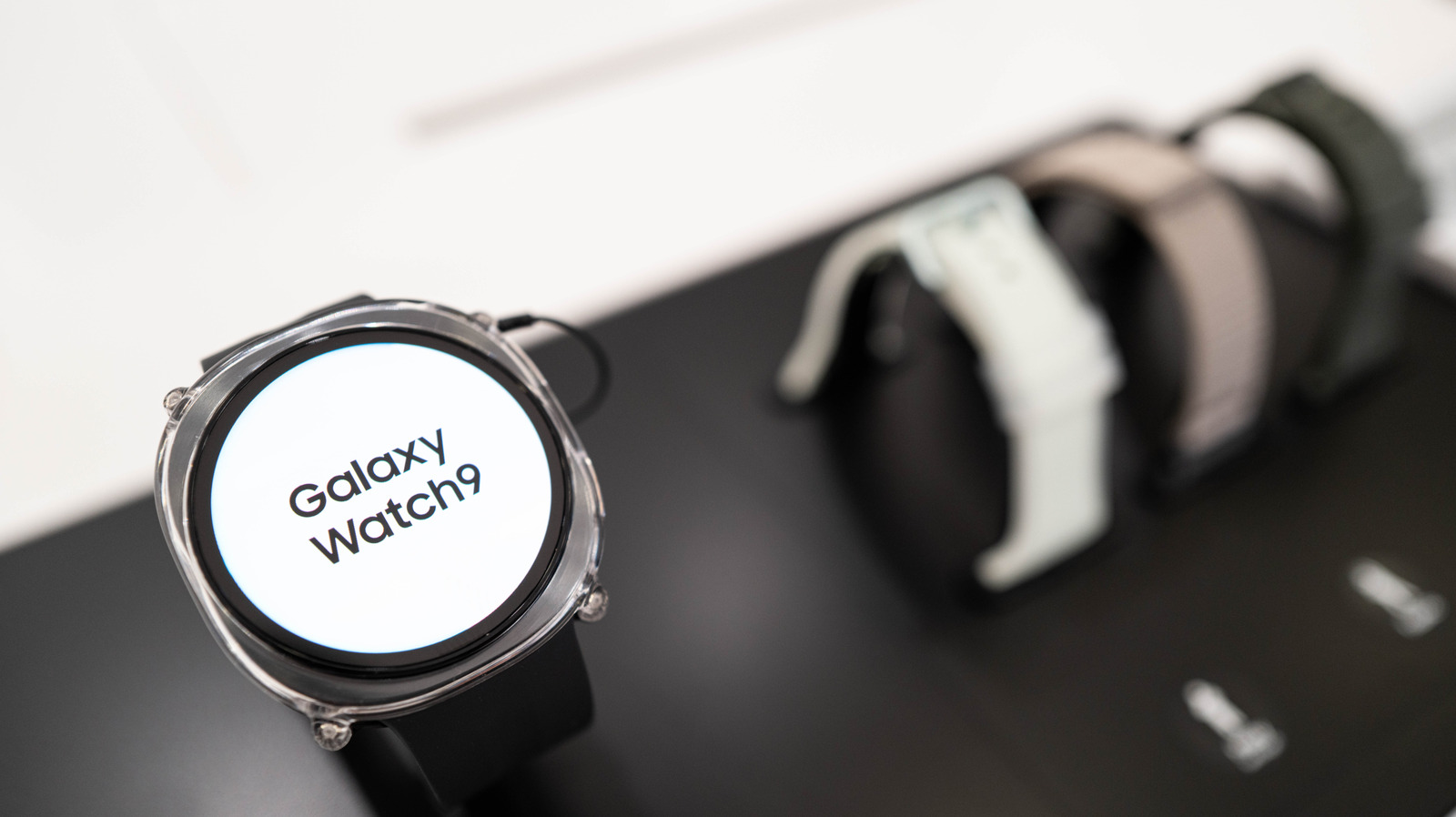
In the rapidly evolving ecosystem of wearable technology, smartwatches have transitioned from novelty gadgetry to indispensable extensions of our smartphones. Whether you are a long-time Android enthusiast, a newcomer dipping your toes into the digital watch landscape, or a recent convert transitioning from competing ecosystems like the Apple Watch to Samsung’s robust lineup—including the latest Galaxy Watch 8, Galaxy Watch 9, and the rugged Galaxy Watch Ultra 2—mastering the interface is paramount to a seamless user experience.
Yet, for all their processing power, biometric sensors, and brilliant AMOLED displays, smartwatches must navigate a fundamental design challenge: screen real estate. Designing a user interface that communicates critical system states without overwhelming a display measuring less than two inches across is an ongoing exercise in minimalist engineering.
Enter the enigmatic orange dot. Positioned discreetly on the far left of the watch face across generations of Samsung Galaxy Watches, this minimalist indicator has left countless users wondering about its purpose. Is it a hardware defect? A secret diagnostic code? Or something far simpler?
This comprehensive guide investigates the true meaning of the orange dot on your Samsung Galaxy Watch, explores its color-coded variations, details how to customize or disable the feature, and decodes the secondary status icons that populate the top and bottom of your wrist display. By understanding these visual cues, users can reclaim control over their notifications, optimize their device battery, and enhance their overall smartwatch fluency.
Detailed Chronology and Interface Evolution
To understand why the orange dot exists on modern iterations like the Galaxy Watch 9 and Watch Ultra 2, one must look back at the software architecture that governs Samsung’s wearables. When Samsung transitioned its smartwatch ecosystem from the proprietary Tizen operating system to Wear OS (developed jointly with Google), it did not abandon its commitment to clean, unobtrusive user interface design. Instead, it refined how users interact with incoming digital noise.
The Genesis of the Notification Indicator
In early digital watch paradigms, unread messages meant a user had to constantly swipe down or check their app drawer to see if anyone was trying to reach them. This approach proved inefficient, draining both battery life and user attention. Samsung’s implementation of a persistent yet subtle visual cue revolutionized how glanceable technology operates.
- The Tizen Era: Early Galaxy Watches utilized subtle dot indicators to signify that unread alerts were lingering in the background, keeping the main watch face clean while offering a binary source of truth.
- The Wear OS Integration: With the adoption of Wear OS, Samsung retained this signature design philosophy. The orange dot became a staple feature of the watch face, designed to sit entirely out of the way on the extreme left periphery of the display.
- The Modern Standard: Today, on the latest hardware iterations, the orange dot remains a steadfast guardian of your attention. It acts as an ambient reminder that the digital world is waiting for your response, all without cluttering complications or draining unnecessary processing power.
Over the years, user feedback has driven minor tweaks—such as the ability to toggle the feature off entirely—but the core utility has remained remarkably consistent, proving that sometimes the best technological innovations are the ones that quietly do their job in the background.
Supporting Context & Metrics: Decoding the Visual Language of Wearables
Smartwatch displays are marvels of micro-engineering, packing resolutions that rival smartphones of a decade ago into a circle roughly the size of a large coin. Because space is at an absolute premium, interface designers rely on an intricate vocabulary of color, position, and iconography to convey complex system states at a single glance.
1. The Orange and Red Dots: Unread Notifications and Urgency
The most prominent mystery for new users is the dot on the left side of the watch face.
- The Orange Dot: This is your standard notification indicator. It illuminates whenever you have one or more unread notifications sitting in your queue. It is persistent, meaning it will doggedly remain on your watch face until you either read, dismiss, or clear all outstanding alerts. Once your notification shade is empty, the dot disappears.
- The Red Dot: A variation that commands higher priority. If the dot shifts from a welcoming orange to a sharp, urgent red, it indicates that you have received an urgent message or critical system alert that demands your immediate attention.
How to Disable the Notification Dot
Not everyone appreciates a persistent reminder of their digital backlog. If you find the dot aesthetically displeasing or anxiety-inducing, Samsung provides a straightforward method to banish it. You can adjust this setting either directly on the watch or through your companion smartphone.
-
Method A: Directly on the Watch
- Press the home button or swipe up to access your app drawer.
- Tap on Settings (the gear icon).
- Navigate to Notifications.
- Select Advanced Settings.
- Toggle off New notification indicator on watch face.
-
Method B: Via the Galaxy Wearable App on Your Phone
- Open the Galaxy Wearable app on your paired Android device.
- Tap on Watch Settings.
- Select Notifications.
- Tap on Advanced notification settings.
- Toggle off New notification indicator on watch face.
2. Top-Screen Icons: Connectivity and Security States
While the left side of the display is reserved for unread communications, the top edge of the Galaxy Watch face acts as a command center for device status and connectivity. Depending on what is happening beneath the hood, you may encounter several key symbols:
- The Strikethrough Phone Icon: If you see a small silhouette of a phone with a diagonal line slashing through it, your watch has lost its Bluetooth tether to your smartphone. This serves as an immediate warning that you may miss incoming calls or texts routed through your phone unless your watch possesses its own standalone LTE connection.
- The Cloud Rectangle: A small rectangular icon featuring a cloud in the center signifies that your Bluetooth connection to your phone has dropped, but fear not—your watch has successfully bridged the gap by connecting via Wi-Fi or mobile data instead.
- The Padlock Icon: Security is vital for devices that track biometric data and facilitate contactless payments. A padlock symbol indicates that your watch is currently locked. To access your apps, complications, or payment methods, you will need to input your designated PIN or password.
3. Bottom-Screen Icons: Multimedia and Active Communication
The bottom edge of the watch face is dedicated to active processes—specifically, media playback and ongoing voice communications.
- The Blue Music Note: When you launch a media streaming application (such as Spotify, YouTube Music, or Samsung’s native audio player), a blue music note will materialize at the bottom of the screen. This icon serves a dual purpose: it tells you at a glance whether audio is currently playing or paused, and tapping it instantly launches the media controls, allowing you to skip tracks or adjust volume without hunting for the app.
- The Green Phone Icon: If a call is actively in progress—whether you are speaking directly into your wrist, routing the call to your Bluetooth headphones, or using your linked smartphone—a green phone icon will occupy this space. Tapping it brings up the active call interface immediately.
Official Insights & Ergonomic Best Practices
Wearable technology experts and user-experience designers at major tech firms emphasize that glanceability is the holy grail of smartwatch design. According to internal ergonomics studies conducted across the industry, the average user looks at their watch for less than three seconds at a time.
"When designing for a circular canvas, every pixel must justify its existence. Indicators like the notification dot or connectivity icons must communicate their message instantly, bypassing cognitive load entirely. If a user has to stop and decipher a symbol, the interface has failed."
— A senior wearable UX design consultant.
Samsung’s design language respects this philosophy. By segregating alerts to specific quadrants of the screen—left for notifications, top for system status, and bottom for active media and calls—the Galaxy Watch creates a predictable spatial memory for the user. Over time, checking your watch becomes as natural as checking the dashboard of a car; you know precisely where to look for fuel levels, warning lights, and speed.
Furthermore, tech analysts note that customization options—such as the ability to disable the orange dot—are critical for reducing digital fatigue. In an era where constant connectivity can lead to burnout, empowering users to curate a distraction-free watch face is a vital software feature.
Future Outlook: The Next Generation of Wearable Interfaces
As we look toward future iterations of the Samsung Galaxy Watch series—moving past the Watch 9 and looking ahead to subsequent hardware generations—the way we interact with wrist-worn interfaces is poised for transformation.
1. Context-Aware Micro-LED and AI Integration
With rumors swirling around advanced micro-LED displays and deeper artificial intelligence integration in upcoming wearables, the interface is expected to become even more dynamic. Rather than relying on static dots and icons, future Galaxy Watches may utilize contextual, generative UI elements. For example, an orange indicator might subtly shift in size or pulse gently depending on the priority or sentiment of the incoming message, driven by on-device AI models that analyze notification content in real time.
2. Gesture Controls and Spatial Audio Cues
As biometric sensors become more sophisticated and gesture controls (such as the double-pinch or wrist flick) mature, the reliance on visual screen indicators may shift toward multisensory feedback. Haptic feedback patterns combined with minimalist visual cues will likely make checking your watch an even more seamless, eyes-free experience.
3. Minimalist Toggles and User Autonomy
As customization trends favor user-centric minimalism, expect Samsung and other manufacturers to offer granular control over every single status icon. Users will likely gain the ability to customize icon colors, reposition status indicators to match custom complications, or hide connectivity warnings entirely for a cleaner, mechanical watch aesthetic.
Conclusion
The orange dot on your Samsung Galaxy Watch is far more than a random design quirk; it is a thoughtful, minimalist piece of UI engineering designed to keep you informed without invading your digital peace of mind. By understanding what the dot, its red counterpart, and the array of top and bottom icons represent, you can fully master your device’s language. And if minimalist design isn’t your preference, the freedom to turn these indicators off ensures your Galaxy Watch remains entirely tailored to your personal style.