
Executive Overview
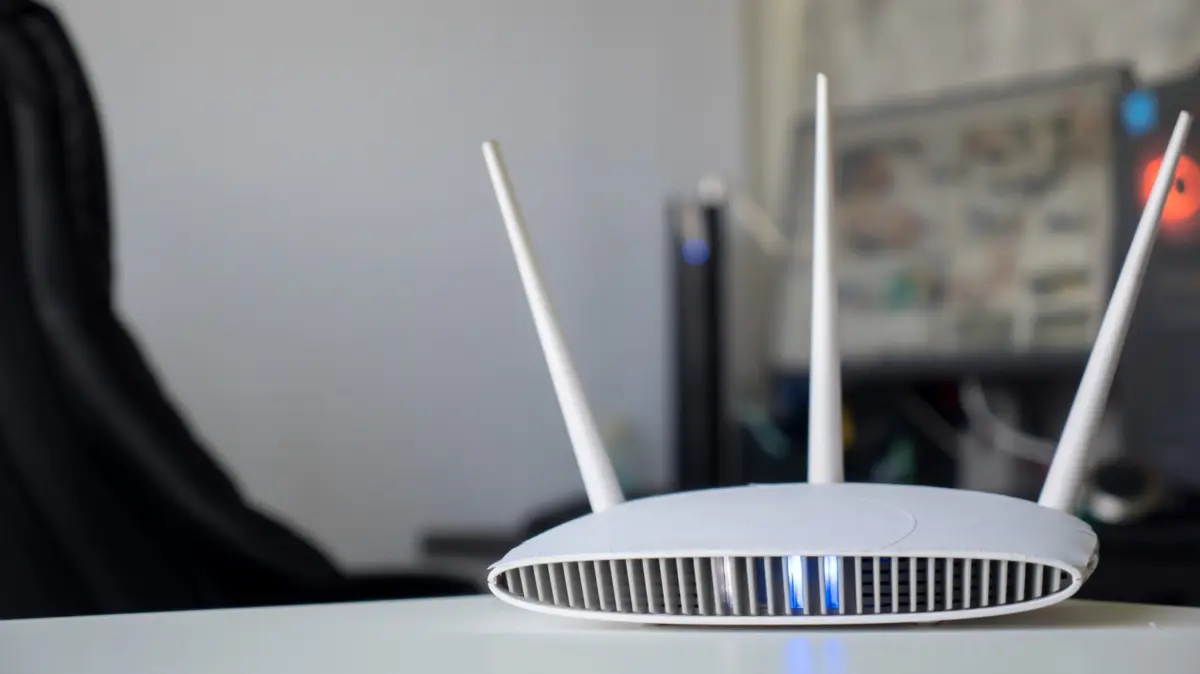
In the modern digital household, the Wi-Fi router operates as the invisible backbone of daily productivity, entertainment, and communication. Yet, despite its critical role, this piece of hardware is frequently relegated to a dark corner, a dusty shelf, or a media console, ignored until the internet drops out entirely. When connectivity fails, our first instinct is usually frustration, followed by frantic power-cycling—unplugging the device and crossing our fingers.
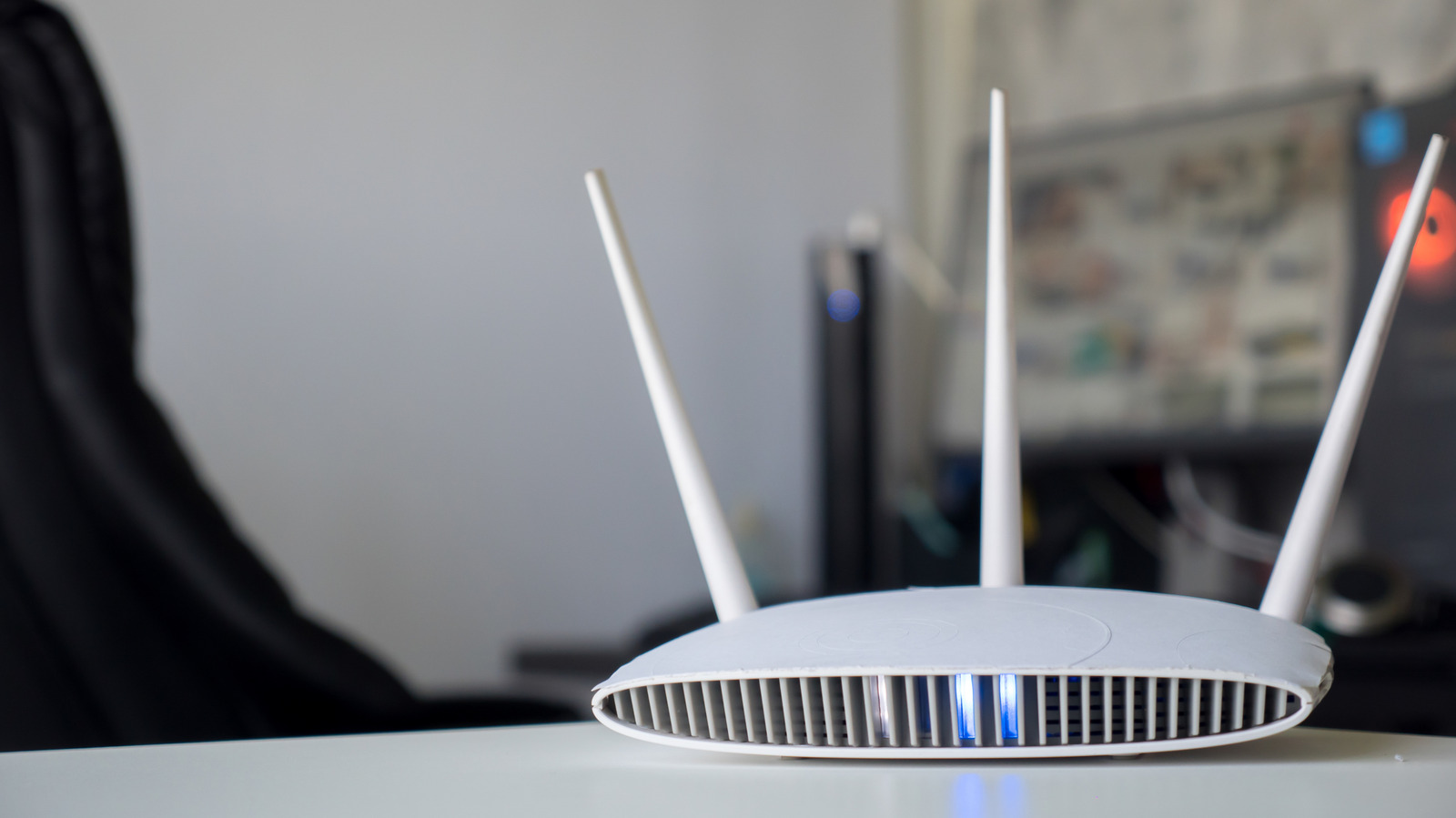
However, your Netgear router is constantly attempting to communicate with you through a sophisticated visual language of glowing, flashing, and changing LED indicators. Whether you are using a traditional standalone router or one of the company’s advanced multi-node mesh Wi-Fi systems, understanding these blinking lights bridges the gap between helpless confusion and empowered troubleshooting.
Deciphering these signals is not merely an exercise in tech literacy; it is an essential skill for maintaining network security, optimizing data speeds, and diagnosing hardware failures before they disrupt your workday or streaming marathon. This comprehensive guide breaks down the anatomy of Netgear’s indicator lights, separating critical connection statuses from secondary diagnostic tools, and equips you with the knowledge needed to manage your home network like a seasoned systems administrator.
Detailed Chronology and Technical Evolution of Router Diagnostics
To understand why our networking hardware communicates the way it does today, it helps to examine the evolution of router diagnostics. In the early days of consumer networking, diagnostic indicators were rudimentary. Early modems and hubs featured a dizzying array of rigid, single-color red or green LEDs labeled cryptically as "TD," "RD," "CD," and "HS." These indicators showed raw packet transmission and carrier detection—metrics useful to telecommunications engineers, but utterly opaque to the average consumer.
As broadband internet transitioned from dial-up novelties to always-on residential connections throughout the late 1990s and early 2000s, hardware manufacturers realized that consumer-facing interfaces needed a paradigm shift. Companies like Netgear began streamlining indicator panels. The focus shifted from raw data-packet blinking to high-level operational states: Is the device powered? Is the broadband link active? Is the local wireless network broadcasting?
By the 2010s, with the widespread adoption of dual-band (2.4GHz and 5GHz) Wi-Fi and gigabit ethernet, LED design evolved once more. Manufacturers introduced multi-color states—typically cycling between green, amber, and white—to communicate performance degradation rather than absolute failure. For instance, an amber light on an ethernet port no longer meant the port was broken; it communicated a fallback to a slower 100 Mbps or 10 Mbps connection speed, alerting the user to a faulty cable or an outdated network switch.
In the contemporary era of Wi-Fi 6, Wi-Fi 6E, and Wi-Fi 7 mesh ecosystems, Netgear has taken two distinct design paths. Traditional high-performance routers retain a dashboard of granular status lights for power, internet, wireless bands, USB ports, and individual ethernet connections. Conversely, premium mesh systems like the Netgear Orbi line have embraced minimalist industrial design, replacing rows of blinking icons with a single, elegant, pulsating status ring or indicator light that conveys complex network health through color shifts and pulsing patterns. This historical journey reflects a persistent industry goal: making increasingly complex networking hardware intuitive to monitor at a glance.
Supporting Context, Metrics, and Core Indicator Breakdowns
To effectively troubleshoot your Netgear device, you must look past the glowing facade and understand precisely what metrics each indicator represents. Netgear routers divide their status displays into primary operational metrics and secondary diagnostic channels.
The Critical Trio: Power, Internet, and Wi-Fi LEDs
These three indicators form the baseline of network health. If your home network is experiencing an outage, these are the first lights you should inspect.
-
The Power LED: Typically marked with the universal circle-and-line power symbol, this light monitors the device’s basic electrical intake and core firmware health.
- Off: The router is receiving no power, the power supply unit (PSU) has failed, or the wall outlet is inactive.
- Solid Green: Normal operation; the device is powered on and operating under stable firmware.
- Amber or Blinking Amber: The router is typically booting up, updating its firmware, or has encountered a non-fatal hardware warning.
- Blinking White/Green: During a firmware flash, a blinking light indicates that system files are being overwritten. Crucial Warning: Never unplug a router while its power light is blinking during a firmware update, as this can corrupt the flash memory and "brick" the device, rendering it permanently inoperable.
-
The Internet LED: Represented by a small circle orbiting a larger planetary icon, this light tracks the WAN (Wide Area Network) connection bridging your home to your Internet Service Provider (ISP).
- Solid Green: Your broadband connection is fully established, and traffic can flow outward to the global internet.
- Amber: The router is powered on, but it has failed to detect an active internet signal from the attached cable modem or ONT (Optical Network Terminal). This points to an ISP outage, a loose coaxial/fiber cable, or a synchronization failure at the street level.
- Off: The physical ethernet cable connecting your modem to the router’s internet/WAN port is either disconnected or damaged.
-
The Wi-Fi LED: Designated by a dot flanked by radiating arcs, this indicator summarizes local wireless traffic.
- Solid Green: The wireless radios are broadcasting normally and are ready for client connections.
- Blinking Green: Active wireless data transmission is occurring across the network (streaming, downloading, or gaming).
- Off: The wireless broadcast has been manually disabled via the router’s physical Wi-Fi toggle button or through the administrative software dashboard.
Secondary Diagnostic Channels: Bands, USB, and Ethernet
Beyond the primary operational trio, modern routers feature granular indicators for wired and wireless peripherals. These are invaluable when isolating localized hardware faults.
-
Wi-Fi Band LEDs (2.4GHz, 5GHz, and 6GHz): Modern multi-band routers feature dedicated indicators for each frequency spectrum. A solid light indicates that the respective band is active and broadcasting. If a band LED goes dark while others remain lit, it suggests a software glitch within the wireless driver or an overheated radio module, which can often be resolved by allowing the router to cool down and performing a soft restart.
-
USB LEDs: Represented by the standard USB trident symbol or "USB 3.0" text, these light up when external storage devices or printers are attached to the router’s ports. A solid light confirms a successful data link, while blinking indicates active file transfers via network-attached storage (NAS) protocols.
-
Ethernet Port LEDs: Usually numbered corresponding to the physical LAN ports on the rear chassis, these indicators double as speedometers for your wired clients (such as desktop gaming rigs, smart TVs, or network switches).
- White or Solid Green: High-speed gigabit link established (1 Gbps or higher).
- Amber: The device is connected, but the link has negotiated down to a legacy speed of 100 Mbps or 10 Mbps. This frequently indicates the use of an older Cat5 cable (instead of Cat5e or Cat6) or a failing physical wire.
- Off: No device is physically plugged into that specific port, or the attached hardware is powered down.
-
WPS (Wi-Fi Protected Setup) LED: Represented by a router emitting signal waves, this light flashes during the pairing process when you press the physical WPS button to connect a wireless printer or smart home device without typing a password. Security Best Practice: Cybersecurity experts universally recommend disabling WPS within your router’s administrative settings, as legacy implementations are vulnerable to brute-force PIN attacks.
The Netgear Orbi Paradigm: Mesh System Diagnostics
Traditional routers use sprawling arrays of status lights, but Netgear’s Orbi mesh Wi-Fi systems embrace a minimalist design philosophy. Because mesh systems rely on a primary router (the "Router") communicating wirelessly or via ethernet with one or more satellite units (the "Satellites"), clear status feedback is vital for optimal physical placement.
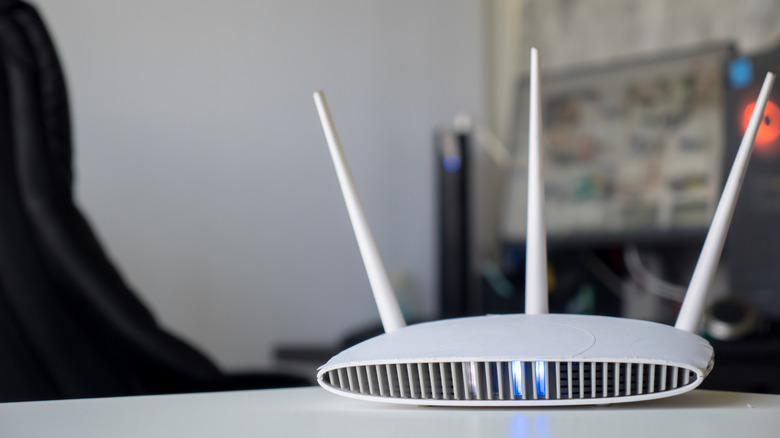
Orbi systems typically utilize a single, multi-color LED ring or status bar situated on the front bottom of the chassis, alongside a dedicated status light on the rear panel.
Decoding the Front LED Ring on Orbi Systems
The front indicator communicates the real-time operational status of the mesh node and the quality of the backhaul connection (the communication channel between the satellite and the primary router):
- Solid White: The device is booting up or initializing.
- Pulsing White: The router or satellite is attempting to synchronize with another Orbi unit or searching for an active internet connection.
- Solid Blue: The connection between the Orbi satellite and the router is strong and optimal. Your mesh network is operating at peak efficiency.
- Solid Amber: The connection between the satellite and the router is fair. While the system will function, data speeds will be throttled. Action Item: Move the satellite closer to the primary router to reduce physical obstruction from walls, thick masonry, or large appliances.
- Solid Magenta (Pink): The satellite has completely lost connection to the primary router, or the router cannot reach the internet. This is the mesh equivalent of a critical network failure.
- Pulsing Magenta: The unit is trapped in a sync failure loop and cannot establish a cryptographic handshake with its parent node.
The Rear LED on Orbi Hardware
While the front light focuses on wireless mesh topology, the rear LED panel on Orbi units is dedicated to hardware health, power delivery, and firmware operations, mirroring the core power indicators found on traditional Netgear routers. If an Orbi unit refuses to boot, inspecting the rear power LED and checking the physical barrel plug or USB-C power delivery cable is the mandatory first step in hardware troubleshooting.
Official Industry Statements and Troubleshooting Best Practices
To maintain network integrity, major networking equipment manufacturers, including Netgear, emphasize standardized troubleshooting protocols when indicator lights signal trouble.
According to Netgear’s official technical support guidelines, physical interpretation of LED states should always follow a structured diagnostic hierarchy:
- Isolate the Failure Point: "Consumers frequently assume an entire network failure stems from an ISP outage when the issue is localized to a dropped Wi-Fi band or a severed ethernet cable," notes enterprise network documentation. By examining whether the Internet LED is solid green while the Wi-Fi LED is dark, users can instantly determine whether the problem lies with their internet provider or their internal wireless hardware.
- The Power-Cycle Protocol: Before modifying advanced administrative configurations, users should execute a hard power cycle. Unplug the modem and the Netgear router, wait a mandatory 30 seconds to allow volatile capacitors to drain completely, plug the modem in first until its connection lights stabilize, and finally restore power to the router.
- The Factory Reset Fallback: If the power LED remains locked in a permanent blinking amber state or the device fails to respond to software reboots, the hardware may require a factory reset. This is executed by inserting a straightened paperclip into the recessed "Reset" pinhole on the rear panel and holding it down for 10 to 15 seconds until the power light flashes. Note: This action wipes all custom Wi-Fi names (SSIDs) and passwords, reverting the hardware to its secure out-of-the-box configuration.
Future Outlook: The Next Generation of Network Diagnostics
As home networks absorb increasingly dense waves of smart devices, Internet of Things (IoT) sensors, 8K video streams, and augmented reality (AR) workloads, the physical architecture of routers is poised for further transformation.
Looking forward, the traditional row of blinking green and amber LEDs is gradually being supplemented—and in some enterprise-grade designs, replaced—by contextual software dashboards and ambient lighting systems. Industry trends indicate that future Netgear hardware will rely less on cryptic blinking color codes and more on integrated smartphone companion apps that provide plain-language diagnostics. Imagine opening your router app not to decipher whether a flashing amber light means a firmware update or a severed WAN line, but to receive a direct notification stating: "Satellite #2 is experiencing high packet loss due to microwave interference in the kitchen; click here to optimize channel selection."
Furthermore, the integration of advanced artificial intelligence and machine learning algorithms into home networking hardware means routers will increasingly self-heal. Future Netgear firmware will automatically shift congested wireless traffic away from failing channels, dynamically reallocate backhaul frequencies on mesh systems, and adjust transmission power without requiring human intervention or visual interpretation of physical LED indicators.
Until that fully autonomous future arrives, however, the humble LED remains your primary window into the digital infrastructure of your home. By learning to decode the language of your Netgear router’s lights, you transform an intimidating flashing box into a transparent, manageable tool—ensuring your digital life remains fast, secure, and reliably connected.