
Executive Overview
In the modern digital age, the smartphone has evolved from a simple communication tool into an indispensable extension of human life. We rely on pocket-sized supercomputers to manage our finances, capture precious memories, navigate unfamiliar cities, and stay connected with the global community. Yet, for all their technological sophistication, mobile devices remain prone to software glitches, temporary memory leaks, and performance degradation over time. When an iPhone begins to stutter, freeze, or exhibit erratic behavior, it can bring daily productivity to a grinding halt.
Whether you are preparing to hand down your trusted device to a family member, trading it in for the latest flagship model, or simply trying to resolve a stubborn software bug that resists standard troubleshooting, knowing how to properly reset your iPhone is an essential digital life skill. However, navigating the terminology surrounding mobile device resets can often feel like decoding a foreign language. Tech enthusiasts, support forums, and casual users frequently clash over definitions: Is a "hard reset" a physical forced restart, or does it refer to a complete factory wipe? Where does clearing system preferences fall on the spectrum of device maintenance?
This comprehensive guide cuts through the confusion, establishing clear definitions and step-by-step methodologies for the three primary tiers of iPhone resetting: the forced restart, the settings reset (often referred to as a soft reset), and the complete factory wipe (hard reset). By understanding the nuance, risks, and benefits of each procedure, you can diagnose device anomalies with confidence, safeguard your personal data against loss, and restore your Apple hardware to factory-fresh peak performance without making an unnecessary trip to the Genius Bar.
Detailed Chronology: The Evolution of iPhone Troubleshooting
The methodology of troubleshooting consumer electronics has transformed dramatically alongside the hardware itself. In the early days of personal computing and mobile telephony, fixing an erratic device was often a physical endeavor. Early cellular devices relied on removable back covers and physical lithium-ion battery packs. If an application froze or the operating system suffered a fatal exception, the universal remedy was remarkably literal: yank the battery out, wait ten seconds, and snap it back in. This completely severed the electrical circuit, clearing volatile RAM and forcing a hard boot from a cold state.
As consumer design preferences shifted toward sleek, unibody aluminum and glass enclosures, manufacturers sealed devices to improve structural integrity, water resistance, and aesthetic appeal. The physical battery removal trick vanished, forcing engineers to develop software-level override protocols and hardware button combinations to achieve the same result.
The Birth of the Forced Restart
When Apple introduced the original iPhone in 2007, it featured a simple single-button interface supported by a top power button. As iOS grew in complexity, the methods required to interrupt a frozen operating system evolved through various hardware iterations:
- The Home Button Era (iPhone 4 through 6S): For years, holding down the physical Home button simultaneously with the Top/Side power button served as the universal panic button for a frozen device, forcing a hardware-level interrupt.
- The Volume Toggle Era (iPhone 7 and 7 Plus): With the introduction of the solid-state capacitive Home button, Apple shifted the forced restart key combination to the Side button and the Volume Down button.
- The All-Screen Era (iPhone 8 to Present): Modern iPhones featuring edge-to-edge OLED displays and TrueDepth camera notches utilize a rapid three-button sequence (Volume Up, Volume Down, followed by holding the Side button) to trigger a hardware-level power cycle.
Concurrently, the software architecture of iOS matured. Apple introduced deep diagnostic tools, cloud-based configurations, and granular permission architectures. This created an intermediate troubleshooting category: resetting system preferences and networking configurations without destroying user data like photos, messages, and downloaded applications. Today, users face a three-tier hierarchy of intervention, ranging from a gentle reboot to a total digital cleansing.
Supporting Context & Metrics: Why and When to Reset Your iPhone
Understanding how to reset an iPhone is only half the battle; knowing when to apply a specific level of intervention is critical for efficient device maintenance. According to telemetry data and consumer behavior studies compiled across major mobile support networks, software-related performance degradation accounts for nearly 78% of all consumer tech support inquiries regarding smartphones.
1. The Power of the Simple Restart
Why does turning a phone off and on again remain the undisputed king of troubleshooting? The answer lies in how modern operating systems manage volatile memory (RAM). As you open and close dozens of applications throughout the day, background processes, lingering cache files, and orphaned threads accumulate in the RAM. Over time, memory fragmentation occurs, and background daemons may enter infinite loops or resource deadlocks.
A standard restart clears the RAM completely, terminates background memory leaks, resets the baseband processor handling cellular connections, and establishes a clean slate for the operating system kernel. Industry benchmarks show that a weekly restart can reduce unexpected application crashes by up to 60%.
2. The Intermediate Tier: Soft Reset (Clearing Settings)
When a simple restart fails to resolve persistent connectivity drops, Bluetooth pairing anomalies, or strange battery drain issues, the next logical step is a settings-only reset. This procedure targets specific system plists (property list files) and configuration databases without touching user media or third-party application sandboxes.
A soft reset purges several core configuration states:
- Network Profiles: Erases all saved Wi-Fi SSIDs, passwords, Bluetooth pairing histories, and VPN configurations. This is invaluable when dealing with corrupted network stacks that cause constant dropouts.
- Location and Privacy Permissions: Reverts all app-level permission prompts back to their default state, forcing applications to re-request access to your camera, microphone, and GPS data.
- Keyboard Dictionaries: Clears out accumulated predictive text history and custom shortcuts that may have become cluttered or corrupted.
- Apple Pay Cards: Removes secure element tokens linked to payment cards, requiring re-authentication for security purposes.
- Display and Sound Preferences: Restores wallpaper, brightness calibration settings, ringtones, and alarm schedules to out-of-the-box defaults.
3. The Nuclear Option: Factory Hard Reset
A complete factory reset should never be approached casually. This procedure wipes the device’s internal flash storage clean, cryptographic keys are destroyed, and the operating system is re-initialized to its pristine factory state. It is mandatory in three primary scenarios:
- Device Ownership Transfer: Selling, recycling, or handing down an iPhone without performing a factory wipe leaves your personal data vulnerable to forensic data recovery tools. Furthermore, failing to sign out of iCloud leaves the device activation-locked, rendering it useless to the next owner.
- Unresolvable Software Corruption: When an iOS update fails midway, system files become irreversibly corrupted, or malware manages to penetrate the iOS sandbox, a clean slate is the only reliable remedy.
- Storage Optimization: Over years of usage, iPhones accumulate gigabytes of "Other" system storage—cached app data, temporary logs, and orphaned files that cannot be cleared manually. A full wipe and restoration from a clean backup reclaims this lost storage space.
Step-by-Step Execution Guides
To ensure you execute these procedures safely and effectively, follow these precise step-by-step instructions.
Phase 1: How to Force Restart Your iPhone
Use this method when your iPhone is completely unresponsive, the touchscreen refuses to register input, or the display is frozen on a black or glowing Apple logo.
- Press and quickly release the Volume Up button. Do not hold it down.
- Press and quickly release the Volume Down button. Do not hold it down.
- Press and hold the Side (Power) button immediately after. Keep holding this button down, ignoring any shutdown sliders that may appear on the screen.
- Continue holding the Side button until the screen goes black and the Apple logo appears. This process typically takes between 10 and 15 seconds.
- Release the Side button once the Apple logo appears, and allow the device to boot normally to your lock screen.
Phase 2: How to Soft Reset Your iPhone (Reset Network and System Settings)
Use this method to purge corrupted system preferences, fix persistent Wi-Fi/Bluetooth issues, or reset layout configurations without losing your precious photos, messages, and app data.
- Unlock your iPhone and open the Settings app.
- Scroll down and tap on General.
- Scroll all the way to the bottom of the General menu and tap on Transfer or Reset iPhone.
- At the bottom of the screen, tap on Reset.
- A contextual menu will appear displaying various reset options. Select Reset All Settings (or choose specific options like Reset Network Settings if your issues are strictly connectivity-based).
- Enter your device passcode when prompted to confirm your identity.
- A confirmation warning will appear explaining that all settings will be returned to factory defaults, but no data or media will be deleted. Tap Reset All Settings once more to confirm. Your device will automatically restart.
Phase 3: How to Hard Reset Your iPhone (Factory Wipe)
Warning: This process erases all data, accounts, media, and applications from your device. Ensure you have performed a comprehensive backup via iCloud or a trusted computer before proceeding.
- Back Up Your Data: Navigate to Settings > [Your Name] > iCloud > iCloud Backup and tap Back Up Now, or plug your iPhone into a computer and back it up via Finder or iTunes.
- Disable Activation Lock (Optional if selling/trading): Navigate to Settings > [Your Name] > Find My > Find My iPhone and toggle it off. You will be required to enter your Apple Account password.
- Open the Settings app and navigate to General > Transfer or Reset iPhone.
- Tap on Erase All Content and Settings.
- Review the summary screen showing what will be removed (including apps, data, and Apple Wallet cards), then tap Continue.
- Enter your device passcode.
- Enter your Apple Account password to sign out of your account, disable Find My, and deactivate Activation Lock.
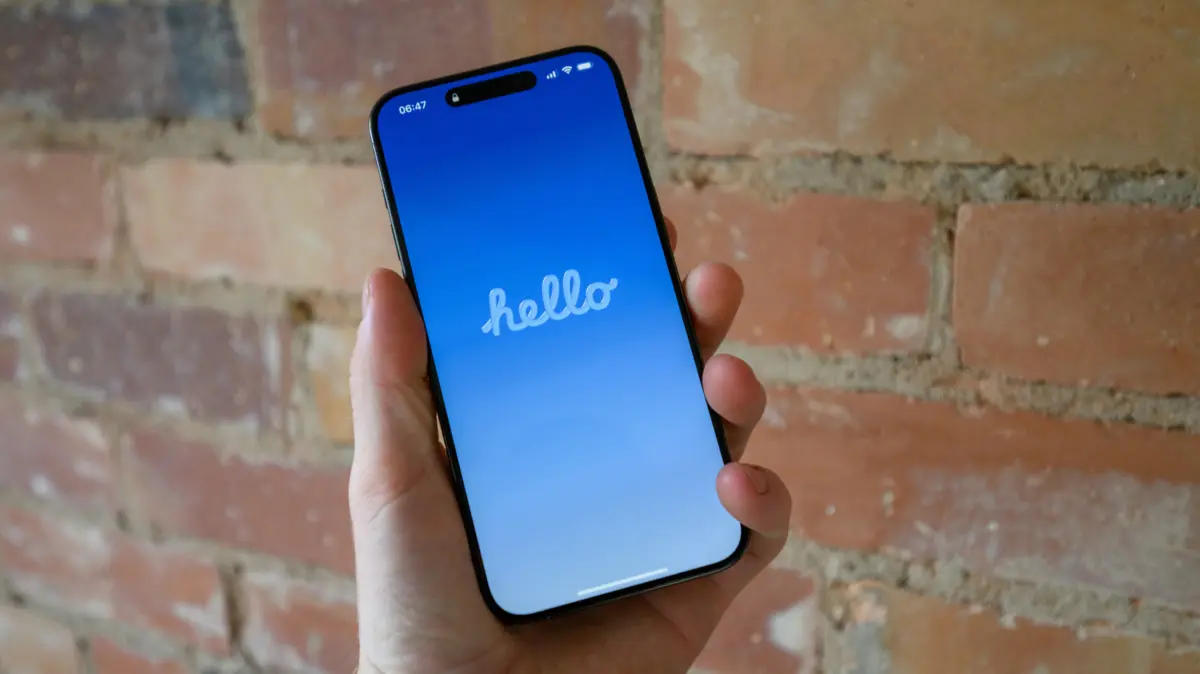
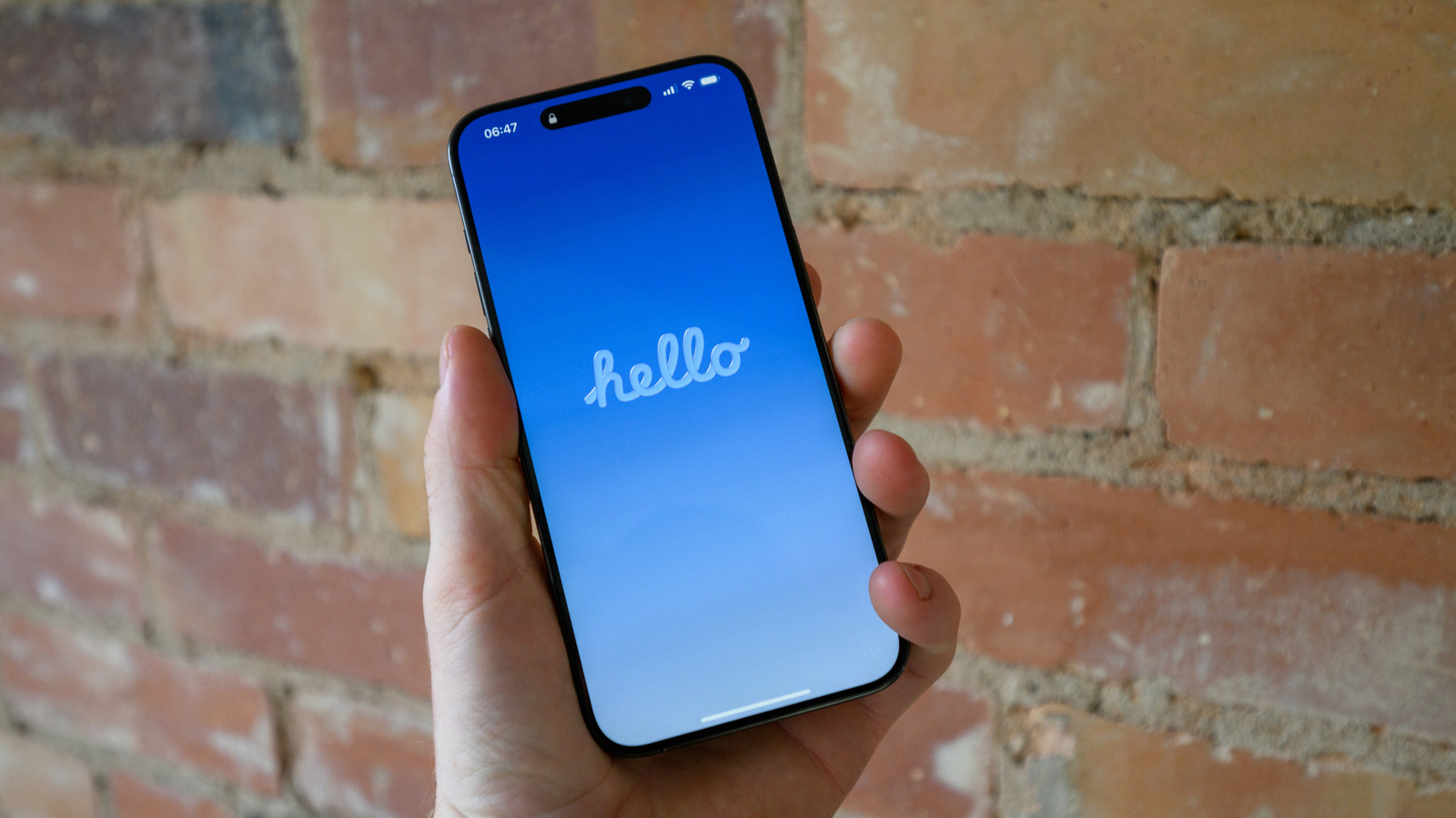
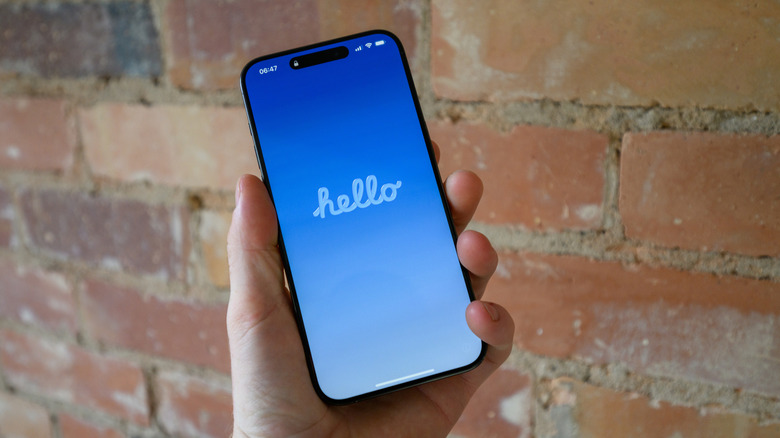
- Tap Erase iPhone to initiate the final formatting process. The device will display an Apple logo with a progress bar. Once complete, it will boot up to the iconic "Hello" welcome screen, ready for setup or transfer.
Future Outlook: The Horizon of Mobile Maintenance
As we look toward the future of mobile technology, the paradigms of device maintenance and troubleshooting are undergoing a profound transformation. Apple and the broader consumer electronics industry are heavily investing in on-device artificial intelligence and machine learning diagnostics—embodied by initiatives like Apple Intelligence.
In the near future, manual troubleshooting steps such as clearing system caches or hunting through nested preference menus may become relics of the past. Advanced diagnostic agents embedded within future iterations of iOS will autonomously monitor memory fragmentation, predict software deadlocks before they cause freezes, and self-heal corrupted preference files in the background without user intervention.
Furthermore, cloud-native device states mean that transitioning between iPhones or recovering from a catastrophic software failure is becoming nearly instantaneous. Encrypted cloud snapshots ensure that device resets are no longer traumatic events characterized by data loss anxiety, but rather seamless administrative tasks.
Until that fully autonomous future arrives, however, mastering the fundamental tiers of device management—knowing when to restart, when to reset settings, and when to execute a clean factory wipe—remains an essential competency for every modern smartphone user. By applying these structured methodologies, you can ensure your iPhone remains a secure, high-performing extension of your digital life for years to come.