

Executive Overview
In the contemporary landscape of high-performance PC gaming, the pursuit of fluid frame rates has long been a defining hallmark of the platform. Unlike their console-playing counterparts who must accept fixed hardware specifications and rigid optimization profiles, PC gamers enjoy granular control over every facet of their visual presentation. From customized rendering pipelines and user-defined display resolutions to advanced, real-time lighting calculations, the platform offers unprecedented flexibility. However, this freedom often comes with a hidden tax: optimization fatigue.
As hardware prices fluctuate and modern gaming budgets stretch to their limits, upgrading components like GPUs or RAM is increasingly unviable for the fiscally prudent consumer. Fortunately, achieving a buttery-smooth 60, 120, or even higher frame rate does not require an expensive trip to the local component retailer. By strategically managing system resources, fine-tuning display properties, deploying modern AI-driven upscaling algorithms, and disabling computationally brutal graphical enhancements, gamers can dramatically revitalize their existing rigs. This guide investigates the definitive methodologies for maximizing frames per second (FPS) without spending a single dollar on new hardware.
Detailed Chronology and Diagnostic Methodology
Troubleshooting performance bottlenecks and maximizing frame rates requires a systematic approach. Rather than blindly sliding graphics settings from "Ultra" to "Low," gamers should follow a structured diagnostic workflow to identify precise hardware bottlenecks and optimize their operating system environment.
Phase 1: Environmental and OS Optimization (The Baseline)
Before launching any game, the physical and digital environment of the PC must be addressed.
- Thermal Management: Dust accumulation inside a PC chassis acts as an insulating blanket, trapping heat and forcing the central processing unit (CPU) and graphics processing unit (GPU) to thermally throttle. Regularly cleaning out dust ensures that hardware maintains its peak boost clocks rather than sacrificing performance for thermal safety.
- Background Process Purging: Modern operating systems are notorious for running a multitude of telemetry tools, update checkers, and messaging clients in the background. Terminating non-essential background applications frees up valuable system RAM and CPU cycles.
- Windows Power Configuration: Navigating to
Settings > System > Power & Battery > Power Modeand shifting the slider to Best Performance ensures the system delivers unhindered electrical current to the components. Furthermore, enabling Game Mode (Settings > Gaming > Game Mode) instructs Windows 11 to prioritize gaming processes over background housekeeping tasks.
Phase 2: In-Game Toggling and Driver Maintenance
Once the foundational operating environment is secure, attention shifts to software drivers and in-game presets.
- Driver Hygiene: Regularly updating NVIDIA GeForce or AMD Radeon drivers ensures optimal compatibility and bug fixes for newly released titles. Conversely, if a newly deployed driver introduces instability, rolling back to a stable version is essential.
- Disabling Recording Software: Built-in recording suites—such as the overlay captures provided by the NVIDIA app or Xbox Game Bar—constantly buffer video feed into system memory, introducing micro-stutters and measurable FPS drops. Disabling these utilities yields immediate, tangible performance gains.
Supporting Context & Metrics: The Mechanics of Performance
Understanding why certain settings cripple frame rates while others offer free performance is critical for long-term hardware longevity.
The Inverse Relationship Between Fidelity and Performance
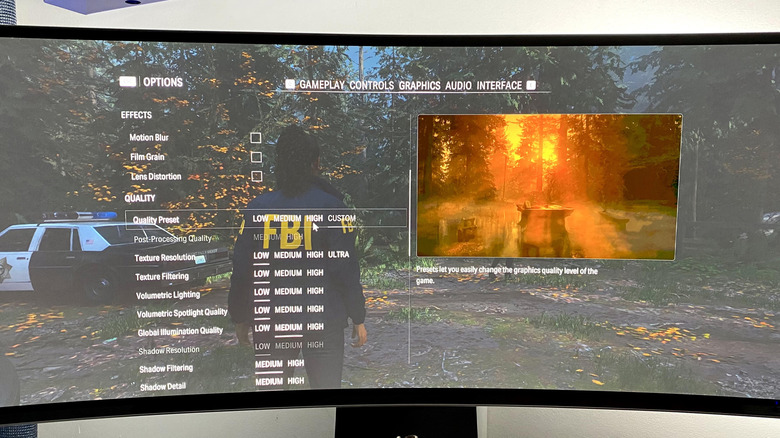
At its core, rendering a 3D video game is a massive mathematical computation executed millions of times per second. Every extra shadow cascade, high-resolution texture map, and post-processing filter adds to the rendering queue processed by the GPU.
| Graphical Feature | Performance Impact | Recommended Action for Mid-Range Rigs |
|---|---|---|
| Texture Quality | Moderate to High (VRAM dependent) | Set to High/Medium (Depends on VRAM capacity) |
| Shadow Quality | High | Lower to Medium |
| Ambient Occlusion | Moderate | Lower or Disable |
| Motion Blur | Low | Disable (reduces input lag and visual smear) |
| V-Sync | Varies | Disable in-game; cap via Control Panel to prevent tearing |
| Ray Tracing | Severe (50%+ FPS drop) | Disable entirely |
| Path Tracing | Catastrophic | Disable unless utilizing high-end hardware with DLSS |
As demonstrated above, features like ambient occlusion and shadow resolution demand massive fill-rates from the GPU. Dropping these specific settings from "Ultra" to "Medium" often yields a 15% to 25% increase in baseline frame rates while preserving almost all of the visual fidelity perceived during fast-paced gameplay.
The Rise of AI-Driven Supersampling
In the modern era of AAA gaming, native rendering is increasingly viewed as an inefficient luxury. Supersampling technologies—such as NVIDIA DLSS (Deep Learning Super Sampling), AMD FSR (FidelityFX Super Resolution), and Intel XeSS (Xe Super Sampling)—have become the ultimate crutch for performance optimization.
Instead of rendering a frame at native 4K or 1440p, these algorithms render the scene at a significantly lower internal resolution (e.g., rendering at 1080p for a 4K output) and leverage dedicated tensor cores or open-source machine learning models to reconstruct the image.
- Quality Mode: Renders at roughly 67% of native resolution, delivering an image virtually indistinguishable from native output while providing a substantial FPS boost.
- Performance/Ultra Performance Mode: Renders at lower internal resolutions (down to 33% native), offering massive frame rate multipliers at the cost of minor artifacting or shimmering in complex motion scenes.
While technologies like NVIDIA DLSS 4.5 Multi Frame Generation can artificially inflate a frame rate past 200 FPS in titles like Cyberpunk 2077, users must remain mindful of input latency. Interpolated, AI-generated frames do not decrease input lag; rather, they can introduce a slight, spongy delay between physical mouse movements and on-screen reactions. For competitive shooters, traditional rasterization and native input response are preferred; for cinematic single-player experiences, frame generation is a revelation.
Official Perspectives and Industry Insights
Industry hardware analysts and GPU manufacturers have increasingly shifted their development focus toward software-based optimization. Because manufacturing silicon nodes has become exponentially more expensive, hardware companies recognize that software solutions must bridge the gap for budget-conscious consumers.
In recent briefings, architectural engineers from major GPU firms have noted that the traditional approach of brute-forcing native resolution is rapidly approaching a thermodynamic wall. Thermal dissipation limits in modern laptops and desktop enclosures mean that raw hardware wattage cannot scale infinitely. Consequently, intelligent frame reconstruction and adaptive resolution scaling are now treated as core pillars of modern game engine design.
Furthermore, game developers frequently build automated optimization wizards directly into modern releases (such as Forza Horizon and Grand Theft Auto titles). These internal benchmarks assess system specifications upon first boot and automatically apply a mathematically balanced profile tailored to lock in a stable 60 FPS baseline, saving users from tedious trial-and-error configuration.
Future Outlook: The Next Frontier of Performance Optimization
As we look toward the horizon of PC gaming, the boundary between hardware limitations and software ingenuity will continue to blur. Several emerging trends promise even greater performance yields for aging or modest hardware configurations:
- Neural Rendering and Real-Time AI De-noising: Future iterations of upscaling technologies will rely less on traditional hand-coded shaders and more on end-to-end neural networks trained to predict pixel behavior. This will allow mid-range GPUs to handle complex lighting scenarios without suffering catastrophic performance penalties.
- Advanced Variable Rate Shading (VRS): By intelligently reducing the rendering rate for areas of the screen where the human eye cannot perceive fine detail (such as peripheral motion blur or deeply shadowed corners), engines will dynamically conserve GPU cycles without degrading visual quality.
- Operating System-Level Co-Processing: Future updates to operating systems like Windows will likely feature deeper hardware-level scheduling integrations, minimizing the overhead of background tasks and ensuring that 100% of GPU and CPU resources are funneled directly into the rendering pipeline.
Ultimately, PC gaming does not have to be an expensive arms race. By mastering the delicate balance between graphical settings, leveraging modern AI upscaling, and ruthlessly trimming unnecessary system bloat, gamers can achieve stunning, high-refresh-rate performance using the hardware they already own.