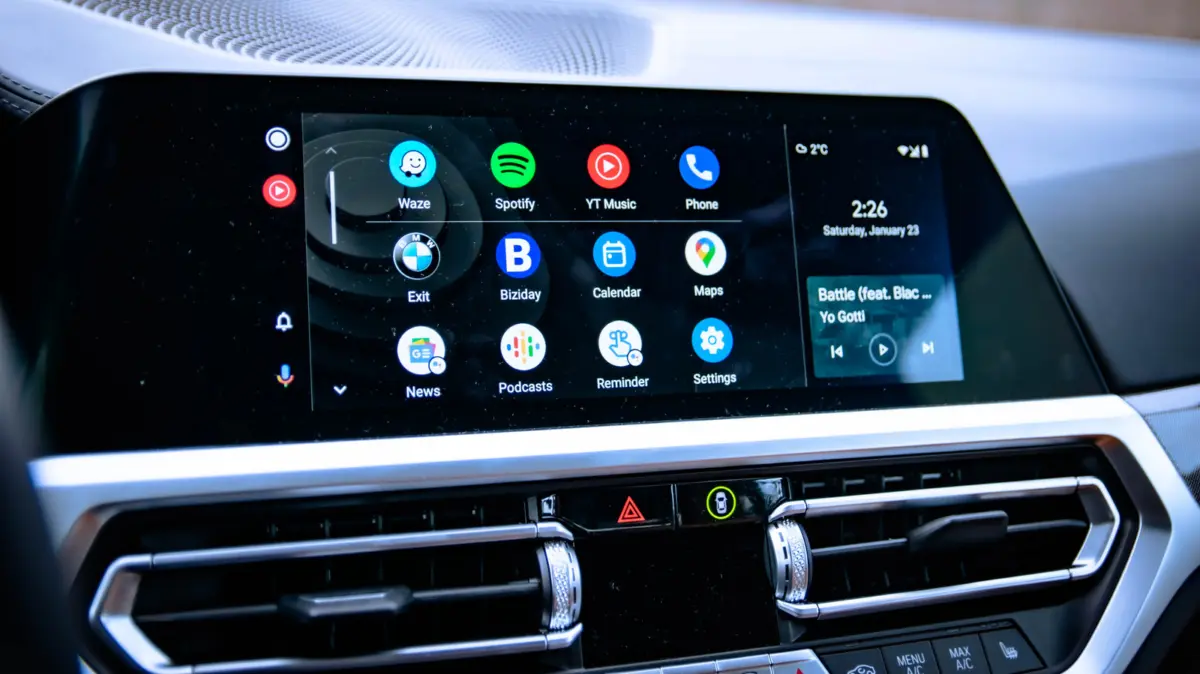
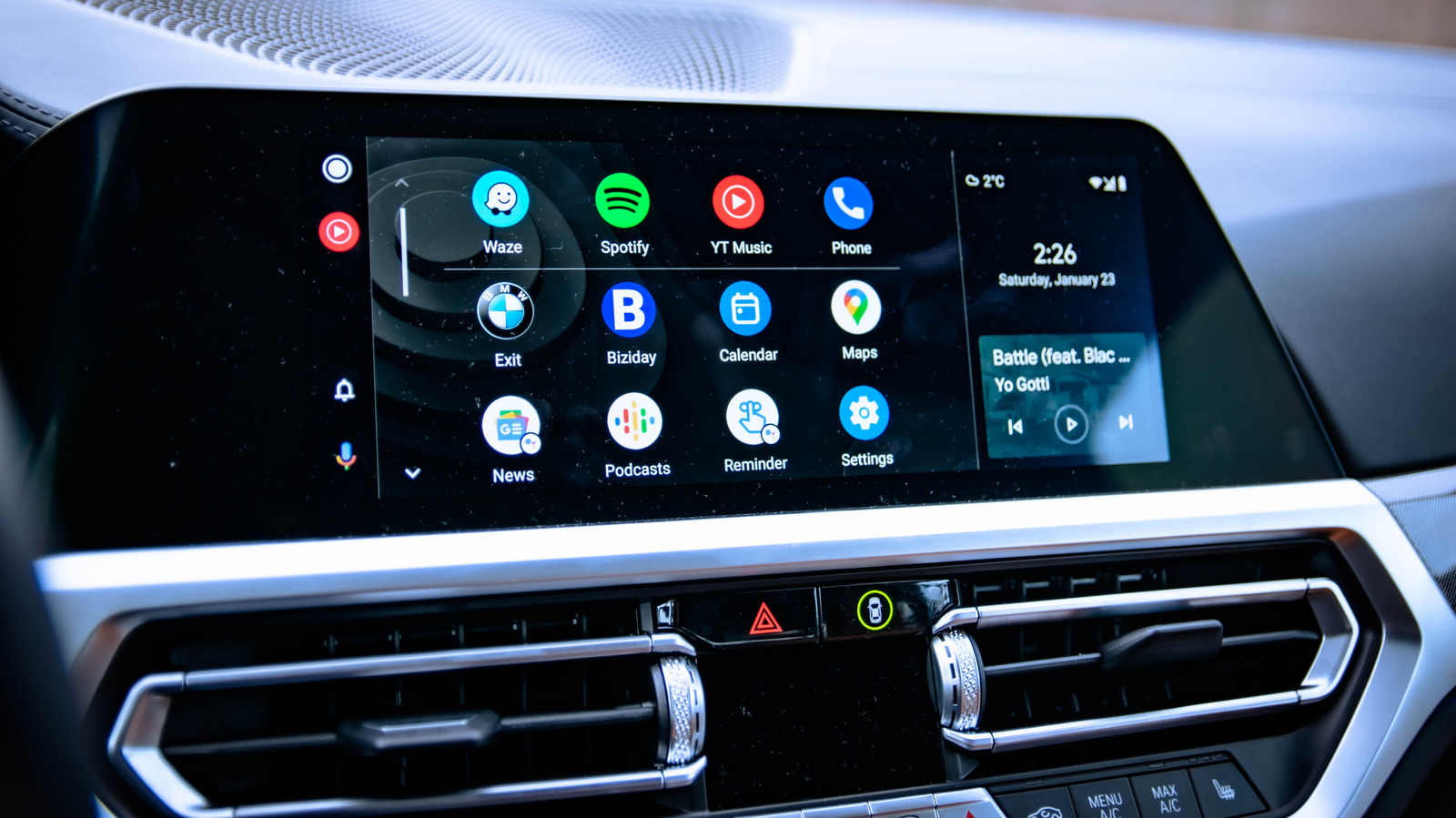
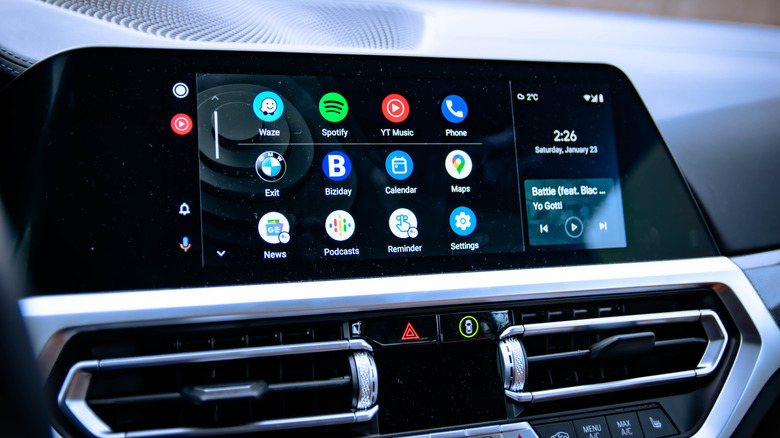
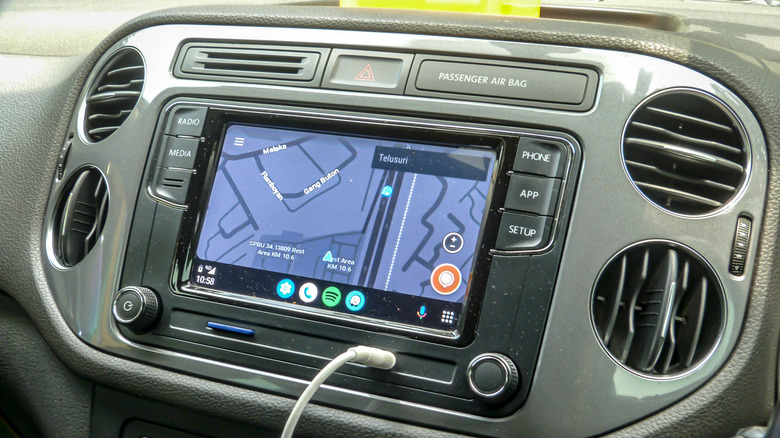
Android Auto has fundamentally transformed the modern driving experience. By bridging the gap between mobile computing and vehicular infotainment systems, the platform projects a driver-optimized interface onto the dashboard display. This integration allows motorists to safely access navigation through Google Maps, manage communications via hands-free messaging, and stream media without directly handling their smartphones. Ideally, this process is entirely frictionless: a user steps into the vehicle, establishes a connection, and immediately gains access to their digital ecosystem.
However, reality often diverges from this ideal. Millions of drivers experience frustrating connection drops, frozen interfaces, or outright failures where Android Auto refuses to launch altogether. Whether dealing with a sudden software glitch, a degraded physical cable, or a hidden background setting, diagnosing these connectivity issues can feel like solving a complex puzzle.
Fortunately, the vast majority of Android Auto malfunctions do not stem from permanent hardware failure. Instead, they are typically caused by misconfigured software, corrupted temporary files, or physical connection anomalies. This comprehensive troubleshooting guide examines the systematic steps required to diagnose, isolate, and resolve the most common Android Auto failures, ensuring you can restore reliable connectivity between your smartphone and your vehicle’s head unit.
Detailed Chronology of Troubleshooting Steps
When Android Auto fails to engage, rushing into deep system changes can often waste time and complicate the diagnosis. A structured, step-by-step methodology allows users to isolate the root cause efficiently, moving from the most basic hardware checks to advanced software resets.
Phase 1: Inspecting the Physical and Wireless Link
The primary point of failure in almost any digital bridge is the connection itself. Whether your setup relies on a physical tether or a wireless handshake, verifying the integrity of this link is always the logical starting point.
For Wired Connections
Users utilizing a USB cable must first inspect the wire for visible wear, fraying, or bent pins. However, a cable that appears outwardly pristine can still fail internally. Many consumer-grade USB cables are engineered solely for power delivery and lack the internal data-transfer wiring required to transmit the heavy stream of audio, video, and touch-input data demanded by Android Auto.
Data-Capable Cables: Ensure your cable explicitly supports USB data transfer.
Length and Extensions: According to official Google guidelines, the cable should be kept under six feet in length. Avoid using USB extension cords or uncertified third-party adapters, as signal degradation over long or poorly shielded runs can immediately sever the Android Auto data handshake.
Port Rotation: If the cable is certified and undamaged, the USB port itself may be compromised or lack data lines (such as charge-only ports found in some rental or older vehicles). Try moving the cable to a different USB port in the vehicle, or test the cable with a computer to confirm it handles data.
For Wireless Connections
Wireless Android Auto relies on a dual-layer handshake utilizing both Bluetooth and localized Wi-Fi protocols.
Verify Radio States: Ensure that both Bluetooth and Wi-Fi are actively enabled on your smartphone. Even if the phone indicates it is paired via Bluetooth, wireless Android Auto quickly transitions the heavy lifting of screen mirroring over to a secure Wi-Fi Direct connection.
Force Manual Handshake: If the wireless connection hangs or fails to initialize automatically, turn off Bluetooth and Wi-Fi briefly, then re-enable them to force a fresh manual handshake with the vehicle’s head unit. Furthermore, verify that your car’s infotainment system is actively set to the Android Auto pairing screen or input source.
Phase 2: The Three R’s — Restart, Remove, and Reconnect
If the physical or wireless layer checks out, the next logical step is to clear out temporary software states by performing the foundational "Three R’s": restarting the phone, removing the existing pairing profile, and setting up the connection from scratch.
The Power of a System Reboot
Modern smartphones rarely get turned off. They linger in low-power sleep states for weeks, accumulating cached background processes, memory leaks, and unresponsive system daemons. Restarting your Android device purges active volatile memory (RAM) and resets core system services, offering a clean slate for the Android Auto framework to initialize.
Forgetting and Re-Pairing the Vehicle
Corrupted pairing profiles are a notorious culprit behind persistent connection errors. To clear out corrupted data:
Navigate to your phone’s Settings.
Select Connected Devices (or search for "Android Auto" directly in the settings bar).
Tap on Previously connected cars or select your specific vehicle from the list.
Tap Forget or Delete car.
Return to your vehicle’s infotainment system and clear the smartphone from its recognized device list.
Re-initiate the setup process by selecting Connect a Vehicle on your phone while your car is parked and ready to pair.
While navigating these settings, take a moment to configure your persistent preferences. Enable automatic startup routines for Android Auto and adjust your lock-screen permissions depending on your personal privacy tolerances—keeping in mind that certain security locks can occasionally prevent the interface from launching until the device is unlocked.
Phase 3: Purging the App Cache and Data
When basic re-pairing fails to resolve the issue, the Android Auto application itself may be harboring corrupted cache files or conflicting preference configurations. Deep-cleaning the app forces it to rebuild its operational environment.
Open your phone’s Settings menu.
Tap on Apps (or App Management) and locate Android Auto from the full application list.
Select Force Stop to immediately terminate any background processes running under the application.
Tap on Storage & cache.
Select Clear Cache to wipe out temporary files. If problems persist, you can execute Clear Data (note that this will reset all customized Android Auto app settings back to their factory defaults, requiring you to reconfigure your preferences and re-link your vehicle).
Once these storage files are purged, restart your smartphone once more before attempting to establish a fresh connection with your car’s display.
Supporting Context, Metrics, and Edge Cases
While the primary troubleshooting steps resolve a vast percentage of user grievances, a subset of connectivity failures stems from more nuanced environmental or software conflicts. Understanding these edge cases can save users hours of frustrating experimentation.
The VPN Interference Phenomenon
Virtual Private Networks (VPNs) have become ubiquitous for privacy-conscious mobile users. However, VPNs frequently disrupt Android Auto. Because Android Auto requires local device-to-head-unit communication over specific IP ranges and Wi-Fi direct frequencies, an active VPN tunnel can mask local network traffic, making it impossible for the car and phone to establish a stable communication bridge.
The Workaround: Users who require a constant VPN connection should look into split tunneling features within their VPN application. By configuring the VPN to bypass the Android Auto app entirely, local traffic can flow unhindered while the rest of your internet traffic remains encrypted. Alternatively, temporarily disabling the VPN while driving will immediately reveal if it was the root cause of the connection failure.
Battery Saver Modes and Power Management
Modern Android operating systems feature aggressive power-saving algorithms designed to prolong battery life by throttling background applications, limiting CPU states, and restricting Wi-Fi/Bluetooth polling intervals. If your phone enters a deep battery-saver mode, it may starve the Android Auto service of the resources it needs to maintain a continuous, high-throughput stream. Checking your device’s battery optimization settings and exempting Android Auto from power-saving restrictions is a critical step for long-term stability.
The Wired-to-Wireless Pivot
If wireless Android Auto proves chronically unstable due to localized Wi-Fi interference in densely populated urban areas, users should test a direct wired connection. Conversely, if a car’s built-in USB port suffers from physical damage or power-delivery issues, aftermarket wireless Android Auto adapters—which plug into the car’s USB port and create an independent Wi-Fi bridge to the phone—offer a viable technological workaround.
Official Statements and Industry Insights
Tech industry analysts and support engineers frequently emphasize that Android Auto’s challenges stem from the inherent complexity of fragmentation. Unlike closed ecosystems where a single manufacturer controls both the handset and the vehicle software, Android Auto must operate across thousands of distinct smartphone models, running various custom user interfaces (such as Samsung’s One UI or Xiaomi’s MIUI), coupled with dozens of proprietary automotive infotainment firmware iterations from different automakers.
Google’s official support channels repeatedly highlight the importance of maintaining up-to-date software frameworks. A statement from Google’s support documentation underscores this reality:
"Many connection anomalies are resolved not by altering local settings, but by ensuring that the core operating system, Google Play Services, and the standalone Android Auto client are updated concurrently to patch known handshaking bugs."
Automotive manufacturers similarly advise drivers to check their car’s head-unit firmware. Infotainment systems rarely receive updates unless serviced at a dealership or installed via a manual USB download by the vehicle owner. An outdated car stereo can struggle to parse communication packets from modern smartphone operating systems, leading to sudden disconnections or touch-input lag.
Future Outlook: The Evolution of In-Car Connectivity
Looking ahead, the landscape of in-car smartphone integration is shifting rapidly. As next-generation infotainment architectures—such as Android Automotive OS (AAOS), which runs natively on vehicle hardware rather than simply mirroring a phone—begin to dominate the automotive market, the reliance on external device tethering is expected to evolve.
However, device-projected platforms like Android Auto and Apple CarPlay will remain vital fixtures for millions of vehicles on the road for the next decade. Future software updates from Google are expected to focus heavily on stabilizing wireless protocols, improving automatic handshakes, and introducing more intelligent diagnostic tools directly within the smartphone interface.
Until native, fully integrated vehicular operating systems are universal, mastering these foundational troubleshooting techniques remains an essential skill for modern motorists. By systematically verifying cables, purging corrupted caches, managing background permissions, and eliminating network conflicts like active VPNs, drivers can ensure a safe, distraction-free, and technologically seamless journey every time they get behind the wheel.