

Executive Overview
In the modern landscape of consumer electronics, hardware communication relies heavily on subtle visual cues. Among these, indicator lights remain the primary bridge between user and machine. For owners of Sony’s flagship console, catching a glimpse of an orange or amber glow can occasionally trigger a visceral response of anxiety. Culturally conditioned by automotive "check engine" warnings and the infamous red rings or flashing failure lights of older-generation gaming hardware, users often equate non-standard LED colors with catastrophic system failure.
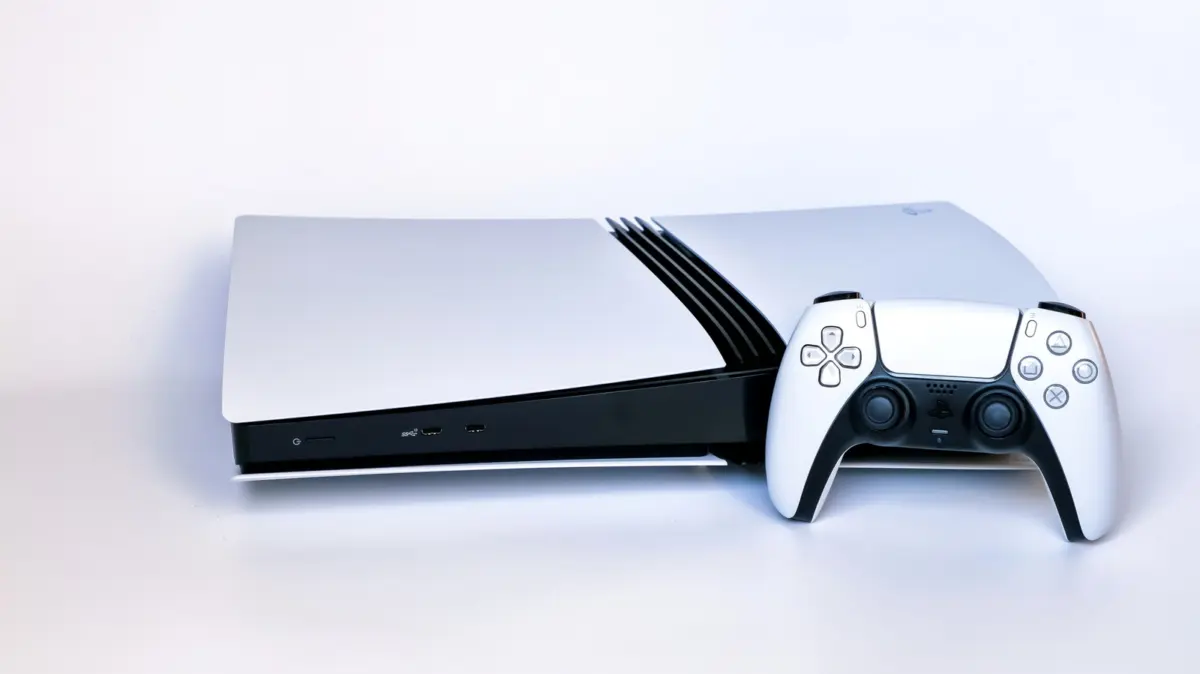
However, on the PlayStation 5, the familiar orange light is not a harbinger of doom; rather, it is a sign of intelligent power management. Far from indicating a fault, an orange light on the console chassis simply signifies that the system has transitioned into Rest Mode. Meanwhile, an independent orange glow directly beneath the PlayStation button on the DualSense controller denotes a muted microphone.
Beyond demystifying these common visual indicators, understanding the nuances of the PlayStation 5’s power-saving configurations, sleep states, and potential hardware warning signs is vital for maximizing the lifespan of the console. As the PS5 matures in its hardware lifecycle, proactive maintenance, thermal management, and early troubleshooting can mean the difference between a console that thrives for a decade and one that requires costly replacement or professional repair.
Detailed Chronology and Evolution of PlayStation Power States
To fully comprehend why the PlayStation 5 utilizes an orange status light, it helps to contextualize the evolution of power states within Sony’s console ecosystem.
The Evolution from "Standby" to "Rest Mode"
During the era of the PlayStation 3, consoles utilized a traditional "Standby" mode denoted by a persistent red LED. This state kept the primary circuitry trickle-powered to allow for quick startups, but capabilities during this mode were exceptionally limited. By the time the PlayStation 4 launched, Sony introduced "Rest Mode," expanding background functionality to include game downloads, patch installations, and peripheral charging, all while dropping power consumption significantly.
With the PlayStation 5, Sony refined this concept further. The hardware was designed from the ground up to balance environmental consciousness with high-utility background tasks. When a user commands the console to enter Rest Mode—either manually via the user interface or automatically through inactivity timers—the pulsing or solid orange light on the central chassis illuminates.
Understanding DualSense Indicator Cues
Confusion often arises when users spot an orange light emanating from their DualSense or DualSense Edge controllers. Unlike the console’s chassis light, the thin accent lights flanking the central touchpad or the small indicator beneath the PS button serve distinct functional purposes:
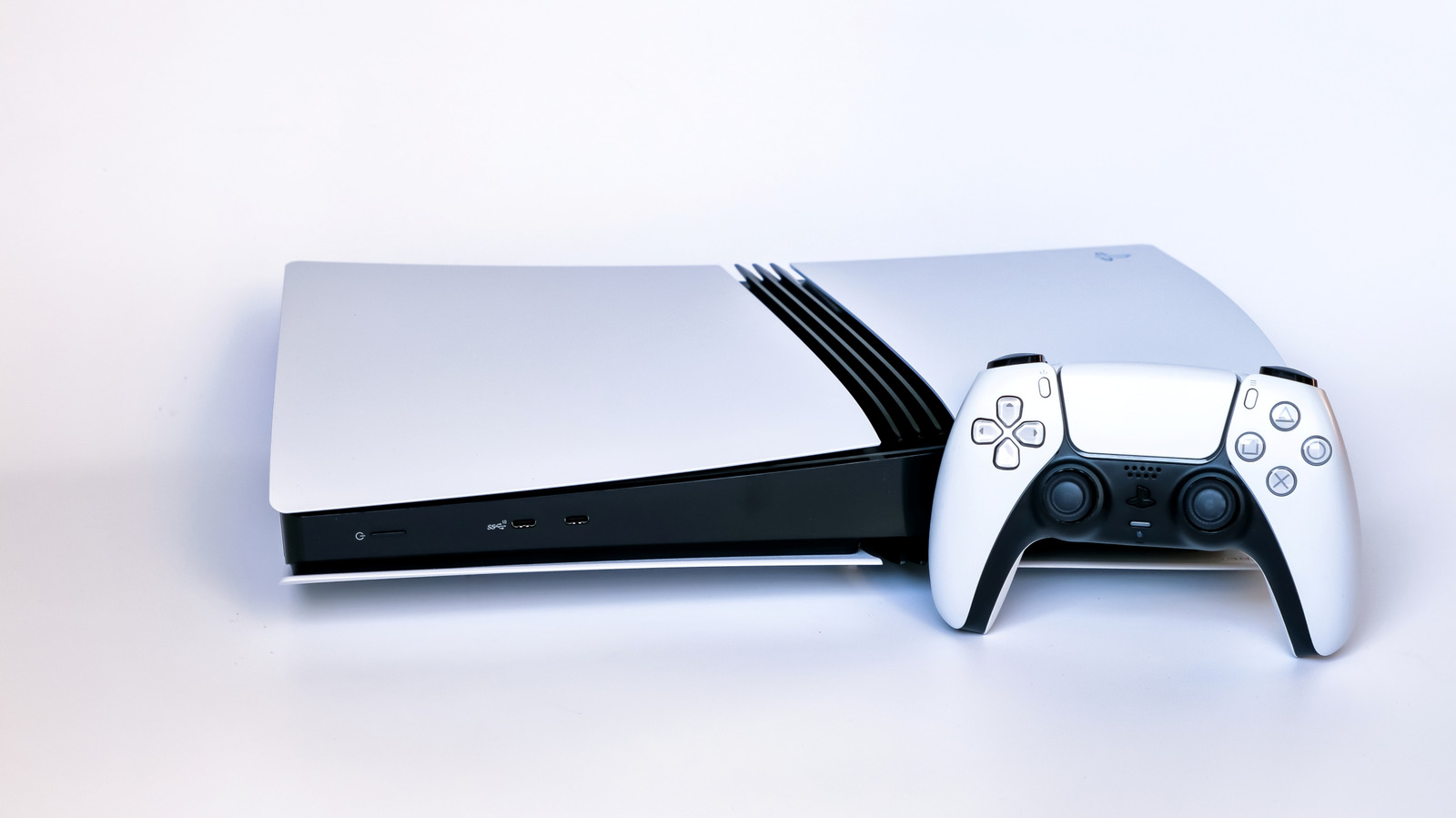
- Solid Orange/Amber on Controller: Indicates that the internal microphone array is actively muted. Pressing the physical mute button beneath the PlayStation logo toggles the microphone back on, returning the light to its default state.
- Pulsing Orange on Controller: Denotes that the controller is currently charging while the console is in Rest Mode (provided the USB power supply settings are enabled).
Rest Mode Architecture: Optimization and Customization
Rest Mode is an engineering triumph that bridges the gap between total system shutdown and operational readiness. Depending on how the user configures the system, a PS5 in Rest Mode consumes only a few watts of electricity while maintaining crucial background connectivity.
How to Access Rest Mode
Users have multiple avenues to safely transition their console into Rest Mode:
- Physical Power Button: A brief press of the power button on the front of the console initiates the sleep sequence. (Note: Holding the power button down for too long will trigger a complete system shutdown or safe mode, so a simple tap is all that is required).
- Control Center: Pressing the PS button on the DualSense controller brings up the Control Center overlay. Navigating to the Power icon and selecting Enter Rest Mode seamlessly transitions the hardware.
Crucial Safety Warning: Never unplug a PlayStation 5 while the orange light is displayed. Because Rest Mode keeps background processes active—such as writing data to the ultra-fast custom SSD—abruptly cutting power during this state can lead to file system corruption, data loss, or operating system instability. Always ensure the system is completely powered off ("Turn Off PS5") and all lights are extinguished before disconnecting the power cable.
Tailoring Rest Mode Settings
Every household utilizes their gaming hardware differently. Fortunately, Sony provides deep customization options for the console’s power profiles. To adjust how and when your console enters Rest Mode, navigate to Settings > System > Power Saving.
- Set Time Until PS5 Enters Rest Mode: Users can independently define the duration of inactivity required before the console goes to sleep, with granular controls separating media playback (such as streaming Netflix or YouTube) from active gameplay. For those who frequently leave their consoles running, this timer can be disabled entirely.
- Features Available in Rest Mode: This submenu unlocks the true potential of the console’s low-power state. Here, users can toggle:
- Supply Power to USB Ports: Essential for charging controllers, headsets, or media remotes while away. Users can choose to supply power always, for 3 hours only, or off entirely to maximize energy savings.
- Stay Connected to the Internet: Allows the system to automatically download game patches and system software updates during off-peak hours.
- Enable Turning on PS5 from Network: A critical feature for remote users, allowing the console to wake up when commanded by a PlayStation Portal, a smartphone running the PS App, or a PC via Remote Play.
Supporting Context, Metrics, and Hardware Diagnostics
As the PlayStation 5 advances through its lifecycle, the hardware is subjected to the realities of aging components, dust accumulation, and thermal cycling. Because modern gaming hardware represents a significant financial investment—especially given post-launch price adjustments and inflation—understanding the difference between benign indicator lights and genuine hardware distress signals is paramount.
Identifying Genuine Hardware Warning Signs
While an orange light is completely normal, other visual and auditory cues indicate that a PlayStation 5 requires immediate inspection or professional intervention.
+-----------------------------------+-----------------------------------+
| Symptom                           | Probable Cause & Solution         |
+-----------------------------------+-----------------------------------+
| Unexpected system shutdowns       | Thermal overload / Overheating.   |
| during intensive gameplay         | Clean vents / replace thermal     |
|                                   | paste.                            |
+-----------------------------------+-----------------------------------+
| Screen flickering, static, or     | Failing GPU, faulty HDMI cable,   |
| multicolored artifacts            | or damaged HDMI port.             |
+-----------------------------------+-----------------------------------+
| Loud fan noise combined with      | Blocked dust catchers, restricted |
| excessive hot air exhaust         | airflow in entertainment center.  |
+-----------------------------------+-----------------------------------+
1. Thermal Management and Overheating
The custom-designed AMD Zen 2 CPU and RDNA 2 GPU architecture inside the PlayStation 5 generate substantial thermal energy. To dissipate this heat, Sony engineered a massive heatsink utilizing liquid metal as the thermal interface material between the processor die and the cooling assembly.
- Causes: Dust accumulation in the console’s dedicated dust catchers, blocked exhaust vents inside enclosed media furniture, or the natural degradation of thermal conductivity over time.
- Symptoms: Unexpected power-downs during graphically demanding sequences, exceptionally loud fan noise, or an on-screen system notification warning that the console is too hot.
- Mitigation: Regularly vacuum the internal dust catcher ports using the designated access points beneath the faceplates. Ensure the console sits in an open, well-ventilated area with at least four to six inches of clearance on all sides. If overheating persists despite cleaning, professional servicing to refresh the liquid metal application may be required.
2. GPU Failure vs. Signal Interference
Visual anomalies are among the most terrifying sights for a console owner.
- Symptoms: Screen flickering, snow-like static, blackouts, or distinct multicolored lines slicing across the display.
- Troubleshooting Steps: Before assuming the worst—that the custom graphics processor is failing—isolate the variables. Swap out the existing HDMI cable for a certified Ultra High Speed HDMI 2.1 cable. Test the console using a different HDMI port on your television or monitor, or plug the system into an entirely separate display.
- The Reality of GPU Failure: If visual glitches persist across multiple displays and cables, the issue likely stems from the APU/GPU hardware. Because modern consoles utilize highly integrated, proprietary system-on-chip (SoC) designs, component-level repairs require specialized micro-soldering equipment. Affected users must typically route their consoles through official Sony repair channels or authorized third-party repair specialists.
Official Statements and Industry Perspective
Sony Interactive Entertainment has consistently emphasized user-friendly design in the architecture of the PlayStation 5’s status indicators. In engineering documentation and support publications, Sony notes that the color-coded LED system was designed to provide instant clarity without inducing panic.
Industry analysts point out that as consumer electronics become more complex, clear visual communication is essential for reducing unnecessary customer service tickets. By establishing a distinct, calming orange hue for Rest Mode—completely separate from the white light of active operation and the potential warning states of other consumer hardware—Sony successfully communicated low-power status at a glance.
Furthermore, hardware engineers emphasize that proactive maintenance is the cornerstone of console longevity. While Sony provides robust firmware support—continuously refining system stability, power profiles, and energy efficiency via over-the-air updates—the physical health of the machine remains in the hands of the consumer.
Future Outlook: Sustaining Hardware in the Latter Half of the Generation
As the PlayStation 5 moves deeper into its lifecycle, the importance of hardware literacy cannot be overstated. Consumers are navigating an economic climate where gaming hardware is increasingly expensive to replace. Understanding that an orange light is a feature, not a flaw, is merely the first step toward responsible ownership.
Looking ahead, users should adopt a maintenance routine tailored to preserving their investment:
- Perform Bi-Annual Cleanings: Removing the outer faceplates to clear out accumulated dust from the fan and internal catchers every six months drastically reduces thermal stress.
- Optimize Power Profiles: Tailoring Rest Mode settings to match personal usage habits not only saves on household electricity bills but also reduces unnecessary thermal cycling on components.
- Monitor Firmware and Performance: Keeping the system software updated ensures compatibility with new features, remote play capabilities (via devices like the PlayStation Portal), and energy-efficiency optimizations released by Sony.
By mastering the signals your PlayStation 5 sends—from the comforting glow of Rest Mode to the subtle cues of controller peripherals—you ensure that your console remains a reliable entertainment hub for years to come.