
Executive Overview
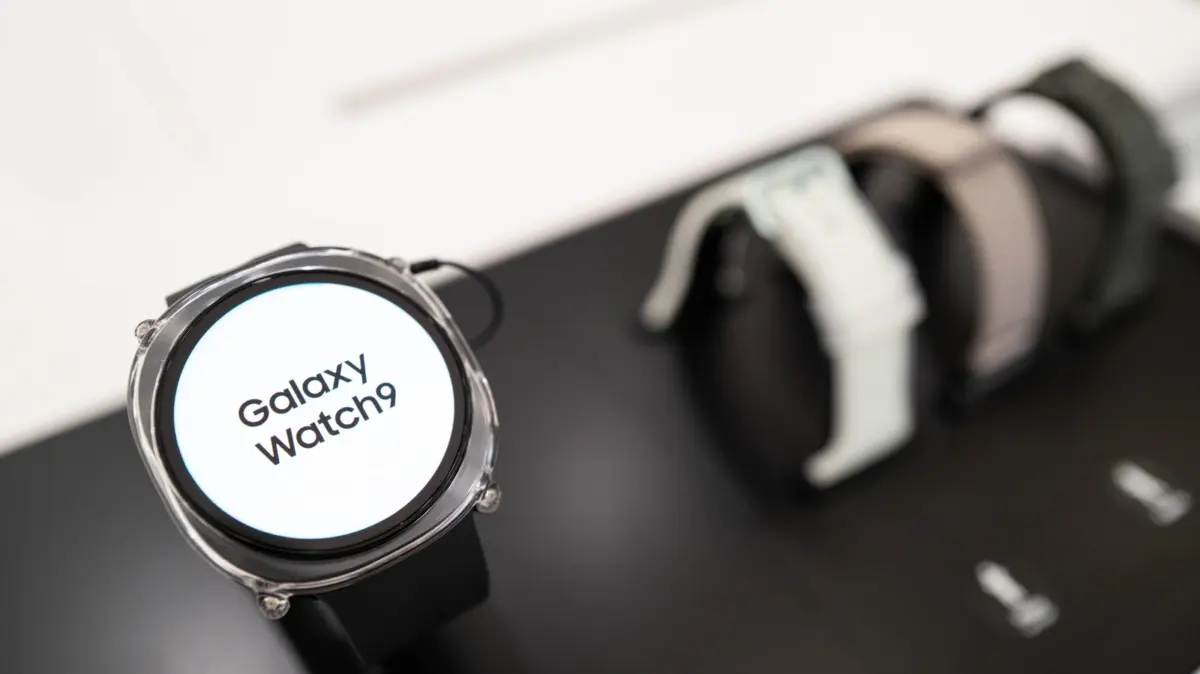
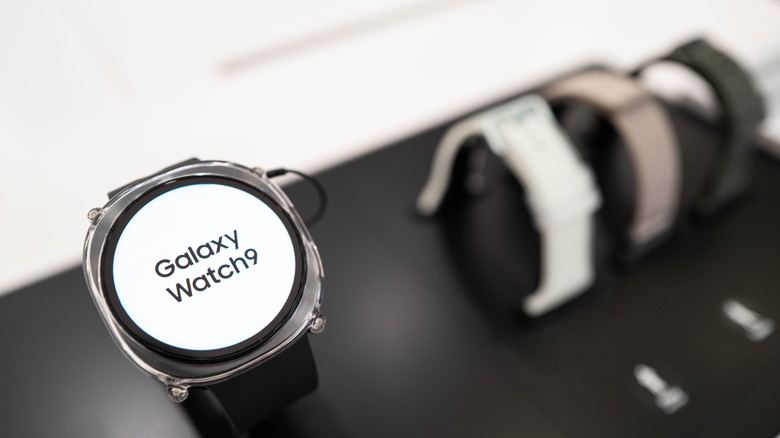
In the rapidly evolving landscape of consumer technology, smartwatches have transitioned from novel, auxiliary accessories to indispensable extensions of our digital lives. Whether you are transitioning to the Samsung ecosystem from a competing platform—such as moving from an Apple Watch Ultra to the latest Galaxy Watch Ultra or navigating Samsung’s flagship Galaxy Watch 8 and Galaxy Watch 9 lineups—adapting to a new user interface (UI) comes with a distinct learning curve.
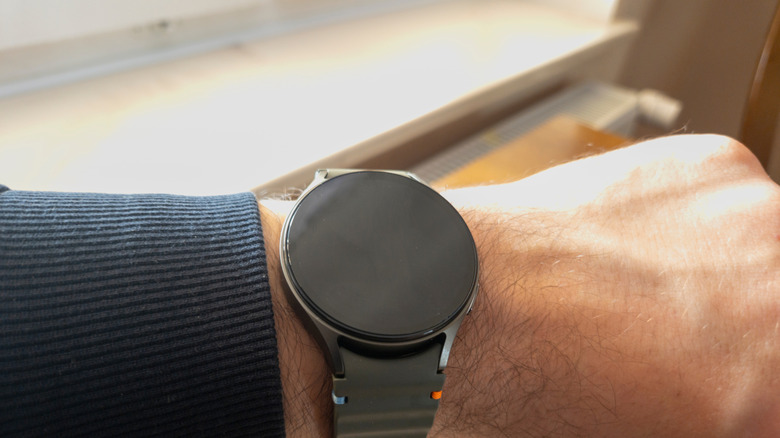
Among the myriad design choices, software cues, and minimalist indicators integrated into Samsung’s Wearable OS, few elements generate as much user curiosity and occasional confusion as the subtle, persistent orange dot that appears on the far-left edge of the watch face.
Far from being a mechanical defect, a rogue dead pixel, or an arbitrary design choice, this tiny luminous marker serves a vital functional purpose in the broader ecosystem of smartwatch ergonomics. It is a dedicated notification indicator designed to alert wearers to unread messages, emails, and alerts without overwhelming the limited real estate of a wrist-worn display.
This comprehensive report breaks down the exact purpose of the orange dot, explores the ecosystem of status indicators that govern modern Samsung smartwatches, and provides step-by-step instructions on how users can customize these alerts to suit their personal preferences.
Detailed Chronology: The Evolution of Notification Indicators in Smartwatches
To understand the current implementation of the orange dot on modern Samsung wearables, it is necessary to examine how notification management has evolved across the smartwatch industry over the past decade.
The Early Days of Wearable Notifications
In the nascent stages of the smartwatch market—marked by the introduction of early Android Wear (later Wear OS) devices and original Tizen-powered Samsung Gear watches—notification management was remarkably intrusive. Every incoming text, social media alert, or app reminder would forcefully wake the watch display, vibrating the user’s wrist and cluttering the home screen with cascading cards.
As processors grew more efficient and OLED display panels became ubiquitous, manufacturers began experimenting with always-on displays (AOD). While AOD offered the classic look of a traditional timepiece, it introduced a new design challenge: how to inform users of pending notifications without cluttering carefully curated watch faces with heavy text or disruptive graphics.
The Transition to Minimalist UI Cues
Samsung, drawing from design philosophies implemented across both its Tizen OS and subsequent iterations of Google’s Wear OS, pioneered the use of subtle visual cues situated at the periphery of the display.
- The Tizen Era: Early Samsung smartwatches utilized small notification badges—often a yellow or orange dot—tucked away to the side of the watch face. This indicated that the user had backlog messages stored in the notification stream.
- The Wear OS Integration: When Samsung transitioned back to Wear OS with the Galaxy Watch 4 series, the company retained and refined this minimalist design language.
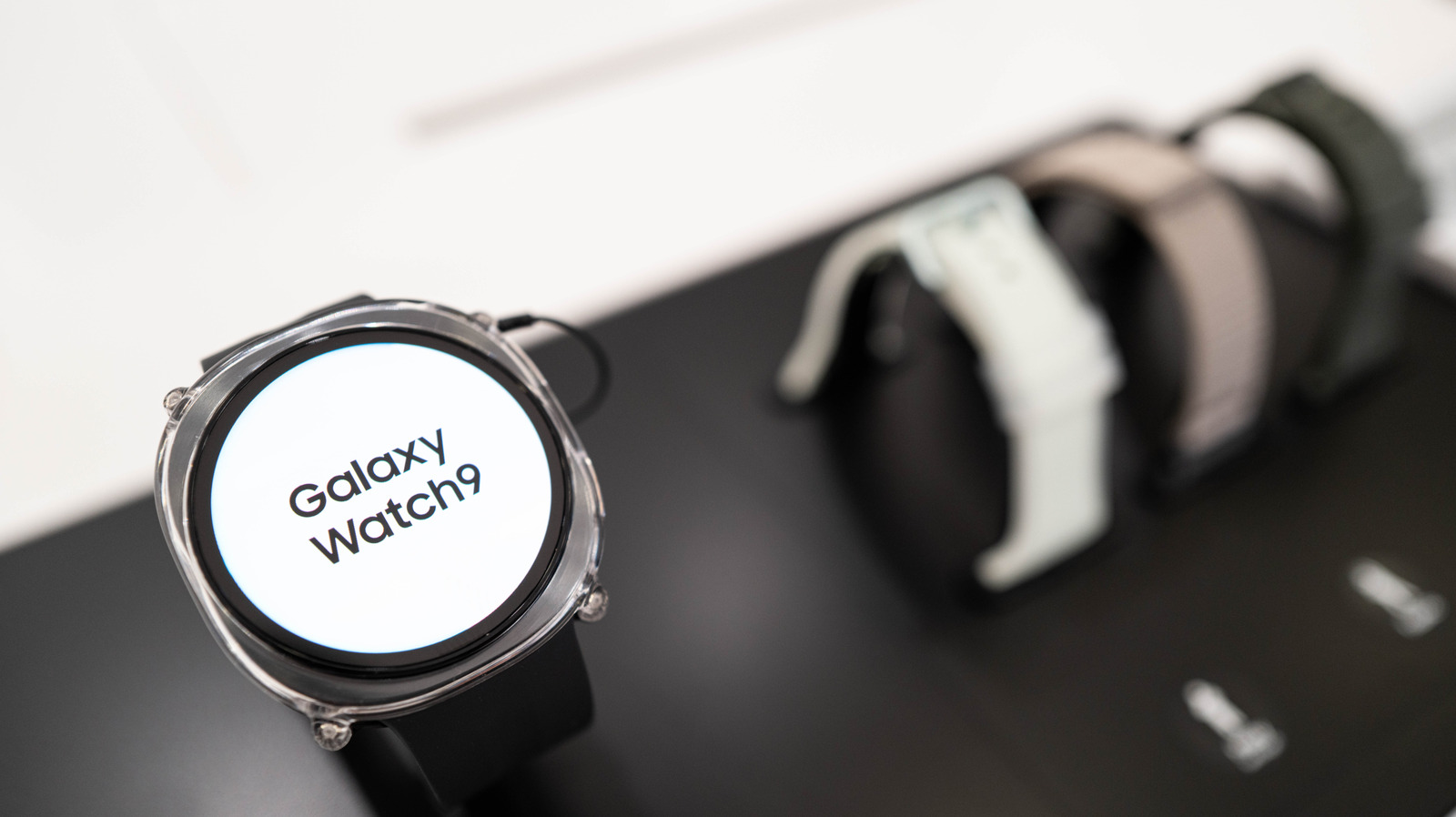
- Current Implementation: On contemporary devices such as the Galaxy Watch 8, Galaxy Watch 9, and Galaxy Watch Ultra, the orange dot remains a steadfast design anchor. It acts as an ambient communication bridge between the user and the device’s notification queue, ensuring that vital information is never missed while maintaining aesthetic cleanliness.
Supporting Context & Metrics: Decoding the Samsung Galaxy Watch Visual Language
Screen real estate on a smartwatch is exceptionally precious. Designers must convey complex system statuses, connectivity states, active media playback, and personal notifications on a display measuring roughly 1.2 to 1.5 inches in diameter. To achieve this, Samsung relies on a standardized visual vocabulary positioned at precise coordinates around the watch face.
The Left Flank: Notification Indicators
The far-left edge of a Samsung Galaxy Watch face is exclusively reserved for notification status updates.
- The Orange Dot: This signifies that you have one or more unread notifications waiting in your inbox. It remains statically positioned on the edge of the screen until you swipe right or manually clear the notification backlog. Once the queue is clean, the dot disappears entirely.
- The Red Dot: While the orange dot denotes standard unread alerts, a red dot indicates a high-priority, urgent message or system warning that demands immediate attention. This could stem from high-priority security alerts, critical calendar reminders, or designated VIP messages.
The Top Header: Connectivity and Security
Scanning to the top of the watch face reveals system-level health and hardware connectivity indicators. Depending on your current operational environment, you may encounter several distinct icons:
- Phone Icon with a Slash: This indicates that your Galaxy Watch has lost its active Bluetooth connection to its paired smartphone. If your watch lacks standalone LTE capabilities, this icon warns you that remote notifications and calls may not sync properly.
- Cloud with a Rectangle: When Bluetooth is disabled or out of range, but your watch successfully switches over to a known Wi-Fi network or an active LTE cellular connection, this icon appears to confirm that cloud synchronization remains active.
- The Padlock Icon: A security indicator revealing that the watch has been locked (either manually or automatically via off-wrist detection). To access applications or sensitive data, you must input your security PIN or pattern.
The Bottom Footer: Media and Telephony
The bottom tier of the watch interface manages active background services, ensuring you can quickly jump back into ongoing tasks:
- The Blue Music Note: This appears whenever a media application (such as Spotify, YouTube Music, or Samsung Music) is running in the background. A static or animated note indicates playback status (playing versus paused). Tapping this icon instantly opens the media controller.
- The Green Phone Icon: This icon surfaces when an active phone call is underway, whether hosted directly on the watch via an LTE connection or routed through your paired smartphone. Tapping it opens the call management interface, allowing you to mute, adjust volume, or end the call.
Official Guidelines & Customization: How to Manage Your Watch Interface
While minimalist indicators are designed to enhance the user experience, they are not universally beloved. Some users prefer an entirely uncluttered watch face, free of dots, icons, or badges. Fortunately, Samsung provides granular control over these visual cues, allowing users to tailor their wrist experience through either the watch itself or the companion smartphone application.
Method 1: Disabling Notification Indicators Directly on the Watch
If you find the orange notification dot distracting, you can disable it directly from your wrist by following these steps:
- Wake up your Samsung Galaxy Watch and swipe up from the main watch face to open the App Drawer.
- Tap on the Settings app (represented by the standard gear icon).
- Scroll down and select Notifications.
- Tap on Advanced Settings.
- Locate the toggle switch labeled New notification indicator on watch face and switch it to the Off position.
Method 2: Disabling Notification Indicators via the Galaxy Wearable App
For users who prefer managing settings on a larger screen, the companion smartphone app offers an identical pathway:
- Open the Galaxy Wearable app on your linked Android smartphone.
- Tap on Watch Settings.
- Select the Notifications menu.
- Navigate into Advanced notification settings.
- Toggle off the New notification indicator on watch face option.
Once toggled off, the orange dot will no longer appear on your watch face, regardless of how many unread notifications reside in your queue. You can still access your unread messages at any time simply by swiping right from the main watch face.
Future Outlook: The Trajectory of Wearable UI Design
As smartwatches continue to mature, the design philosophy driving interface mechanics is shifting toward deeper contextual awareness and adaptive minimalism.
Industry analysts predict that future iterations of watchOS software—spanning Samsung’s Tizen-rooted ecosystems and Google’s broader Wear OS platform—will increasingly leverage micro-LED displays, advanced haptics, and artificial intelligence to minimize visual clutter even further. Rather than relying on static dots or persistent color codes, next-generation wearables may utilize dynamic, contextual lighting or subtle edge-glow notifications that adapt to ambient lighting conditions and user behavior patterns.
Furthermore, as health sensors become more robust—tracking biomarkers ranging from blood glucose estimations to continuous hydration levels—the allocation of screen real estate will become even more competitive. Understanding foundational UI elements like the orange dot ensures that users can master their current devices while remaining prepared for the next wave of wearable computing innovations.