
Executive Overview
In the modern era of ubiquitous digital media, music streaming has evolved from a simple luxury into a fundamental component of our daily lives. Among the frontrunners of this auditory revolution, Apple Music stands out as one of the premier streaming platforms on the market. While its deep roots within the Apple ecosystem make it an obvious choice for iPhone, iPad, and Mac users, its cross-platform accessibility has transformed it into a powerhouse choice for Android users, Windows PC loyalists, and smart TV owners alike.
However, transitioning between multiple devices can sometimes expose a frustrating friction point: the missing music library. You log into your account on a newly purchased tablet or a secondary workstation, only to find that your meticulously curated playlists, favored albums, and custom tracks are entirely absent. This disconnect can make the user experience feel disjointed and labor-intensive.
Fortunately, solving this issue does not require deep technical wizardry. By toggling a single, highly efficient setting known as Sync Library, users can effortlessly unify their musical universe across all registered devices. This comprehensive guide explores the mechanics of Apple Music synchronization, providing step-by-step instructions for every major platform, advanced troubleshooting protocols for stubborn libraries, and strategic insights to elevate your overall listening experience.
Detailed Chronology: The Evolution of Cloud-Based Library Management
To understand why Apple Music synchronization works the way it does today, it is helpful to look back at how we managed digital audio files over the past two decades.
The Era of Tethered Synchronization
In the nascent days of digital music libraries—epitomized by early iterations of iTunes and the original iPod lineup—synchronization was an entirely physical, tethered affair. Users were forced to connect their portable listening devices to a desktop computer via a 30-pin dock connector or USB cable. Music management was localized; if you added an album on your office computer, it did not automatically appear on your home computer or your mobile device unless you manually transferred the files or maintained multiple, identical directory structures.
The Rise of iTunes Match and iCloud Music Library
The paradigm shifted dramatically
in the early 2010s with the introduction of cloud computing. Apple introduced iTunes Match, a service that scanned a user’s locally stored music collection—regardless of whether the tracks were purchased from the iTunes Store or ripped from physical compact discs—and matched them against Apple’s vast cloud catalog. This allowed subscribers to stream or download their personal libraries on up to ten different devices without needing a physical cable.
This laid the infrastructural groundwork for iCloud Music Library, which later evolved directly into the Sync Library feature embedded within Apple Music today. Rather than forcing users to manually sync files through a desktop client, Apple integrated the cloud directly into the operating systems of its hardware portfolio, ensuring that playlist updates, play counts, and newly added tracks propagated seamlessly across the network in real time.
Supporting Context & Metrics: Navigating the Multiplatform Landscape
While Apple Music is heavily optimized for macOS, iOS, and iPadOS, the platform’s expansion onto non-Apple ecosystems has dramatically widened its user base. Understanding how these distinct operating systems handle data streaming and background synchronization is vital for maintaining an uninterrupted listening experience.
Cross-Platform Integration Dynamics
- iOS and iPadOS: Deeply integrated at the operating system level. Background app refresh and iCloud integration ensure that library updates occur rapidly, provided the device has an active internet connection.
- macOS: Serving traditionally as the "master" library hub for many long-time Apple users, the Mac environment allows for granular control over cloud updates, including the ability to manually force cloud refreshes.
- Windows: Handled through the Apple Music app (or the legacy iTunes software for older systems), Windows integration relies on background services that communicate with Apple’s servers, requiring specific user toggles to mirror the behavior of Apple hardware.
- Android: On Google’s mobile operating system, the Sync Library feature is typically enabled by default upon signing in, minimizing the friction for cross-ecosystem users who prefer Android hardware paired with Apple’s music catalog.
Technical Prerequisites for Seamless Syncing
Before attempting to troubleshoot synchronization failures, users must ensure their environment meets specific baseline criteria:
- Account Consistency: Every device must be signed into the exact same Apple Account (formerly Apple ID). Mismatched accounts are the single most common cause of library fragmentation.
- Active Subscription Status: Sync Library functionality relies on an active, paid individual or family subscription to Apple Music. Users operating solely on free tiers or local offline files without a subscription cannot utilize cloud-based synchronization.
- Network Stability: Because library synchronization involves querying Apple’s servers to match and update metadata, an unstable or throttled internet connection can stall the process indefinitely.
Step-by-Step Implementation: How to Enable Sync Library
If you have recently signed into Apple Music on a new device and found your library missing, resolving the issue is straightforward. Follow the platform-specific instructions below to activate your cloud synchronization.
Step 1: Verify Your Apple Account
Before changing any settings, confirm that you are logged into the correct account.
- Open the Apple Music app on your device.
- Navigate to the Home tab and tap your profile picture or account icon.
- Verify that the email address associated with the account matches your primary Apple Account. If it does not, sign out immediately and log back in using your correct credentials.
Step 2: Enable Sync Library on Apple Devices
For iPhone and iPad:
- Open the iOS/iPadOS Settings app.
- Scroll down and tap on Apps.
- Locate and select the Music app from the application list.
- Find the toggle labeled Sync Library and switch it to the On position.
For Mac:
- Open the Music app on your Mac.
- Navigate to the menu bar at the very top of your screen and click on Music.
- Select Settings (or Preferences on older macOS versions) from the drop-down menu.
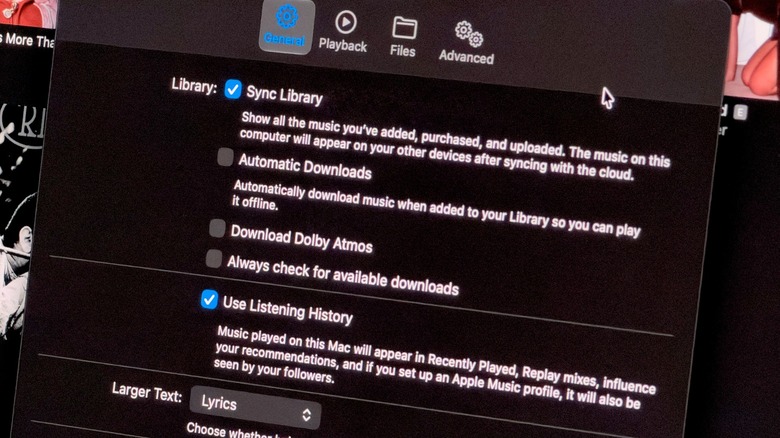
- Under the General tab, check the box next to Sync Library.
- Click OK to save your configurations.
Step 3: Enable Sync Library on Windows PCs
- Open the Apple Music app on your Windows computer.
- Locate the navigation interface and click the three-dot menu button to open the menu options.
- Select Settings.
- Locate the Sync Library toggle within the general settings panel and enable it.
Step 4: Understanding Android Behavior
For users on Android devices, the Sync Library feature is pre-enabled by default upon initial sign-in. In most cases, Android users do not need to manually adjust this toggle, provided their account credentials are correct and an active internet connection is established.
Note on Initial Sync Times: The first synchronization process can be resource-intensive, particularly for users with expansive local music libraries comprising tens of thousands of tracks. If your songs do not appear instantaneously, leave the Apple Music app open and connected to Wi-Fi for several minutes to allow the servers to fully populate your device.
Advanced Troubleshooting: What to Do When Apple Music Won’t Sync
Even when settings are correctly configured, occasional glitches can prevent your library from updating. If you encounter persistent synchronization errors, apply the following advanced troubleshooting strategies.
Forcing a Cloud Library Update
If your Mac or Windows PC refuses to reflect recent changes made on your mobile device, you can manually command the application to check for updates:
- On macOS: Open the Music app, click the File menu at the top of the screen, hover over Library, and select Update Cloud Library.
- On Windows: Locate the equivalent cloud update command within the application sidebar.
(Note: Mobile operating systems—iOS and Android—do not feature a manual cloud update button; users on these platforms must rely on automated background syncing.)
Environmental Diagnostics and Quick Resets
If manual updates fail, systematic environmental checks can isolate the root cause:
- Check Connectivity: Ensure your mobile device is connected to a stable Wi-Fi network. Many operating systems restrict heavy cloud synchronization tasks while on cellular data to preserve data caps.
- Disable Low Power Mode: Battery conservation modes frequently throttle background network activity and data refreshing, which can inadvertently pause Apple Music library updates. Disable Low Power Mode in your device settings while attempting to sync.
- The Power Cycle Reset: Sometimes a hard reset of the setting is required. Navigate back to your device’s music settings, turn Sync Library completely Off, wait approximately 30 seconds, and then turn it back On.
- Re-authenticate Your Account: If all else fails, sign out of your Apple Account entirely within the device settings, restart the device, and log back in to force a complete re-establishment of your cloud handshake.
Handling Non-Subscribers and Offline Libraries
It is important to note that users who do not maintain an active Apple Music subscription—relying instead entirely on locally managed offline libraries stored on a Mac or PC—cannot utilize cloud synchronization. For these users, the only viable method for moving a library between computers is the manual transfer of the physical Music folder via external storage media, utilizing legacy Apple iTunes or the modern Apple Devices utility.
Future Outlook: The Next Generation of Cloud Audio Management
As audio engineering and consumer technology continue to converge, the future of music streaming points toward even deeper integration, enhanced streaming fidelity, and predictive cloud management.
The Rise of Lossless and Spatial Audio Integration
Synchronizing a standard compressed audio file is technologically straightforward, but managing massive, high-resolution files presents entirely new challenges. With Apple Music offering vast catalogs of Lossless Audio (ranging from CD-quality 16-bit/44.1 kHz up to Hi-Res Lossless 24-bit/192 kHz) and Dolby Atmos-powered Spatial Audio, the volume of data moving across the cloud is exponentially increasing.
Future iterations of library synchronization are expected to leverage advanced predictive caching algorithms. These systems will anticipate which devices you are transitioning to—based on time of day, location, and connected hardware peripherals (such as AirPods Max or home audio receivers)—and pre-sync optimized audio file formats to minimize bandwidth consumption and eliminate latency.
Expanding Ecosystem Agnosticism
As antitrust scrutiny and consumer demand push tech giants toward greater interoperability, we can anticipate Apple further refining its cross-platform experiences. While Apple Music is already accessible on Android, Windows, select smart TVs, and gaming consoles, future software updates will likely streamline the initial onboarding and synchronization processes, making the experience indistinguishable from using native Apple hardware.
Optimizing Your Listening Experience Beyond Syncing
While ensuring your library stays impeccably synchronized across your devices is the foundational step, users should take the opportunity to explore other advanced audio settings while navigating their application preferences. Upgrading your streaming and download quality settings from High Quality to Lossless can dramatically enhance your auditory experience, provided your playback hardware (wired headphones, external DACs, or high-end home theater systems) is capable of reproducing the expanded dynamic range.
By mastering the simple yet powerful Sync Library toggle and understanding the troubleshooting pathways detailed in this guide, you can ensure that your personal soundtrack follows you effortlessly—wherever life takes you.