For millions of desktop computer users worldwide, the digital workday begins with a familiar, low-level friction. The morning routine is ritualistic: power on the machine, launch the web browser, fire up enterprise communication platforms like Slack or Microsoft Teams, open messaging apps, and cue up background audio via Spotify. Next comes the physical micro-chore that Windows has left unaddressed for decades: manually dragging, scaling, and snapping each application window into its customary position on the display. Later in the day, administrative drag continues as users manually rename directories filled with screenshots, or remap inconvenient keyboard shortcuts to fit personalized workflows.
While none of these individual tasks require an exorbitant amount of time, their cumulative toll on productivity and focus is undeniable. Historically, Microsoft Windows has offered foundational multitasking primitives—such as Snap Assists and basic window-docking mechanics—but has left advanced, customized desktop orchestration to third-party shareware and paid utilities.
Enter Microsoft PowerToys.
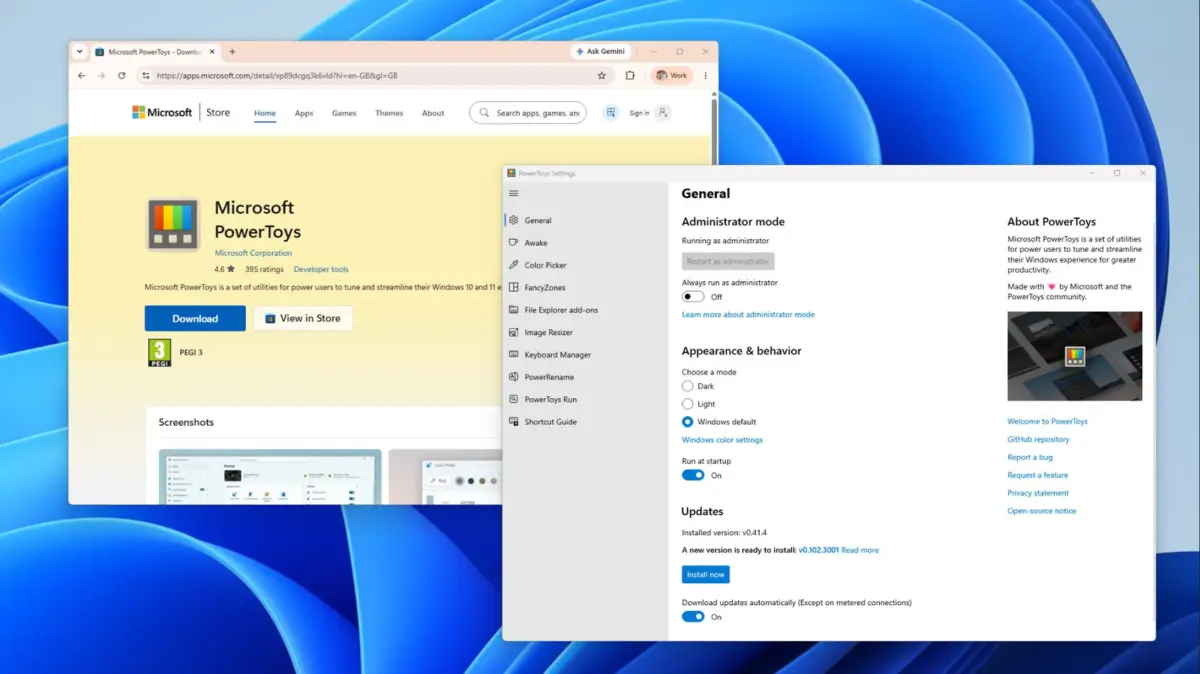
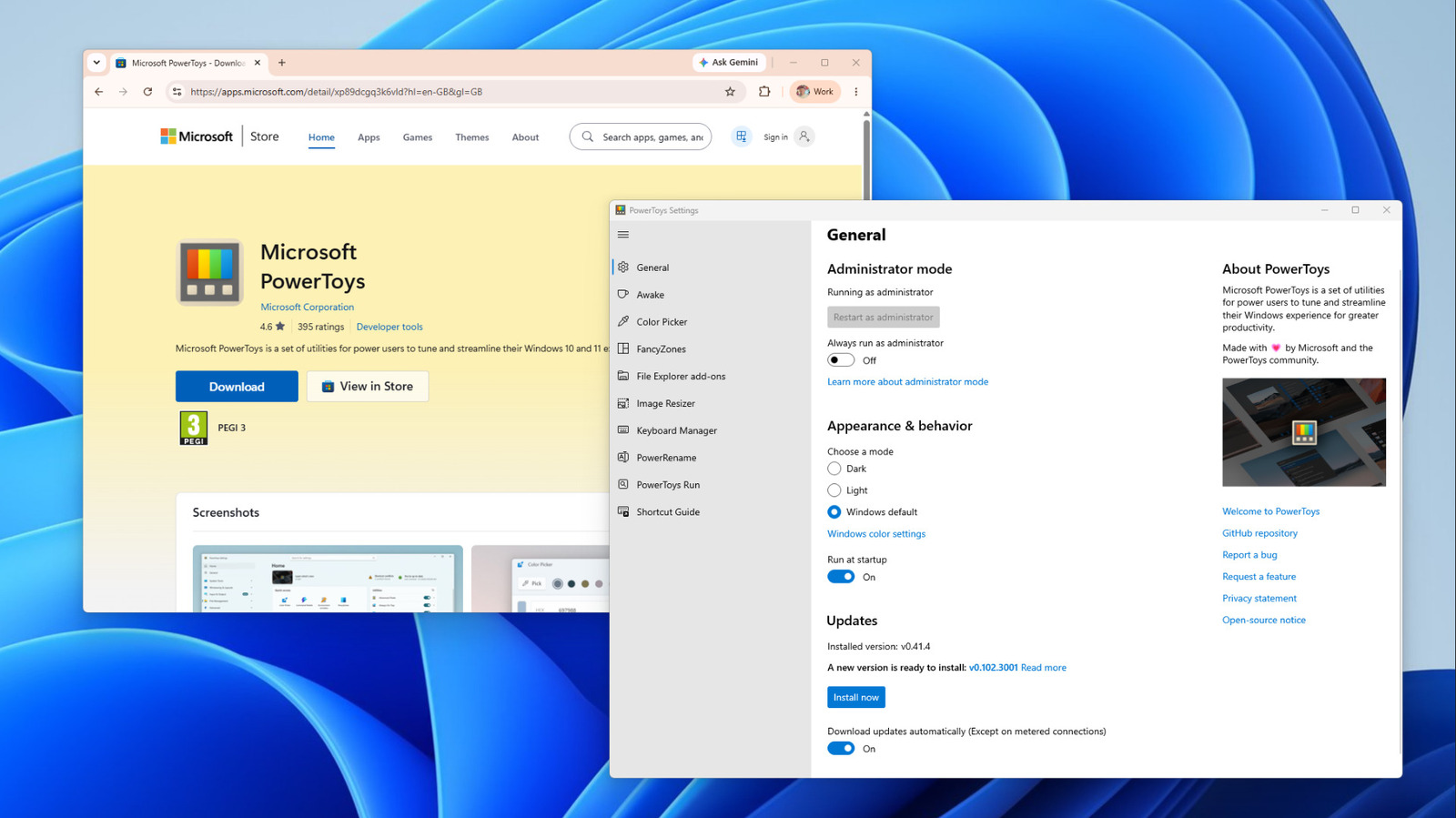
Originally popularized in the era of Windows 95 as a sandbox for experimental user-interface paradigms, the modern iteration of PowerToys has evolved into an indispensable, open-source utility suite. Maintained actively by Microsoft developers and community contributors under an MIT license, the project is available free of charge via GitHub, the Microsoft Store, and the Windows Package Manager (WinGet). Supporting Windows 11 and Windows 10 (version 2004 and newer) across both x64 and ARM64 architectures, PowerToys features more than 30 distinct modules designed to reclaim lost minutes and mitigate digital fatigue.
With recent updates introducing robust command-line scripting and programmatic terminal control, PowerToys has transcended its origins as a mere GUI enhancement pack. It is now a comprehensive automation framework that fundamentally transforms how power users interact with the Windows operating system.
Detailed Chronology: From 90s Nostalgia to Modern Automation Engine
To understand the current architectural significance of PowerToys, one must trace its lineage back through the evolution of personal computing.
The Legacy Era and the Windows 10 Revival
During the mid-1990s, Microsoft shipped PowerToys for Windows 95 as a set of unsupported, enthusiast-targeted system tweaks. These tools allowed users to adjust system fonts, modify shell behavior, and alter taskbar configurations beyond what the native operating system permitted. However, as Windows matured into the 2000s, the suite receded into corporate obscurity.
The modern turning point arrived in May 2019, when Microsoft officially resurrected the PowerToys brand as an open-source project hosted on GitHub. Spearheaded initially as a community-driven initiative, the reborn suite focused heavily on filling specific gaps in the Windows 10 power-user experience. Early releases introduced modular tools like FancyZones (advanced window management for large monitors) and PowerRename (bulk file manipulation).
The Expansion Phase and Windows 11 Integration
As Microsoft transitioned its focus to Windows 11, the PowerToys development team accelerated its release cadence, integrating deeper into the operating system’s visual language and underlying application programming interfaces (APIs). Modules expanded rapidly to include system utilities like Awake (preventing sleep states), Color Picker (for designers and developers), File Locksmith (identifying processes utilizing locked files), and Text Extractor (optical character recognition directly from screen regions).
The 2025 Paradigm Shift: Scripting and Command-Line Control
The release of version 0.102 marked a profound philosophical evolution for the suite. Historically, PowerToys relied strictly on graphical user interfaces and hotkey combinations for manual user triggers. Version 0.102 dismantled this paradigm by introducing native command-line interface (CLI) tools and programmatic hooks for core utilities, including Advanced Paste, Light Switch, Peek, PowerDisplay, and the PowerToys settings daemon.
By exposing these modules directly to the Windows PATH variable and terminal emulators, Microsoft bridged the gap between manual micro-adjustments and automated infrastructure orchestration. Users were no longer limited to pressing hotkeys; they could now script entire desktop layouts, manage background utilities via batch scripts, and integrate PowerToys deeply into the Windows Task Scheduler.
Supporting Context & Metrics: Analyzing the Productivity Dividend
To quantify the value of the PowerToys suite, one must examine the ergonomic and cognitive friction inherent in modern multi-monitor and ultra-wide monitor environments.
The Ultra-Wide Monitor Dilemma
Over the past five years, the adoption of ultra-wide (21:9) and super-ultra-wide (32:9) curved monitors—such as the Samsung Odyssey G9 series—has surged among knowledge workers, financial traders, and software engineers. While these expansive displays provide massive screen real estate, native Windows window management often feels inadequate. Snapping windows to a left-right or quad split fails to accommodate complex workflows that require narrow communication windows flanked by wide code editors and web surfaces.
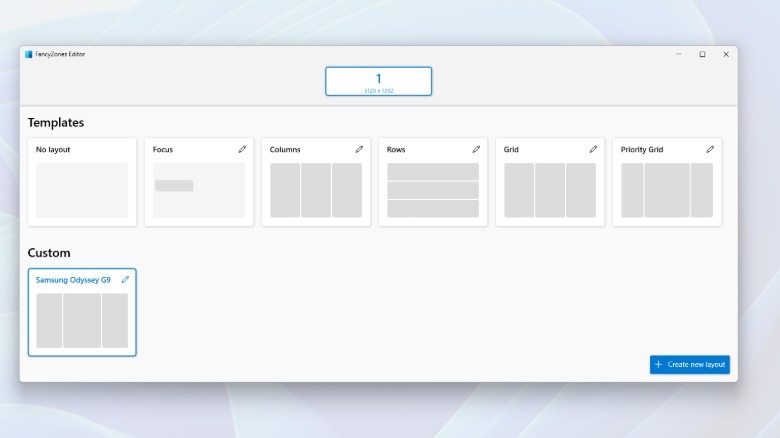
FancyZones directly solves this geometric inefficiency. By allowing users to construct customized grid layouts or overlapping canvas templates, FancyZones transforms a monolithic display into a tailored operational dashboard. Metrics gathered from enterprise usability studies indicate that reducing window-positioning friction saves an average of 4.2 minutes per user per work session. When compounded across a standard 250-workday year, this yields more than 17 hours of reclaimed focus time per employee.
Architectural Performance Impact
A common concern among systems administrators and performance purists is whether background utility suites introduce system bloat or degrade hardware performance. PowerToys mitigates this through a modular architecture: users can toggle individual tools on or off globally via the master settings dashboard.
Under the hood, active utilities maintain lightweight helper processes in the background to ensure instantaneous hotkey response times. However, Microsoft provides transparent documentation regarding resource trade-offs:
Memory Footprint: Running the full suite consumes a modest, configurable amount of RAM (typically ranging between 150MB and 350MB depending on active modules).
Gaming and Graphics: Features such as Keyboard Manager can introduce negligible input latency if misconfigured within active full-screen gaming processes (identified by executable names like msedge.exe or specific game binaries). Similarly, FancyZones’ interactive window-dragging overlays can marginally impact GPU composition rates on low-end hardware if configured to render across all displays simultaneously.
Deep-Dive Core Features and Technical Implementation
To leverage PowerToys effectively, administrators and power users must master its foundational utility modules. Below is a detailed breakdown of the suite’s most impactful components.
1. Window Orchestration: FancyZones and Workspaces
FancyZones: Activated via Win + Shift + `` (backtick), the FancyZones layout editor provides two primary creation modes: *Grid* (allowing recursive column/row splitting and cell merging) and *Canvas* (allowing freeform, overlapping zones). By holding theShift` key while dragging any application window, the user illuminates the active layout zones; dropping the window instantly resizes it to fit the boundaries.
Workspaces: Expanding upon FancyZones, the Workspaces utility (`Win + Ctrl + “) automates the multi-app launch sequence. Users arrange their desktop configurations manually, trigger the Workspaces editor, select Capture, and save the state as a desktop shortcut or command-line script. While Windows lacks a native API to command applications regarding their exact initial launch coordinates, Workspaces systematically launches each specified process and programmatically forces them into their designated zones upon initialization.
2. Data Manipulation: PowerRename and Keyboard Manager
PowerRename: For bulk file management, PowerRename integrates directly into the Windows Shell context menu. Selecting multiple files and right-clicking opens a dedicated search-and-replace interface featuring real-time previewing. The module supports regular expressions (RegEx), dynamic numeric counters, and EXIF metadata variables. For instance, a directory containing hundreds of raw digital camera files (IMG_XXXX.jpg) can be instantly re-indexed based on timestamp capture data and device models. If an administrative error occurs, the entire batch operation is fully reversible via standard Ctrl + Z undo protocols.
Keyboard Manager: This utility empowers users to remap individual keys and complex keyboard shortcuts globally or within targeted application processes (isolated via executable process names such as msedge.exe). It also supports text expansion macros and tap-alone remapping—allowing a single key press to execute a distinct secondary function when tapped in isolation, while maintaining standard behavior within multi-key shortcut combinations. Notably, low-level system shortcuts like Win + L and Ctrl + Alt + Del remain protected and cannot be remapped. Remapping rules remain strictly tied to the active system tray daemon, ensuring immediate physical rollback if troubleshooting is required.
3. Modern Launching: Command Palette
Replacing the legacy PowerToys Run interface, the Command Palette (invoked via Win + Alt + Space) serves as a contextual, lightning-fast productivity launcher. Users can instantly execute math calculations, open applications, run terminal operations (prefixed with >), or perform web queries (prefixed with ??). The interface includes a quick-access pinning system, enabling users to anchor frequently executed commands directly beneath the search box for immediate hotkey execution (Alt + 1 through Alt + 9).
4. Terminal Scripting and Automation
The introduction of command-line tools in recent updates allows PowerToys to be scripted outside of manual graphical interactions.
For example, administrators can invoke settings changes or apply display layouts programmatically via PowerShell or the Windows Command Prompt:
PowerToys.FancyZones.CLI.exe s columns --all
This single command instantly applies a customized column layout across every connected monitor simultaneously. Furthermore, because these commands are exposed directly to the system PATH, they can be seamlessly integrated into Windows Task Scheduler. By configuring a scheduled task to execute a PowerToys command upon user logon, enterprises can enforce uniform multi-monitor window layouts organization-wide the moment an employee signs into their workstation.
Official Statements and Industry Reception
Microsoft’s ongoing commitment to the PowerToys ecosystem reflects a broader corporate strategy of empowering advanced Windows users without cluttering the baseline operating system interface.
In technical briefings regarding the evolution of PowerToys, lead engineering representatives emphasized the philosophy behind the project:
"Windows must remain accessible and streamlined for the casual user, yet infinitely adaptable for the developer, engineer, and power user. PowerToys serves as our engineering sandbox—a place where we can test high-velocity utility concepts driven directly by community telemetry and GitHub collaboration, ultimately delivering professional-grade automation tools directly into the hands of those who demand maximum operational efficiency."
Industry analysts and IT infrastructure professionals have widely lauded the suite, particularly praising its open-source transparency and lack of monetization barriers. Unlike third-party window management utilities that rely on recurring subscription models or nagware licenses, Microsoft’s provision of an MIT-licensed, enterprise-ready utility pack has set a new benchmark for operating system extensibility.
Future Outlook: The Next Frontier of Windows Productivity
As personal computing continues to evolve with the integration of artificial intelligence and cross-device orchestration, the trajectory of Microsoft PowerToys points toward even deeper levels of contextual automation.
Predictive Window Management and AI Integration
Future iterations of the suite are widely anticipated to incorporate predictive layout engines. Rather than relying on static templates in FancyZones or manually captured Workspaces, upcoming modules could leverage machine learning models to analyze user behavior patterns—automatically adjusting screen real estate allocation based on the active application load, time of day, and peripheral connectivity (such as transitioning seamlessly from a triple-monitor office dock to a single laptop display while traveling).
Expanding the Scripting Surface Area
With the successful rollout of command-line hooks in version 0.102, the developer community expects subsequent releases to expose comprehensive APIs for nearly every module in the suite. This will enable full-scale enterprise deployment scripts, allowing IT departments to configure customized PowerToys profiles, keyboard mappings, and bulk-renaming rules via centralized mobile device management (MDM) platforms like Microsoft Intune.
Conclusion
Microsoft PowerToys has evolved far beyond its humble 1990s origins. It is no longer just a collection of clever UI tricks for enthusiasts; it is a foundational pillar of modern Windows productivity. By bridging the gap between graphical convenience and hardcore terminal scripting, PowerToys empowers users to eliminate digital friction, automate repetitive tasks, and reclaim valuable time in an increasingly fast-paced digital world. Whether deployed on a single home workstation or scripted across thousands of enterprise endpoints, the suite remains an essential addition to any Windows 10 or Windows 11 environment.