
Executive Overview
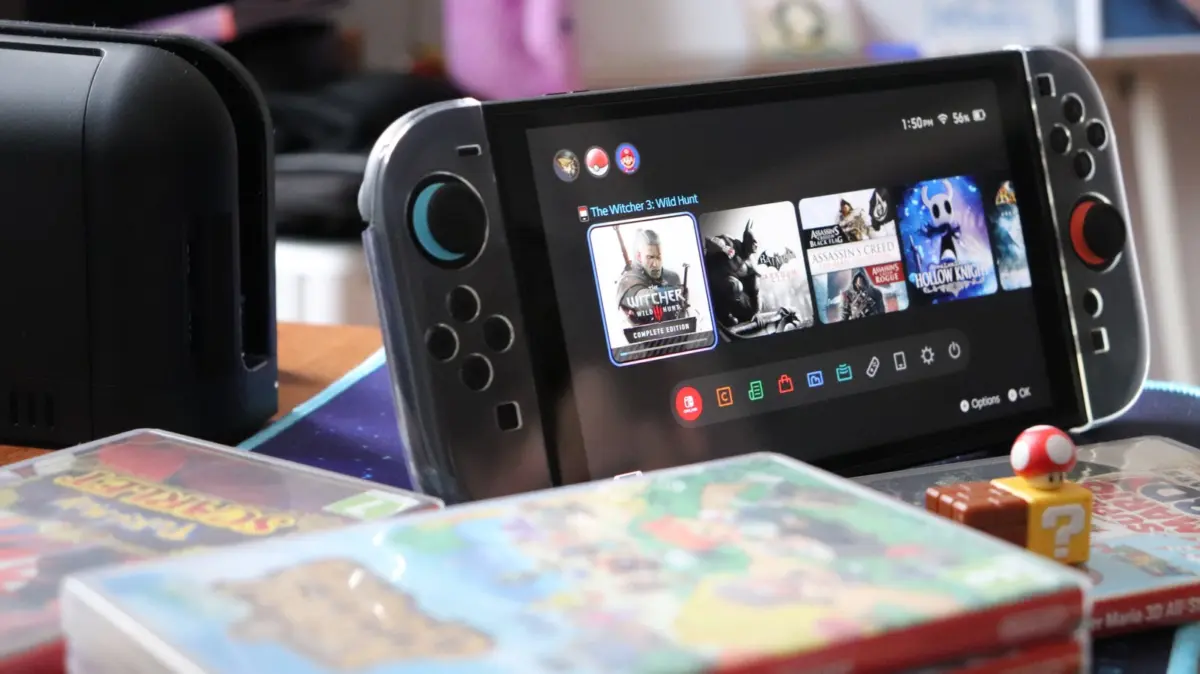
The hallmark feature of Nintendo’s hybrid gaming ecosystem is its seamless transition capability—allowing players to effortlessly move from immersive, portable handheld gaming on the go to a cinematic, large-screen experience in the living room. However, when hardware generations evolve, so too do the technical specifications, power profiles, and data transmission standards required to bridge the gap between portable consoles and modern television displays.
For owners of the next-generation Nintendo Switch 2, encountering a blank screen, an unresponsive console, or a complete failure to handshake with an external display can quickly transform game night into a frustrating technical puzzle. While hardware incompatibility, loose connections, or software glitches are usually the culprits, they can often be resolved with a structured diagnostic approach.
This guide provides an authoritative, step-by-step troubleshooting protocol designed to help users isolate power delivery issues, verify HDMI 2.1 data pathways, optimize television display settings, and adjust internal console configurations. By methodically working through these hardware and software checks before contacting Nintendo Support, users can quickly diagnose whether the issue stems from a faulty cable, an unpowered dock, a misconfigured television setting, or an outdated system firmware.
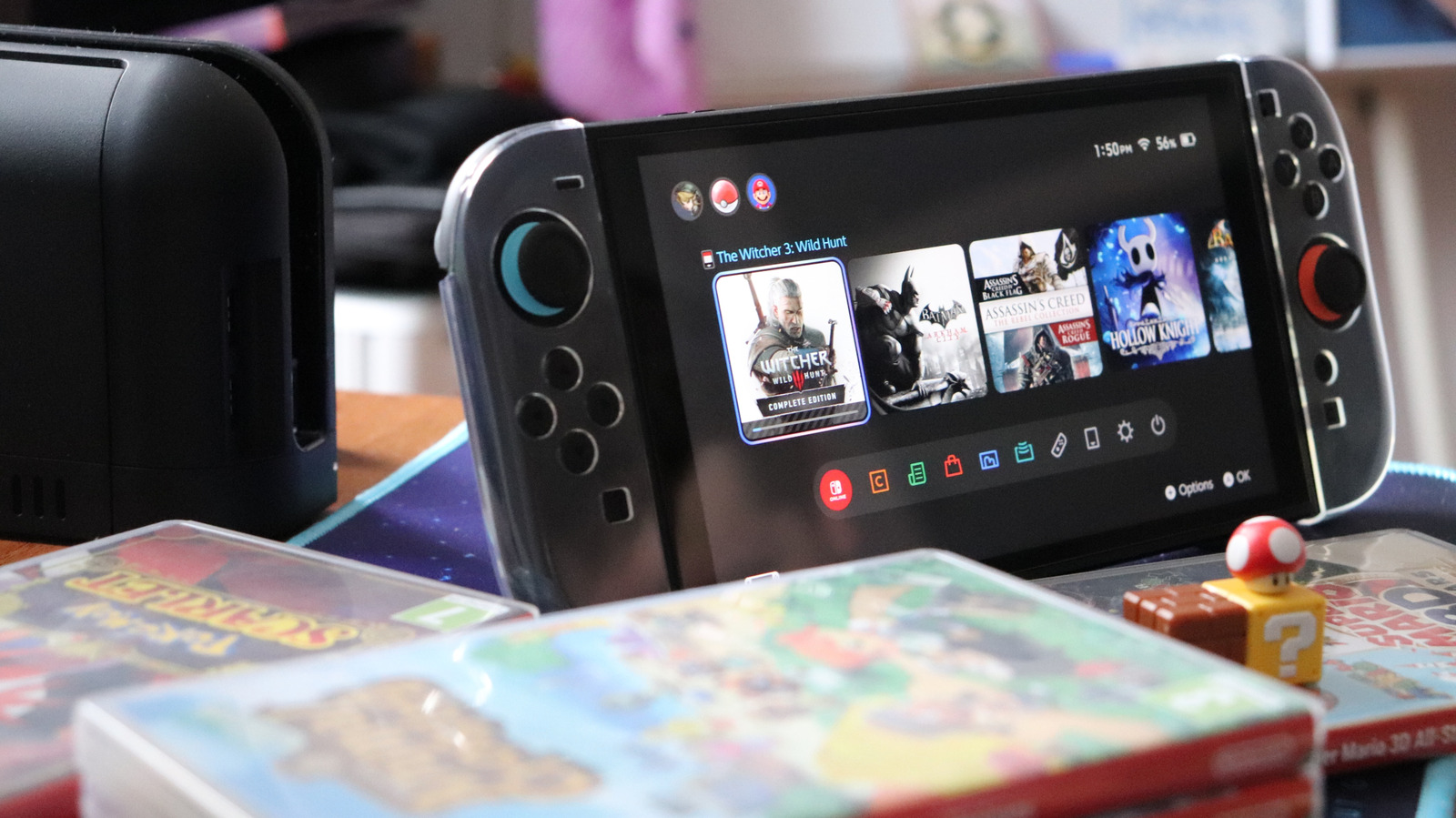
Detailed Chronology of the Troubleshooting Protocol
When your Nintendo Switch 2 fails to project an image onto your television, blindly swapping cables or plugging and unplugging hardware rarely yields results. Instead, technical experts recommend a sequential, methodical diagnostic process. By systematically eliminating variables—starting from the power source and moving outward to the display settings and console firmware—you can pinpoint the exact failure point.
Step 1: Power Cycle and Power Source Verification
The foundation of any stable video output signal is consistent, reliable electrical power. The Nintendo Switch 2 demands significantly more electrical wattage than its predecessor, making power supply integrity paramount.
- Initiate a Total Hard Reset: Begin by powering off your television completely. Remove the Nintendo Switch 2 handheld console from its dock. Unplug the AC adapter from both the wall outlet and the rear port of the dock. Leave all components completely disconnected and powered down for approximately 30 seconds to allow internal capacitors to fully discharge.
- Inspect the Dock’s Internal Panel: The Switch 2 dock features a sleek rear access panel housing three dedicated ports. The uppermost port is exclusively designated for the AC power supply.
- Reconnect Power Sequentially: Plug the AC adapter securely back into the top port of the dock first, then plug the other end directly into a verified, functional wall outlet. Avoid power strips or extension cords if you suspect power delivery inconsistency. Ensure the handheld console is slotted back into the dock precisely, with its display screen facing forward, making firm contact with the USB-C port at the base.
- Evaluate the Physical Power Infrastructure: Inspect the entire length of the official Nintendo AC adapter cable for signs of fraying, crimping, or splitting. If you are utilizing a third-party power supply, verify that it delivers a minimum output of 54W. Standard smartphone chargers or legacy first-generation Nintendo Switch adapters lack the requisite electrical draw to sustain a continuous TV-mode connection on the Switch 2, frequently resulting in a black screen or intermittent power drops.
Step 2: Test and Validate the HDMI Connection
Once power delivery has been verified and optimized, the next critical variable in the chain is the data transmission pathway between the dock and your television.
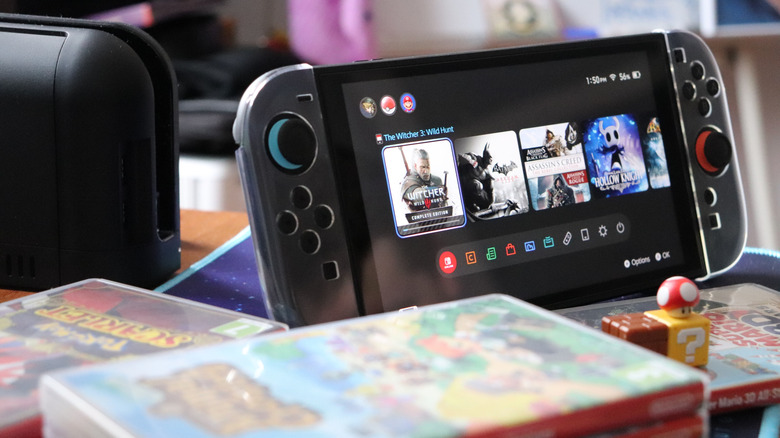
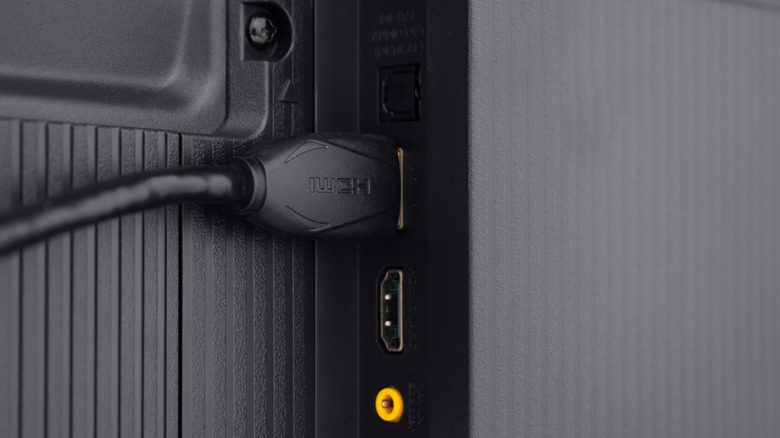
- Deploy an Ultra High Speed (UHS) HDMI Cable: Locate the dual-ended HDMI cable that shipped packaged with your Nintendo Switch 2. This is an Ultra High Speed (UHS) HDMI cable engineered to support massive 48Gbps bandwidth thresholds and robust HDMI 2.1 protocol requirements.
- Avoid Legacy Cables: Do not attempt to use older HDMI cables or the stock cable from a first-generation Nintendo Switch. These legacy wires lack the bandwidth capabilities required to handle the native resolutions and refresh rates outputted by the Switch 2’s upgraded internal hardware.
- Connect to an HDMI 2.1 Port: Plug one end of the UHS HDMI cable into the HDMI-out port located on the rear panel of the Switch 2 dock. Plug the opposing end into an HDMI-in port on your television. For optimal performance, connect to an HDMI 2.1 port, which natively supports ultra-high-definition gaming at demanding refresh rates.
- Account for Backward Compatibility Limitations: While UHS HDMI cables are technically backward-compatible with older HDMI 1.0 or HDMI 2.0 ports, plugging the dock into an aging television port will artificially throttle your visual output. High-end display metrics—such as native 4K resolution at 120Hz or 8K at 60Hz—will be restricted by the hardware limitations of the television port itself.
Step 3: Optimize Television HDMI and Display Settings
Even with a pristine power supply and an ultra-high-speed data cable, modern smart televisions often require manual configuration to properly recognize external gaming consoles.
- Access Advanced Display Menus: Using your television’s remote control, navigate to the system settings menu. Look for sub-menus labeled Picture Settings, Advanced Settings, or External Device Manager.
- Enable Gaming Enhancements: Locate and enable specialized features designed to reduce input lag and optimize frame delivery. Depending on your television manufacturer (such as LG, Samsung, Sony, or TCL), toggle on options such as Auto Low Latency Mode (ALLM), Game Mode, HDMI Ultra HD Deep Color, or Input Signal Plus specifically for the HDMI port into which the Switch 2 dock is plugged.
- Select the Correct Source Channel: Ensure your television input selector is explicitly matched to the correct HDMI port number. If the display remains black, try briefly pressing the physical power button on the handheld console while it remains securely seated inside the dock to force an output handshake. Additionally, ensure your game controllers are fully charged and actively paired to wake the system from sleep mode.
Step 4: Examine Handheld Software and Console Settings
If external troubleshooting yields no results, the root cause of the communication failure may reside within the Nintendo Switch 2’s operating system, display settings, or system firmware.
- Check for System Software Updates: Undock the handheld console and power it on independently. Outdated system firmware can frequently cause handshake errors with modern television protocols. Navigate to System Settings > System > System Update to ensure your console is running the absolute latest software build released by Nintendo.
- Adjust Resolution Output Parameters: While still in handheld or tabletop mode, dive deeper into the console’s display preferences. Go to System Settings > Display > TV Resolution. Switch this setting from a fixed output to Automatic, or manually select the exact resolution (e.g., 1080p or 4K) that natively matches your television’s maximum capabilities.
- Enable HDMI CEC Handshake Protocols: Within the display menu, toggle on the setting labeled Match TV Power State. When enabled, this feature utilizes HDMI-CEC (Consumer Electronics Control) technology to automatically power on your television set and switch to the correct input channel the exact moment you power on or dock your console. Note: Legacy television models manufactured prior to the widespread adoption of HDMI-CEC may not support this automated wake feature.
Supporting Context & Technical Metrics
Understanding the engineering specifications behind the Nintendo Switch 2 hardware helps clarify why strict adherence to power and cable standards is non-negotiable.
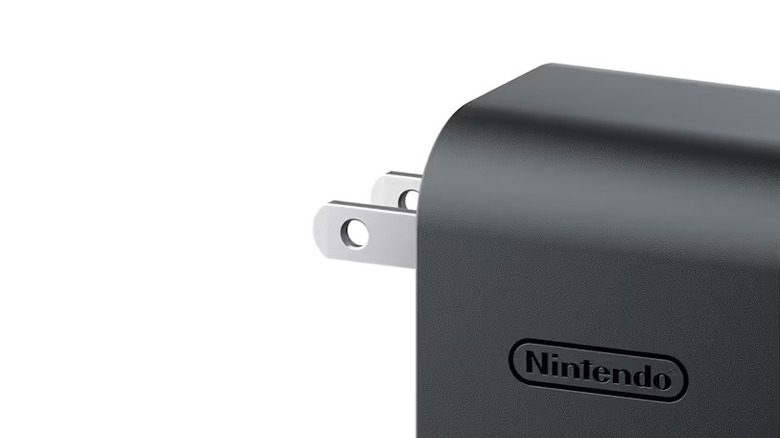
- Power Requirements: Unlike the original Nintendo Switch—which comfortably operated on a lower-wattage mobile chipset—the Switch 2 features enhanced GPU and CPU architectures capable of pushing higher fidelity graphics and accelerated frame rates in docked mode. This necessitates an AC adapter capable of delivering a minimum continuous output of 54W. Official replacement adapters are available directly through Nintendo’s accessories portal for approximately $35.
- Bandwidth Standards: The inclusion of an Ultra High Speed (UHS) HDMI cable in the box is a direct response to the console’s technical ceiling. Supporting a 48Gbps bandwidth threshold under the HDMI 2.1 specification, the hardware can reliably transmit uncompressed 4K video feeds at fluid 60Hz refresh rates, or high-framerate 1080p feeds running at a blistering 120Hz.
- Port Identification Challenges: A common hurdle for consumers is the lack of physical labeling on older or mid-tier television chassis. Many modern displays feature a mix of HDMI 2.1 and legacy HDMI 2.0 ports, with only specific ports supporting advanced gaming features like ALLM and variable refresh rates (VRR). Consulting television manufacturer specifications (such as LG’s OLED documentation or Samsung’s Neo QLED manuals) is often required to identify the optimal port.
Official Statements & Industry Guidance
Hardware manufacturers and consumer electronics advocates consistently emphasize that supply chain integrity is the leading cause of external display failure.
In official support documentation addressing external display connectivity, Nintendo stresses the importance of using certified, first-party accessories: "Using unverified third-party power adapters, split cables, or legacy display wires can introduce voltage drops and signal degradation that prevent a successful HDMI handshake between the console dock and the display device."
Furthermore, industry consumer advocacy groups note that as home entertainment centers become increasingly complex—incorporating audio-visual receivers (AVRs), soundbars, and multiple gaming platforms—HDMI handshaking failures have become one of the most common tech-support pain points for modern households. Isolating the Nintendo Switch 2 by connecting it directly to the television’s primary HDMI 2.1 port, rather than routing it through an unpowered switcher or legacy sound system, remains the gold standard for troubleshooting.
Future Outlook
As the hardware lifecycle of the Nintendo Switch 2 progresses, consumers can expect ongoing firmware refinements from Nintendo designed to improve handshaking compatibility with an even broader array of third-party smart televisions, computer monitors, and capture cards.
However, as display technologies continue to advance toward 8K resolutions, higher refresh rate ceilings, and complex HDR formatting standards, the margins for error in cable quality and power delivery will only tighten. Users investing in high-performance gaming setups will benefit from auditing their home entertainment infrastructure—ensuring that all power delivery bricks, HDMI cables, and display ports meet or exceed modern transmission standards.
If you have executed every step outlined in this diagnostic protocol—testing multiple UHS HDMI cables, verifying power output with official 54W adapters, testing alternate TV ports, and confirming that your console firmware is fully up to date—and your Switch 2 still refuses to project to an external display, the issue likely points to internal hardware failure within either the console’s USB-C port or the dock’s internal motherboard. In such cases, consumers are advised to reach out directly to Nintendo Support to arrange a repair evaluation, which may require mailing in both the console and the dock for professional diagnostic servicing.